ADONIS + ADOGRC Setup Guide
This document will guide you through the setup process of ADOGRC. As ADOGRC is based on ADONIS, the steps to setup ADONIS are required and additionally the ADOGRC-specific steps outlined in this document.
Preparation
This document is designed to give an overview of all the necessary configurations for a standard ADOGRC installation.
Installation Checklist
Before You Start
Read the ADOGRC Hardware/Software Requirements to make sure that all system requirements are met.
Keep the installation medium ready.
Keep the ADOGRC Application library, the ADOGRC Technical Users and Roles packages and the ADOGRC license file ready. Optionally also keep the sample migration packages ready.
Consult the ADONIS Installation Manual on how to setup the software.
Read through this document to learn which ADOGRC specific changes must be applied compared to a standard ADONIS setup.
Content of the Release Package
Customers are provided with a release package of ADOGRC by their respective BOC consultant. This package contains all necessary files to set up ADOGRC Standard.
The ADOGRC package contains the following folders:
01 Installation Manual
Installation Manual
This is the ADONIS Installation Manual and describes all necessary steps to get a new installation up and running. The setup process is the same for ADONIS and ADOGRC, however, there are some additional steps specific to an ADOGRC installation which are detailed in this document.Database Manuals
For a regular installation the database can be created and prepared automatically by the command line tool provided by BOC. You can find details and parameters in the respective Database Manuals in this folder. In case you need more control over how exactly the database is created, it is possible to create a database manually using only SQL scripts and the tools provided by the Database System vendor. This folder contains manuals for MS SQL Server, Oracle and PostgreSQL, the scripts can be found in "02 Application Server\dbinfo"
02 Application Server
BOC
This folder contains the BOC Application Server component which you can install with the provided setup program or by manually copying the files to a location of your choice.dbinfo
This folder contains SQL scripts with which you can create an ADOGRC database manually without the aid of the tool provided by BOC.
03 Web Application
- This folder contains the ADOGRC web client as well as a sample configuration for Apache Tomcat and 3rd-party tools.
04 Sample Data
- This folder contains sample data of ADONIS and ADOGRC illustrating its use.
Setup of ADOGRC
To install ADONIS + ADOGRC successfully, it is necessary to setup ADONIS according to the ADONIS Installation Manual with the additional steps outlined below.
Database Setup
To successfully create a new database for ADOGRC, you can use the command line tool provided by BOC. In addition to the Application Server files you need the ADOGRC Application library and the ADOGRC License.
Information and examples on how to create a database can be found in the respective Database Manual of your database system in the folder "\01 Installation Manual\"
Select the Standard ADOGRC library shipped with the release package in the folder "\02 Application Server\BOC\ADOGRC 13.0.0_ADONIS 16.1\data" or a custom library provided by your BOC consultant.
Select the ADOGRC license provided by your BOC consultant.
Import Technical Users and Roles
In order to run ADOGRC successfully, Technical Users and Roles are needed to run background jobs and provide functionality. In order to import these into an existing database, use the provided packages located in the Sample Data folder.
Import the users from the package "\04 Sample Data\Users\ADOGRC 13.0.0 - Technical Users.axr". For information on how to import users, please refer to the relevant section of the ADONIS Administration manual
Import the roles from the package "\04 Sample Data\Roles\ADOGRC 13.0.0 - Technical Roles.axr". For information on how to import users, please refer to the relevant section of the ADONIS Administration manual
Configuration of Technical Users
The ADOGRC Technical Users provide crucial services for ADOGRC and therefore have to be configured correctly to run ADOGRC successfully. ADOGRC uses 3 Technical Users, which are GRC-Scheduler, GRC-Notification and Technical.
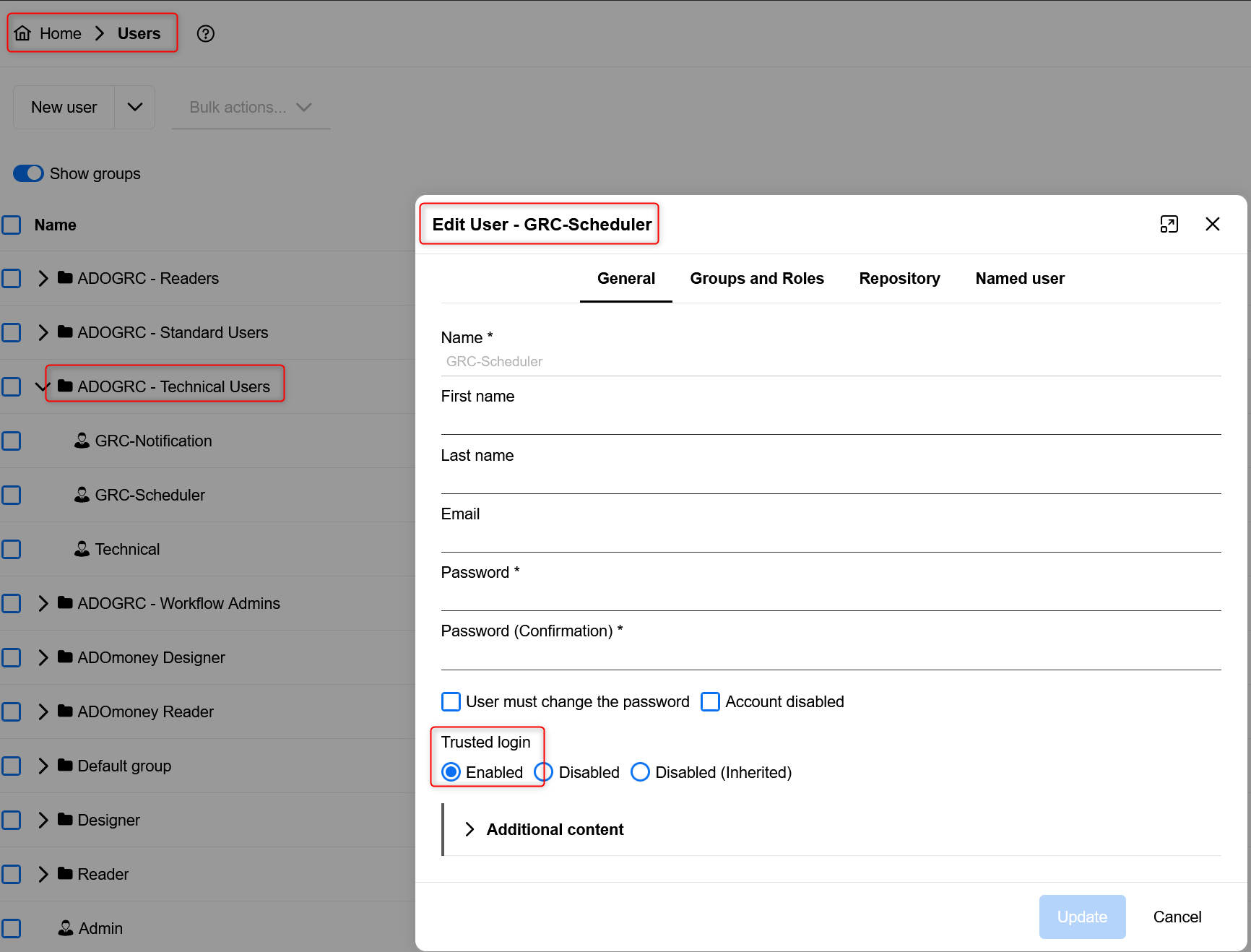
Verify that the Technical Users have Trusted Login permissions
Trusted login allows the Technical Users to provide background services without supplying a password. This is required for ADOGRC to work correctly.
Open the Users Scenario in the ADONIS + ADOGRC Administration und open the users in the ADOGRC - Technical Users user group. Verify that Trusted Login is set to Enabled.
For details on how to work with the User Management in the ADONIS + ADOGRC Administration, please refer to the relevant section of the ADONIS Administration manual.Verify that the Technical Users have been configured correctly in the System Settings
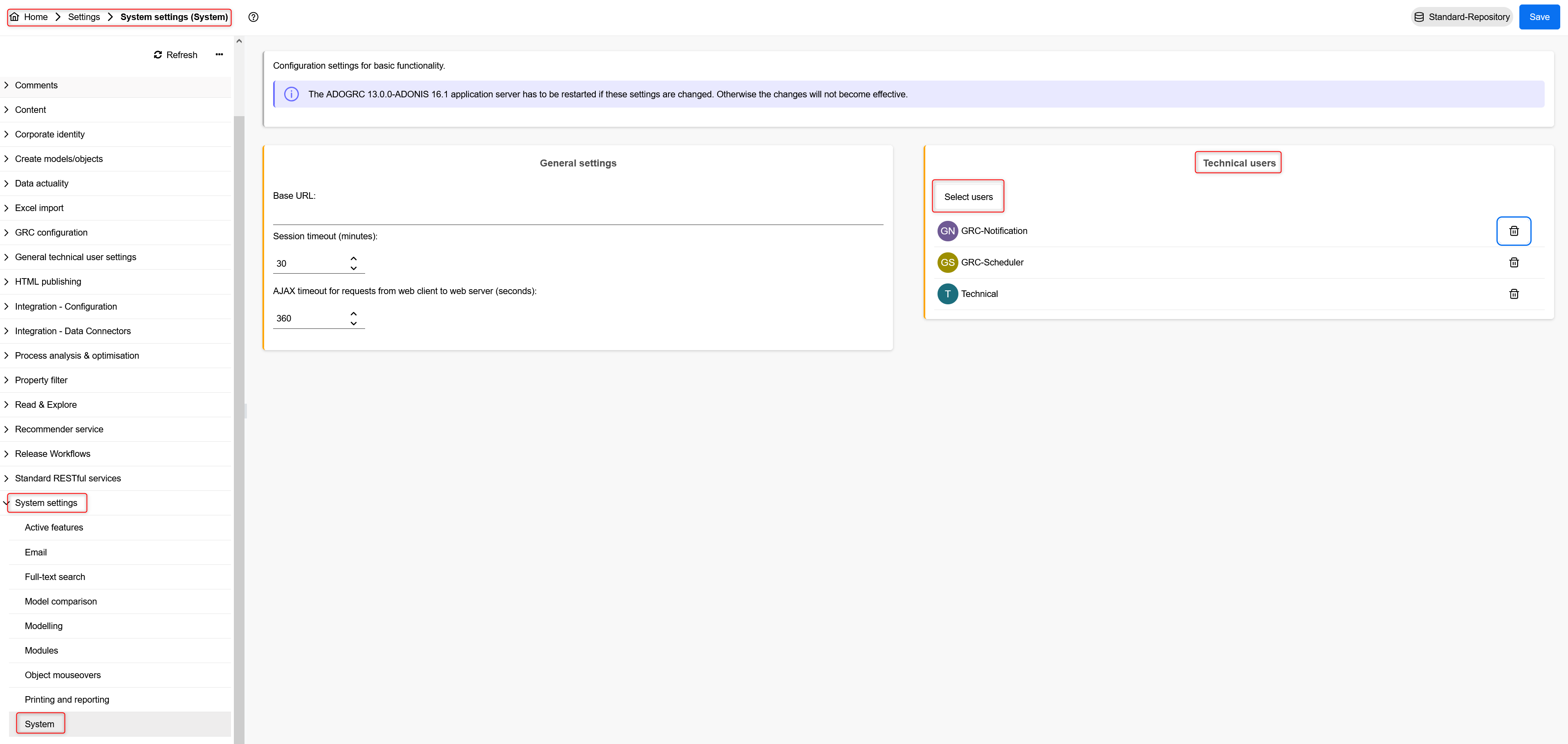
Technical Users have to be set in the System Settings.
Open Settings in the ADONIS + ADOGRC Administration and then open the System Settings branch. Select System and verify on the right side of the page that the ADOGRC Technical Users are listed. In case they are not listed here, add them by clicking the Select users button and selecting them from the dialog which opens.Verify that the Technical Users have been configured correctly in the ADOGRC Settings
The Technical Users also need to be set in their respective ADOGRC settings: Configuration of GRC-Notification, Configuration of GRC-Scheduler and General Technical User Settings.
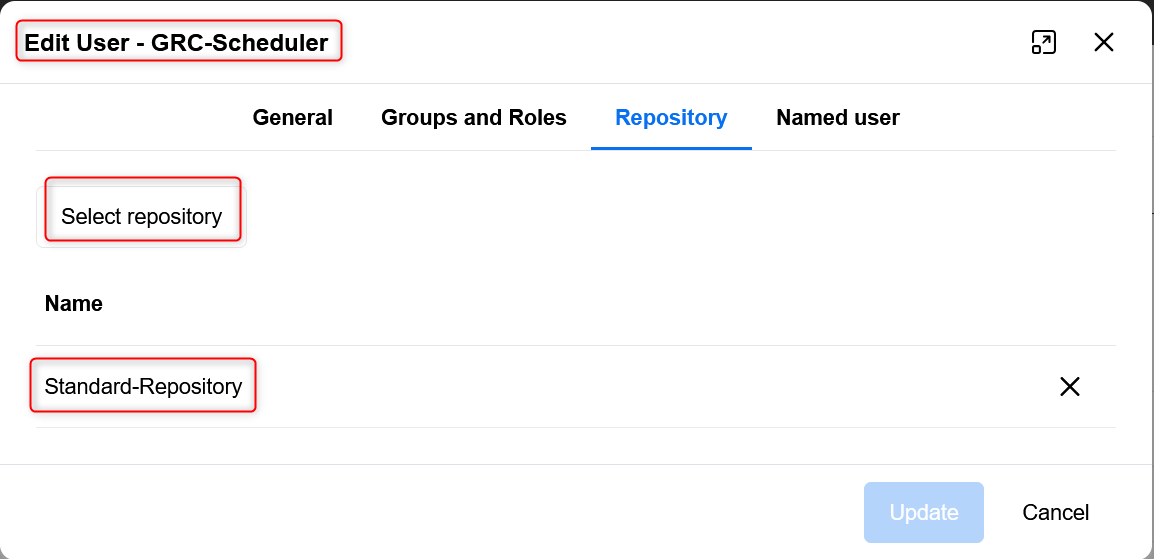
Verify that the Technical Users are assigned to all Repositories where they should perform their services.
To assign a Repository to the Technical Users, open them in the User Management of the ADONIS + ADOGRC Administration and use the Select repository button to assign the Repositories you wish to enable for the Technical User.
For details on how to work with the User Management in the ADONIS + ADOGRC Administration, please refer to the relevant section of the ADONIS Administration manual.Verify that the Technical Users are assigned to the necessary system roles
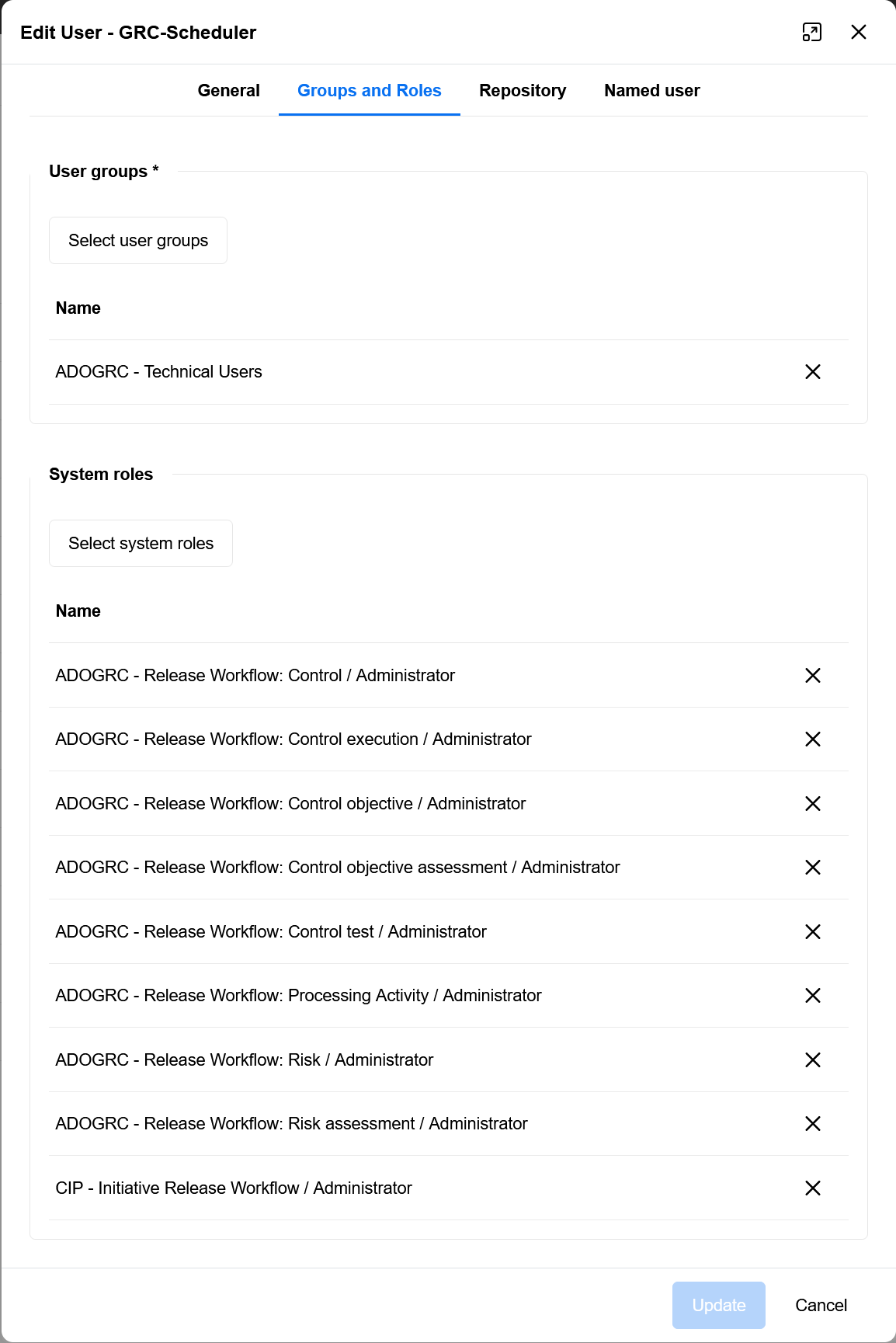
In order to be able to schedule objects for workflow tasks and notify users about pending actions, the Technical Users need the necessary Workflow Roles to perform their tasks.
The Technical, GRC-Scheduler and GRC-Notification technical users need the Administrator system role of every active workflow to be able to execute actions on ADOGRC objects as well as the ADOGRC (CIP) Initiative Release Workflow.
To add System Roles, open them in the User Management of the ADONIS + ADOGRC Administration and use the Select system roles button. For details on how to work with the User Management in the ADONIS + ADOGRC Administration, please refer to the relevant section of the ADONIS Administration manual.
After import and configuration of the Technical Users and Roles, a restart is required.
Optional: Import ADOGRC Sample Data
ADOGRC provides Sample Data which can be imported into an existing database. The Sample Data package also includes the Technical Users and Roles described above so there is no need to import them separately.
Import the Sample Data from the package "\04 Sample Data\Migration Package\ADOGRC 13.0.0 - Sample Data Migration Package.axr". For information on how to import a migration package in the Repository Management in the ADONIS + ADOGRC Administration, please refer to the relevant section of the ADONIS Administration manual
Configuration of ADOGRC System Roles
ADOGRC allows for fine-grained configuration of roles which should match a user's role in the customer's organisation and processes. It is crucial to configure these roles properly so each user has the appropriate permissions to complete their tasks in the ADOGRC workflows.
ADOGRC Workflow Roles
The workflow roles are used to give users access to the ADOGRC workflow functionality, such as performing transitions and creating new versions of objects. These system roles are automatically provided by the ADOGRC Application library. There are two roles for each ADOGRC workflow:
Administrator:
The Administrator role enables the user to intervene in operational workflows, such as declining/rejecting an object out of its normal workflow procedure. This is especially helpful in cases where an object is "stuck" in a certain state due to external factors (e.g. if the currently responsible employee left the company).User:
The User role is the standard role assigned to every user who will be executing object release workflow transitions.
ADOGRC Additional Workflow Roles
These additional workflow roles enable additional supporting features for the ADOGRC workflows on the user interface and are required to use the respective workflow.
When a user is assigned to a workflow role, they always have to be assigned to the corresponding additional workflow role of the same class. There is one MFB role for each ADOGRC object class, e.g. if you assign a user to the system role ADOGRC - Release Workflow: Control Execution / User, then this user also has to be assigned to the additional workflow role GRC-Release Workflow: Control Execution*.
Note that for the ADOGRC object classes Control Objective, Control Objective Assessment and Processing Activities there are no additional workflow roles.
ADOGRC Scenario
The ADOGRC Scenario is assigned to each user individually and depends on the ADOGRC License used. It provides access to the ADOGRC Scenario page, dashboards and workflows.
To assign a user to the ADOGRC Scenario, open them in the User Management in the ADONIS + ADOGRC Administration, switch to the Named User tab and click the Select scenarios button. Once a user is assigned the ADOGRC Scenario, the number of used and maximum licenses are shown next to the scenario.
To be able to use the functionality of the ADOGRC Scenario, the user also needs to be assigned the ADOGRC System Roles required to work with the objects in the ADOGRC Scenario. Which roles the user is assigned depends on the intended role of the user in the workflows.
A user needs always at least the GRC Contributor system role to be able to view objects in the ADOGRC Scenario and participate in the ADOGRC workflows.
If the user's roles are not sufficient for the ADOGRC Scenario to work properly, there is a notification when assigning the ADOGRC Scenario to a user.
Typical Role Assignments
The following table lists the typical role assignments a user should have to participate in the respective ADOGRC workflows and activities:
| Typical role assignments for workflow | Roles needed by the user |
| Risk Master Data |
|
| Risk assessment |
|
| Control Master Data |
|
| Control testing |
|
| Control execution |
|
| Control objective Master Data |
|
| Control objective assessment |
|
| Processing Activity Master Data |
|
| Initiative |
|
| GRC-Reader |
|
ADOGRC Workflow Variants
Some ADOGRC workflows support multiple variants how the approval of the workflow is handled. These configurations can be implemented by BOC, please contact your BOC consultant for more information.
ADOGRC also supports implementation of various customizations according to the customer's needs. For such customer-specific customizations, it is necessary to set up a separate project with BOC Specialists delivering a solution to the customer's specifications. Please contact your BOC consultant for more information on these advanced topics.
Technical Configuration of ADOGRC
ADOGRC provides automated jobs to assist users in their daily tasks. It can schedule objects within the workflow to prepare them for the tasks users have to execute. It can also notify users about upcoming tasks and warn if a deadline was missed. It is therefore important that these jobs are configured correctly. The configuration can be accessed in the Settings section of the ADOGRC + ADONIS Administration.
ADOGRC Scheduler
The configuration of the ADOGRC Scheduler consists of three important settings which need to be configured correctly for the Scheduler to be able to execute its tasks:
Enable ADOGRC Scheduler
This settings turns the ADOGRC Scheduler functionality on or off. The Scheduler should only be turned off for maintenance and other tasks outside of the normal use of ADOGRC. Changing this setting requires a restart of the services.Note: If the application is in Maintenance mode, the ADOGRC Scheduler does not execute any tasks.
Schedule (cron definition)
This setting is responsible for setting the desired run times of the ADOGRC Scheduler. The notation follows the cron syntax used in Linux operating systems for running jobs as described here. The default run time is every hour between 06:00 and 23:00. Changing this setting requires a restart of the services.Technical user
This setting defines in which technical user context the ADOGRC scheduler is executed. ADOGRC provides a pre-configured GRC-Scheduler technical user which, generally, should not be changed. However, if changes must be made, please be aware that changing the technical user has an effect on other settings as well (settings in the ADONIS web client).
Note: The GRC-Scheduler technical user must be assigned to the Administrator role of each activated ADOGRC workflow.
ADOGRC Notification
The configuration of the ADOGRC Notification service consists of four important settings which need to be configured correctly for notifications to be sent out to users:
Enable ADOGRC notifications
This setting turns the ADOGRC Notification scheduler on or off. Please be aware that the ADOGRC Scheduler checks ADOGRC objects in the workflow and determines if notifications should be sent.
This means that even if the ADOGRC Notifications are turned off with this settings, the notifications tasks are created and remain waiting to be sent. If the ADOGRC Notifications are turned on at a later point, this may lead to a very large number of notifications being sent for past actions.
Changing this setting requires a restart of the services.Note: If the application is in Maintenance mode, the ADOGRC Notification scheduler does not execute any tasks.
Schedule (cron definition)
This setting is responsible for setting the desired run times of the ADOGRC Notifications scheduler. The notation follows the cron syntax used in Linux operating systems for running jobs as described here. The default run time is once every five minutes.
Please note that if the GRC-Scheduler and GRC-Notifications are configured to only run once per day, they should not be run at the same time. Set the GRC-Notifications schedule to run after the Scheduler to make sure notifications get sent out on time. Changing this setting requires a restart of the services.Technical user
This setting defines in which technical user context the ADOGRC Notification scheduler is executed. ADOGRC provides a pre-configured GRC-Notification technical user which, generally, should not be changed.
However, if changes must be made here, please be aware that changing the technical user has an effect on other settings as well (settings in the web client).Note: The GRC-Notification technical user must be assigned to the Administrator role of each activated ADOGRC workflow.
Language for notifications
The ADOGRC notifications are sent out using the language configured with this setting. ADOGRC provides pre-configured mail templates in English, French, German and Polish.
In addition to the configuration options above, the ADOGRC Notification scheduler needs a configured mail server to send out notifications to users. These settings can be configured in the Settings section of the ADONIS + ADOGRC Administration.
Email
The Email service of ADONIS + ADOGRC has to be configured and activated. For information on how to configure this, please refer to the relevant section of the ADONIS Administration ManualSystem
The Base URL where the web client of ADOGRC can be reached has to be set. This is necessary because the ADOGRC notifications provide the user with links to open the objects directly from the notification email. For information on how to configure this, please refer to the relevant section of the ADONIS Administration Manual
ADOGRC "Technical" User
The user Technical is used for startup and therefore has to be configured in the General technical user settings in the Settings scenario of the ADONIS + ADOGRC Administration. In addition to configuring all Technical Users in the System Settings, this user has to be added here.
Settings in the Web Client
The settings below are already pre-configured in the web client shipped with ADOGRC. If a customer with ADONIS at some point changed the file adoxx_web.properties in "/Tomcat Installation Folder/webapps/ADONIS version/adoxx_web.properties" and restored this file while setting up ADOGRC it is important the verify that the settings below are (re)applied.
ADOGRC Scheduler and Notification Users
To enable the ADOGRC scheduler and notifications, the file "adoxx_web.properties" has to be adapted so the GRC-Scheduler and GRC-Notification users are added to the list of job users
ADOGRC Notifications Maximum Mail Size
ADOGRC sends notifications to users with reminders for upcoming and current tasks and includes a link to each object so the user can directly open the relevant object in ADOGRC. If there are a lot of objects for which notifications are needed, it may be necessary to increase the maximum mail size in the mail settings section of the adoxx_web.propterties file.
The default max mail size is 50 kb and should be enough for emails containing up to 100 links. Per 100 additional object links, this limit should be increased by 50 kb (e.g. for 300 links a max size of 150 kb should be set).
Please note that setting the size too small prevents the mail from being sent, it will not be truncated.
Configuration of ADOGRC Features
The following configuration options are only available for ADOGRC 13.1 and higher.
Certain ADOGRC features, such as dashboards, can be configured to meet the requirements of the users and adapt to their preferences. These options are available in the Settings section of the ADOGRC + ADONIS Administration.
General Options
In this section, you can configure the behaviour of the Action icon, which appears in dashboards and several widgets. There are three options to set what happens when a user clicks this icon:
- Open the Insights dashboard of the object providing quick access to relevant data and workflow transitions.
- Open the Properties of the object, allowing users to edit objects and view their properties.
- Display the Workflow menu for the object, enabling workflow transitions without opening Insights, Properties or context menu of an object.
Dashboard Menus
ADOGRC displays two drop-down menus in the main toolbar: Inventories and Catalogs of ADOGRC object types.
These menus provide access to dashboards, which can be further configured using the Dashboard configuration settings. Details on the configuration of dashboards are described in the next section. If you do not use Inventories or Catalogs, you can remove these menus from the toolbar with this setting.
Dashboard Configurations
This section allows you to configure which columns are displayed in various tabular views and change their behaviour. You can modify the My... dashboards as well as the Inventories and Catalogs.
To start, select a dashboard from the drop-down menu.
You have the following configuration options:
Column selection Clicking the Select columns button opens a dialog where you can enable or disable columns for a specific dashboard. The System / Special tab contains a list of system columns which cannot be removed from a dashboard as well as special compound columns which cannot be created by the user directly but have to be added via the Properties module. For more details on the Properties module, see the ADONIS Documentation
Column Visibility Options Each of the columns can be set to one of the following modes:
- Default: The column is displayed by default.
- Initial hide: The column is available for the dashboard but hidden initially. Users can enable it from the column header menu. This is useful if a columns is only occasionally needed or only by specific users and keeps the dashboard uncluttered for daily use.
- Always shown: The column is priorised over columns with the Default setting and remains visible when the screen space is limited. If the window is resized, e.g. when users open another application to compare data, Always shown columns will remain visible while Default columns may be hidden.
Column Order You can rearrange columns by dragging them up or down. System columns are always shown first and cannot be moved.
Removing Columns Clicking the X icon allows to quickly remove a column without opening the Select columns dialog.
Editing Column Names and Properties Clicking the Pen icon opens a dialog where you can change the following settings:
- Rename the column in all supported languages.
- The Reset to default button restores the original names of an ADOGRC installation.
- The Options tab allows you to set the initial column width. Users can still adjust the width manually on the dashboard.
- The Visibility settings match those in point 2.
- The Language independent (internal) name and the column type are shown for reference but cannot be changed.
- Click Apply to save, Cancel to close the dialog without saving and Reset to discard current changes but keep the dialog open (this is different from the Reset to default button and resets only to the last saved values).
- Resetting the Dashboard The Reset to default button restores the entire dashboard to its original state of an ADOGRC installation, disacrding all changes by the administrator.