Scenario Planning in ADOIT
With Scenario Planning in ADOIT, you can design future architectures without affecting your current repository data. This allows you to model multiple alternative solutions, discuss trade-offs with stakeholders, and agree on the best way forward before committing to any changes.
To design and compare scenario models in ADOIT, follow the procedure below:
Identify the scope:
Start with an existing
 Architecture Diagram and identify the area you want to improve, for example an
 Application Component
supporting a selected
Application Component
supporting a selected  Capability.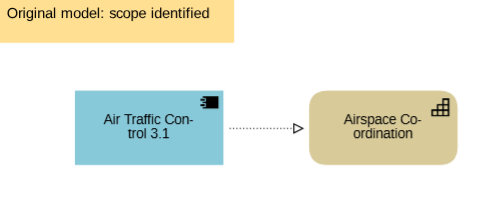
Design alternative solutions:
Use the Save As feature to create one copy of your original model for each scenario you want to explore (e.g. "Option 1" and "Option 2").
These scenario models allow you to label changes and model new ideas as described in the following steps, while your original model remains untouched.
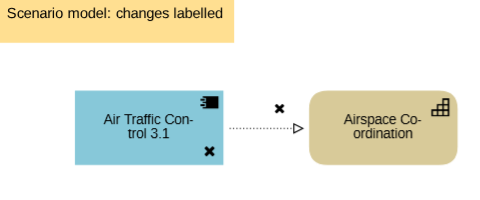
Label changes:
You can mark elements and relations as
 New,
New,
 Change or
 Decommission using one of
the following methods:
Decommission using one of
the following methods:In the properties of the element or relation, open the "Scenario" chapter and select the appropriate value under Change Type.
In the open model, right-click the element or relation, point to Assign Change Type and select the desired value.
These labels are model-specific and are visualised by clear pictograms.
Leave the value set to No Entry if the element remains unchanged in the planning scenario.
Model new ideas:
To express concepts that do not yet exist in your current architecture, use
 Planned Elements and
 Planned Relations.
You can assign an intended ArchiMate type to these elements in two ways:
In the properties of the
Planned Element or
Planned Relation,
open the "General" chapter and select the desired ArchiMate type under Type.In the open model, right-click the
Planned Element or
Planned Relation,
point to Assign Type and choose the ArchiMate element it should represent (e.g.
Application Component).
Don’t worry if you explore many different ideas.
Planned Elements and
Planned Relations are
modelling objects and exist only inside your scenario models. They will not
clutter your Object Catalogue.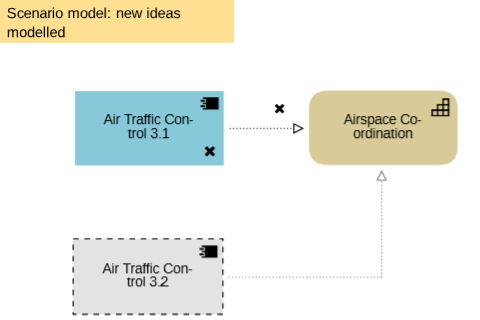
Compare and decide:
View the different scenario models side-by-side to evaluate the advantages and disadvantages of each option (see Model Comparison).
Once you have agreed on a preferred option, manually update your original model: add any new elements, apply the necessary changes and remove the decommissioned ones. Run validation checks to catch errors, and save your updated model.
Want to find out even more about Scenario Planning in ADOIT? Check out our in-depth solution guide: Scenario Planning.