Design Processes Using AI
The AI Assistant in ADONIS helps you bring models to the canvas without having to create objects and connectors manually from scratch. There are two ways to generate processes with the AI Assistant:
From a Process Description: Quickly build processes by turning ad hoc descriptions into structured models. Supports adding key details such as roles and descriptions, making it easier to create well organised and documented workflows.
From Standard Operating Procedures (SOPs): Upload a Standard Operating Procedure (SOP) and let the AI Assistant extract a clear, structured process description. Refine the description interactively, and once you are satisfied, the assistant will convert it into a process model.
To use the AI Assistant, you must be working with
 Business Process Diagrams and
have access to the ADONIS Enterprise Edition.
Business Process Diagrams and
have access to the ADONIS Enterprise Edition.
Already designed your processes? Let the AI Assistant in ADONIS help you take the next step: analyse them with ease.
Turn Descriptions into Models with AI
The AI Assistant in ADONIS makes it easy to create processes by generating proposals from your input. Enter a process description, and the assistant will generate a structured process model. You can further refine the process by automatically adding Roles and descriptions to the Tasks. This enables you to swiftly create detailed and well-documented processes.
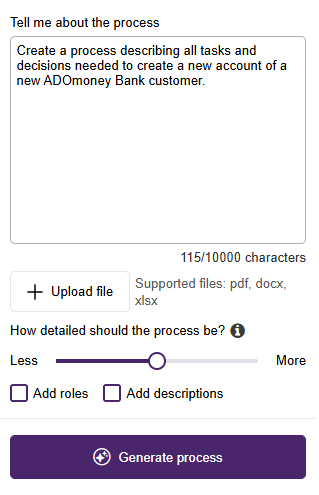
To design a process from a description using the AI Assistant:
Start with a new model:
In the graphical editor, click the AI Assistant button
 .
.The AI Assistant will open on the right side of the program window. The Design tab will be active for the following steps.
Describe the process:
Enter your description in the Tell me about the process box.
Use natural language to describe the process as you would explain it to a colleague.
You can enter up to 10,000 characters.
Optional: Adjust the process complexity:
Use the How detailed should the process be? slider to choose between Less and More.
Simpler processes are shorter and easier to follow. More detailed processes include additional steps and complexity.
Optional: Add details to the generated Tasks:
Select Add roles to enter responsible Roles in the Responsible for execution property (chapter "RACI").
Select Add descriptions to provide additional information in the Description property (chapter "General information").
Generate the process:
Click Generate process and wait while the AI Assistant creates the model based on your input.
The generated process will be displayed in the graphical editor and a fitting name will be applied to the model.
Not satisfied with the result?
- Click Re-generate process to discard the current result and create a new version.
Save your process model:
- Click Save to store your work.
Turn SOPs into Models with AI
The AI Assistant in ADONIS transforms existing Standard Operating Procedures (SOPs) into structured process models. Upload a supported file (PDF, DOCX, or XLSX) and the assistant will extract a clear process description, including Tasks and the responsible Roles. Refine the description through the chat interface in a back-and-forth exchange: you provide feedback, and the AI applies the changes. Once you are satisfied, let the AI generate a complete process model. Further adjustments can be made and the model regenerated, ensuring your SOPs are quickly converted into accurate, well-organised workflows.
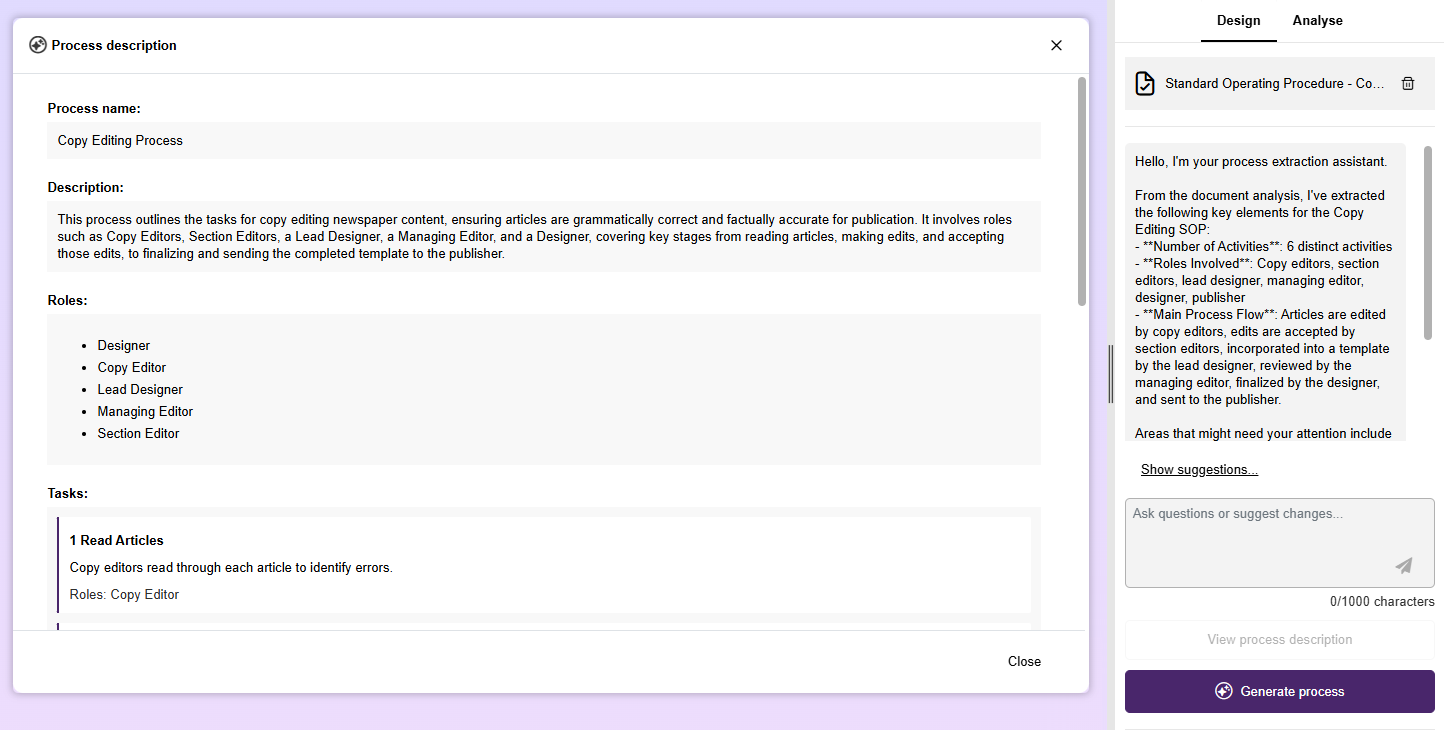
To design a process from an SOP using the AI Assistant:
Start with a new model:
In the graphical editor, click the AI Assistant button
.The AI Assistant will open on the right side of the program window. The Design tab will be active for the following steps.
Upload your SOP:
Click + Upload file and select the document containing your SOP.
Supported file formats are
.pdf,.docx, and.xlsx.
Extract the process:
After the file is uploaded, click Extract process.
Give the AI Assistant a few moments to process the file. It analyses the document and extracts a process description.
Simpler SOPs take less time, while more detailed SOPs require longer processing.
Review the extracted process:
The AI Assistant prints an initial message in the chat, providing key details about the extracted process and inviting you to interact with it.
At the same time, a new dialogue opens showing the extracted process description, including the suggested process name and description, as well as involved Roles and Tasks.
Optional: Refine the result:
Engage with the AI Assistant through the Ask questions or suggest changes... box.
Request modifications or clarifications using natural language, as though speaking to a colleague.
Your changes will be applied directly to the process description shown in the dialogue.
Generate the process model:
Click Generate process and wait while the AI Assistant creates the model based on the extracted description.
The generated process will be displayed in the graphical editor with the process name and description automatically applied to the model.
The responsible Roles from the process description are automatically assigned to the Tasks within the process (property Responsible for execution in the chapter "RACI").
Not satisfied with the result?
Request further changes in the process description from the AI Assistant.
Click Re-generate process to discard the current result and create a new version.
Save your process model:
- Click Save to store your work.
The extracted process description is temporary. Only the generated process model is preserved.
Additional Options
The following additional options are available while working with process extraction:
 Remove File: Deletes the
uploaded document and the extracted process description, allowing you to start a new extraction.
Remove File: Deletes the
uploaded document and the extracted process description, allowing you to start a new extraction.View Process Description: Reopens the process description dialogue after closing it.
Show Suggestions...: Generates a set of questions you can ask the AI to better understand or refine the SOP.