Troubleshooting Email Notifications
How Notifications Work in ADOGRC
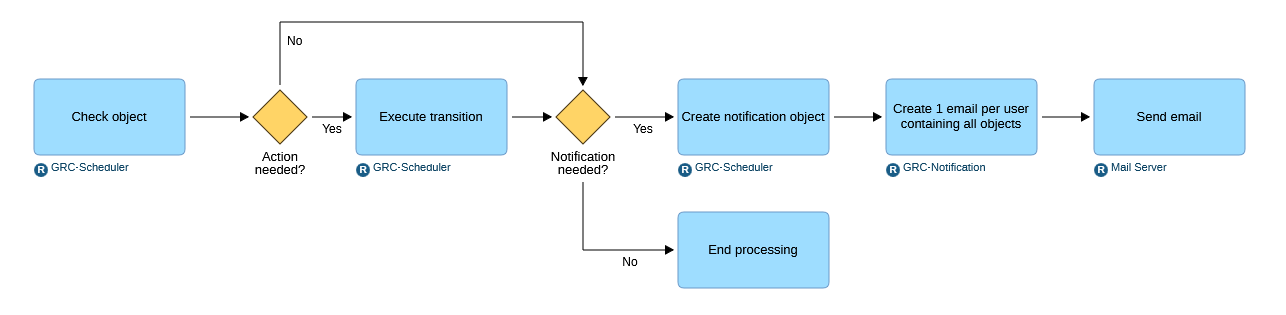
ADOGRC provides a set of services to check objects in the background and send email notifications to responsible users in case there is a task to do. This is a two-step process:
1) First the GRC-Scheduler checks an object if there is any action needed:
- Is a status transition needed, e.g. submitting an object automatically "to review" when the new period starts?
- Is a notifications needed, e.g. a transition has been executed or a reminder needs to be sent? If this is the case, the GRC-Scheduler then executes the transition and creates a notification object.
2) The GRC-Notification service then collects those notification objects, determines which users need to be informed and creates one email per user containing all objects relevant for this user.
The reason for this handling of notifications is that often multiple users need to be informed about the status of an object, but each user should only receive a single email containing all relevant information for all upcoming tasks.
In case a user does not receive an email notification expected, there are several ways to identify and fix the issue. The folllowing chapter provides a few pointers to common issues ranging from a high-level check of the configuration down to a specific analysis of the logs.
Verify Configuration Settings in the ADOGRC Administration
GRC-Scheduler and GRC-Notification
As outlined above, both GRC-Scheduler and GRC-Notification need to be configured properly for notifications to work. Please refer to relevant section of the Administration Help for more information.
GRC-Scheduler Log Entries
If the configuration looks correct, you should find log entries like the following in the _aworker.log file:
- Scheduler is started to execute transitions:
[INFO] WEBMETHOD START: com.boc.services.grc.scheduler.Jobs.performTransitions
[INFO] ADOGRC Scheduler: Execution of WM: performTransition with object IDs: [{"repoObjID":"{<repository ID>}","libObjID":"{<object ID>}","name":"<object name>"},]
- Scheduler checks and processes objects for reminders or escalations:
[INFO] WEBMETHOD START: com.boc.services.grc.scheduler.privileged.Jobs.performReminder
[INFO] ADOGRC Scheduler: Execution of WM: performReminder with object IDs: [{"repoObjID":"{<repository ID>}","libObjID":"{<object ID>}","name":"<object name>"}]
[INFO] WEBMETHOD START: com.boc.services.grc.scheduler.privileged.Jobs.performEscalation
[INFO] ADOGRC Scheduler: Execution of WM: performEscalation with object IDs: [{"repoObjID":"{<repository ID>}","libObjID":"{<object ID>}","name":"<object name>"}]
- Scheduler creates notification objects:
[INFO] ADOGRC - Created notification with id "{<notification ID>}" for source object with id " {<object for which to send notification>}" for recipient [user: <encrypted user name>]
GRC-Notifications Log Entries
To verify that a certain object has been processed by the Scheduler, go to the Rights Management section in the ADOGRC Administration. On the Object tab, locate the object and click on the  More menu. Select Copy the ID to the clipboard. Use this ID to search in the
 _aworker.log.
Next the GRC-Notification service picks up the objects, creates emails and then removes the notification objects the Scheduler created. If you find log entries like the following, this means that the Notification service successfully processed the object (the ID in this log entry is the same as the notification ID in the example above):
[INFO] WEBMETHOD START: com.boc.services.grc.notification.NotificationManager.deleteNotificationWM
[INFO] Removed the object "" with ID: {<notification ID>}
You can also verify that the GRC-Notifications service is running jobs (this log entry is in the webserver log. The name of the log depends on the name of the web application, e.g. ADONIS17_0.log):
INFO [QuartzScheduler_Worker-4] [*] [1608404084:15409] User specific job [GRC-Notification] COMPLETED
Issues with Technical Users
If there is an issue with the technical user for the GRC-Scheduler or GRC-Notification, you will find log entries like this:
[WARN] Technical user with loginname '[user:<encrypted user name>]' not existing or lacking the right to do trusted login.
[WARN] Validation of technical user not successful - Configured technical user '[user:<encrypted user name>]' will not be available on the Web Server.
Mail Server Configuration
A mail server is needed to actually send the emails created by the GRC-Notification service. Verify that the configuration is correct , you can find details in the relevant section of the Administration Help.
In case the mail server is not configured or the configuration is invalid, you will find a corresponding log entry:
WARN [pool-2-thread-1] [*] MAIL API sender unavailable due to missing or invalid config
Please note that this is just a formal validation of the mail server settings, it does not mean that the login to the mail server will be successful if e.g. the server name or the user/password are incorrect.
Once the emails have been prepared by the Notification service, they are sent by the mail server. This is logged in the MailAudit.log file and contains the ID(s) of the objects in the notification and the recipient(s).
INFO [QuartzScheduler_Worker-4] [MAIL AUDIT] [*] [1608432980:16322] Notification objects IDs: [[JSONPropertyValueString@0x34260228: data={<object ID>}]]: send success (SUCCESS): recipients: TO:[[enc:<encrypted user name>]] CC:[] BCC:[] subject: [user:<encrypted user name>]
Check Users and Roles
Access to Objects and Repositories
The GRC-Scheduler and GRC-Notification users need access to the relevant objects in order to be able to send notifications. This means that the following points must be correctly configured:
- all necessary RWF system roles have been assigned
- access to the repositories where the objects are located
- access to the object groups where objects are located
The technical users do not need access to the named user ADOGRC application scenario or Contributor/Reader roles.
Technical users should never be assigned to system roles with Metamodel Restrictions. This can lead to side effects which are very hard to trace and identify.
In case the technical users do not have access to the relevant objects, they will not "see" these objects which means there won't be any entries in the logs.
Mail Address Missing for Users
In order to send emails to the respective users, the valid email address must be configured. If a user does not have an email address, you will find log entries like this:
[ERROR] ADOGRC - Skipping user with ID "{18185052-173e-4cb1-8eb0-7911c57fa299}" because no mail address is configured.
For details on how to create and edit users, please refer to the chapter Manage Users of the ADOGRC Administration.
Verify Role Assignment to Users
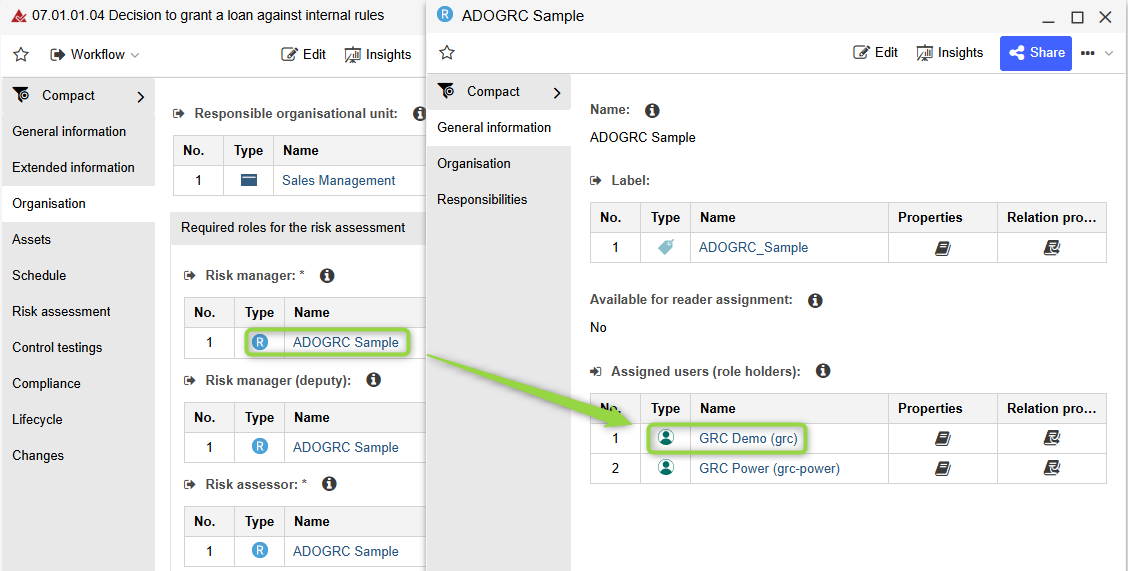
In the web client, open the object for which a notification was expected and check which Role has been assigned. Then check if the user is assigned to this role as "Role Holder".
Additional Issues Related to Notifications
ADOGRC Base URL
The notifications sent by ADOGRC contain direct links to the objects so users can view them by just clicking the link in the email. For these links to point to the ADOGRC installation, the Base URL must be set correctly. Please refer to the System Settings section of the ADOGRC Administration Help for further information.
Maximum Mail Size
If notifications contain a large number of object names and the respective links, an email can grow large enough to exceed the default maximum mail size. The size of an email sent by the ADOGRC mail component is limited by default but can be increased as needed. As emails are not truncated, setting the maximum size too small, will prevent the email from being sent. Important to keep in mind is that this affects only emails exceeding the size limit, all other emails will be sent normally. This may be a possible reason why only some notifications are not received as expected.
Please refer to the section Settings in the Web Client of the ADOGRC Setup Guide for details on how to increase the maximum mail size.