Welcome to ADOIT!
Thank you for your interest in ADOIT! This Quick Start Guide will help you quickly explore the key features. It will guide you through the first steps, so you can test ADOIT optimally and unlock the full potential of our software!
You don’t need to follow the steps in the exact order described here. Simply review them - you might decide to prioritize or skip certain steps.
Login
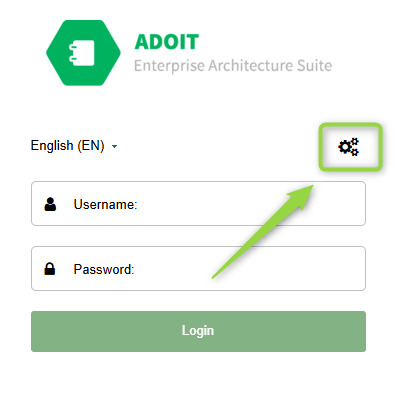
Please contact your administrator. He or she has created an account for you and knows your login details. Login & Password: You likely don’t have a password yet. Use the "Reset Password" function to create a new one. You will receive an email to reset your password.
If you did not receive an email, please contact your administrator and check if your email address has been correctly entered in your user account.
You're all set now! You can start exploring ADOIT.
Get to Know the ADOIT Interface and Features
To help you get familiar with ADOIT quickly, we have compiled the most important information for you. Below, you will find a list of helpful videos and links to additional resources to make the most of your ADOIT test experience.
In the top toolbar, you will find all key functions and settings:
- Home Button:
 Takes you back to the start page at any time.
 - Scenarios:
 Switch between different use cases such as Design & Document, Read & Explore, or Workspaces. More details below…
 - New:
 Create new objects and diagrams.
 - Find:
 Search for objects and diagrams in your repository.
 - Analyze:
 Perform analyses or access analyses, reports, and dashboards.
 - Setup:
 Customize the metamodel profile here. (Only visible to users in the User group!)
ADOIT Scenarios
ADOIT is divided into different scenarios, each tailored to the specific needs of different stakeholders:
Read & Explore: This scenario ensures that important information within the organization is easily accessible.
Workspaces: Collaboration is the focus here. Different teams work together on application assessments or the development of roadmaps.
Design & Document: In this scenario, models can be created, analyses performed, and the repository maintained.
For more information on each scenario and its features, please refer to our Online-Help!
Helpful Videos to Get Started
To help you get started and make testing easier, we have selected three videos from our video tutorial series. These provide useful first steps for modeling, analyses, and working with workspaces:
Create Objects in ADOIT
 Learn how to create objects, such as applications.
Perform Analyses
Learn how to create analyses based on the data in your repository and visualize the results.Collaborate with your colleagues
Use workspaces to collaborate with your team on EA initiatives.
Our playlist offers more exciting videos – featuring the key functions and clever tips for ADOIT!
Our Online-Help
If you prefer reading over watching videos, you can find all the information in our Online-Help. It provides detailed descriptions of all the functions.
Free E-Learning Course for you and your colleagues
If you want to learn more about ArchiMate, modeling, and using ADOIT, you can take our free e-learning course. In just 2-3 hours, you will get to know the key concepts, so you and your colleagues will be ready to get started with ArchiMate and ADOIT!
Take our free e-learning course now!
More examples for you and your colleagues
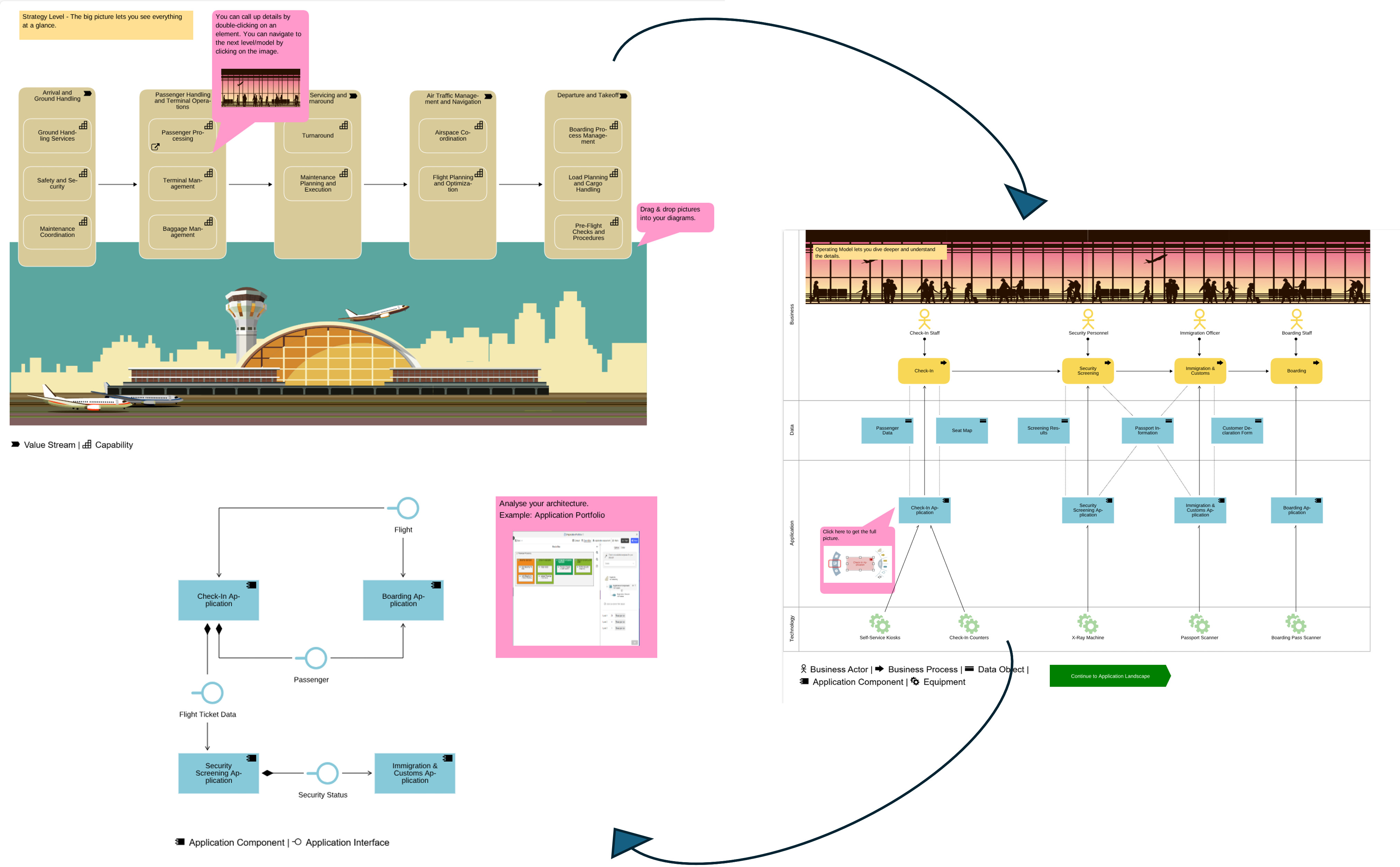
By default, our premium test accounts come with a banking example model, which includes a variety of models and analyses. Additionally, we have prepared 5 industry-specific example models that are smaller and more streamlined, making them ideal for getting started. These consist of:
- Capability Map
- Operating Model
- Application Landscape
- An analysis with a portfolio view of the application components
- Additionally, you will find a pre-configured workspace in the Workspaces scenario.
Ask your administrator to import one of the example models. Instructions can be found in the admin section of this QuickStart Guide. This way, you and your colleagues can explore the models at your own pace.
Organize your EA Repository
In ADOIT, there are two central catalogs: the Object Catalog and the Model Catalog. The Object Catalog manages elements such as business processes and application components in a folder structure. The Model Catalog organizes diagrams, which are referred to as models.
A possible folder structure for objects and models could look as follows:
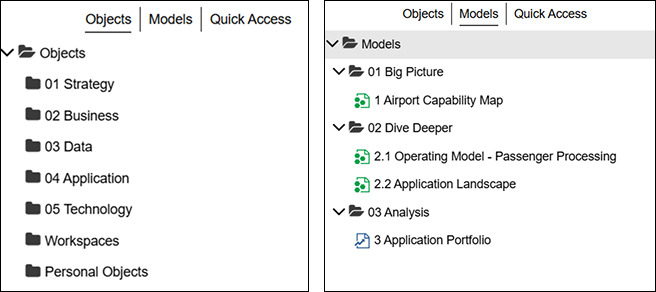
For more information about the Object and Model Explorer, please refer to our Online-Help.
Changing the folder structure works especially well with the Model and Object Organizer. For more information, please refer to our Online-Help.
Import existing data via the Excel Interface
Do you already have architecture information in Excel format? Use our Excel templates to import the data and test our features even more effectively:
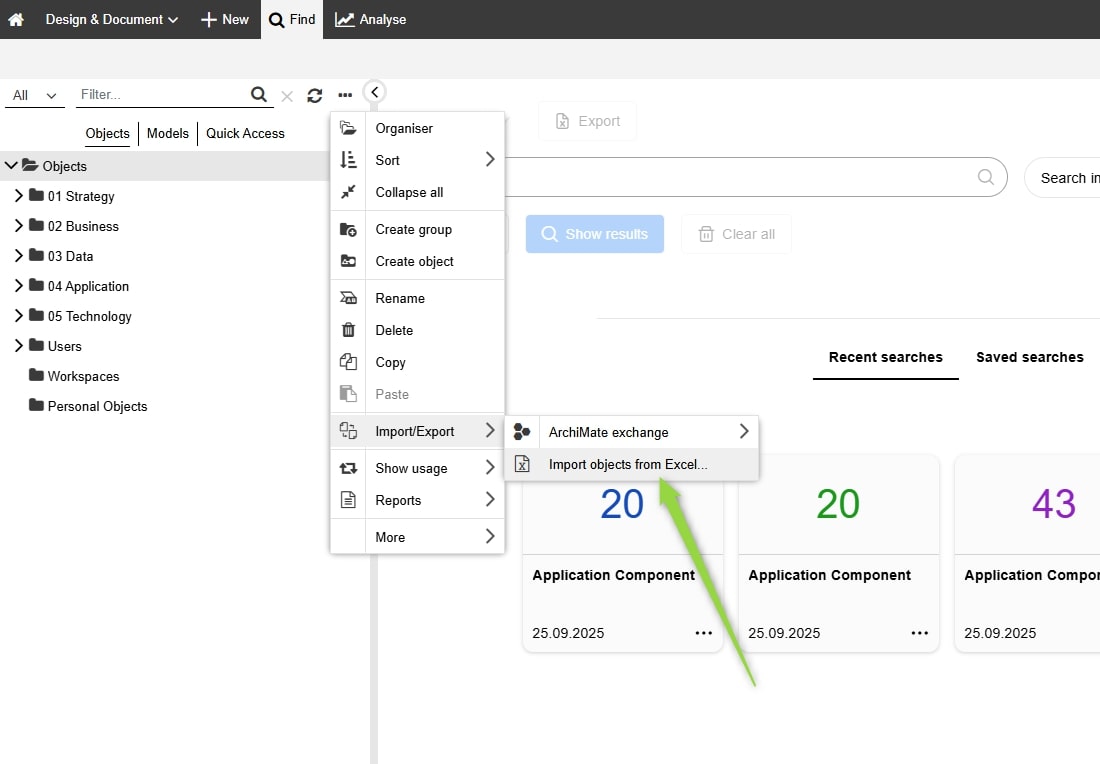
You can find our template directly in the Object Explorer:
- Select the folder where you want to import the data.
- Open the context menu (the three dots in the top right corner of the Explorer).
- Choose "Import/Export" → "Import objects from Excel...".
- Download the template using the download icon.
- Fill in the template with your architecture information and upload it again.
For more information, please refer to our Online-Help!
Reduce modeling complexity with metamodel profiles
In ArchiMate, there are many elements and relationships. Initially, your team will only use a few of them. Therefore, we offer so-called metamodel profiles. These act as a filter for elements and relationships. All our predefined views, analyses, examples, and templates are based on this filter.
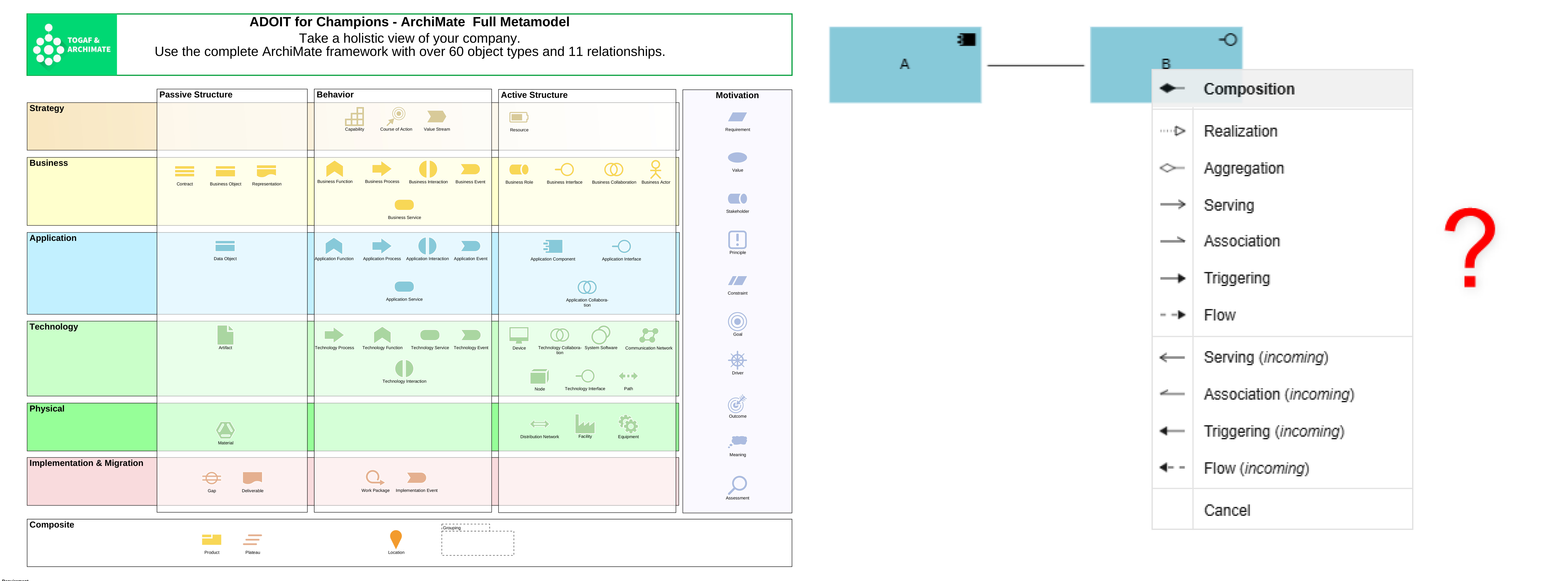
Switch the metamodel profile via Setup in the toolbar. Please note that the selected profile will also be activated for your colleagues.
More information about metamodel profiles can be found here.
In most cases, the profile "ADOIT for Fans of Lean Architecture" is used. In this profile, we have reduced the possible relationships between two classes to just one relationship. We recommend using this profile as a starting point. You can expand or further restrict it later based on your specific use case. More information, can be found here.
Do you already know ADOIT Forms?
With ADOIT Forms, you can simplify data maintenance. It is a user-friendly, form-based interface that allows for easy data entry and updates – even for users who are less familiar with ADOIT or enterprise architecture.
There are 3 use cases in ADOIT Forms:
- Create forms
- Distribute forms
- Fill out forms
For more information about ADOIT Forms, please refer to our Online-Help.
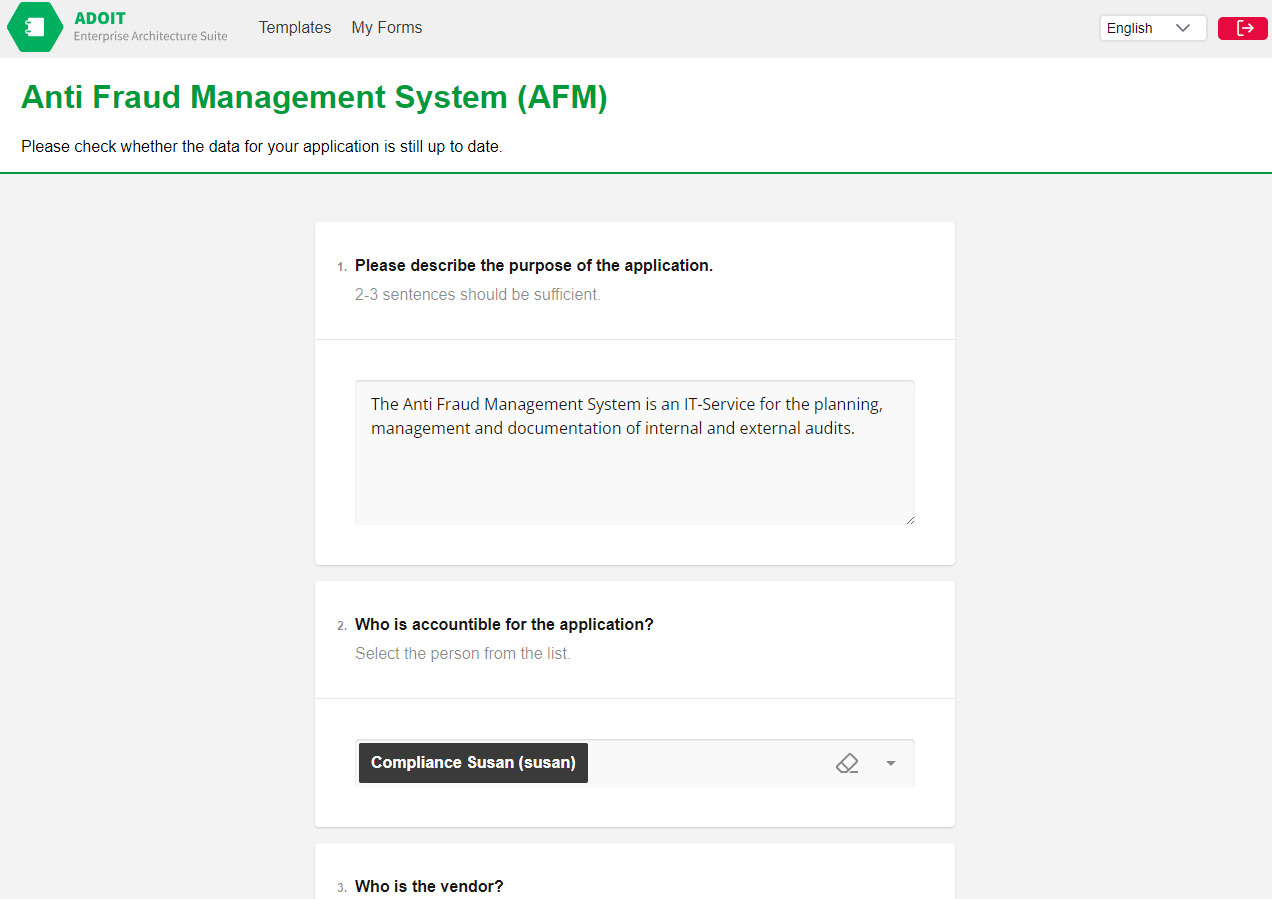
ADOIT Forms is included by default in this test account. Please ask your administrator to activate Forms in the administration. Once activated, click the blue button at the bottom right of the homepage in the Design & Document scenario to connect.
You’re ready to go – keep exploring ADOIT!
These were the key details to get you started with ADOIT! Continue exploring the software at your own pace. To make the most out of your test account, we've compiled a list of useful features and resources here:
- Already using ADONIS? Discover the possibilities of integration with ADO Connect:
- Explore all extensions for ADOIT in our EA Marketplace:
- For more insights, know-how, and useful tips, check out our blogs or EA resources:
- Got more questions? Browse our FAQ section for many interesting topics:
For any further questions or concerns, please reach out to your BOC contact person!