ADONIS integration
The ADONIS Process Mining Essentials add-on enables seamless integration between your process mining projects and ADONIS. You can display process mining metrics directly within the Insights dashboard of a Business Process Diagram, and you can also open a linked Business Process Diagram in ADONIS directly from ADONIS PME.
Prerequisites
Before you begin, ensure the following:
- A Business Process Diagram has been created or imported in ADONIS.
- A process mining project has been set up in ADONIS PME.
Link a Business Process Diagram to a PME project
Depending on your ADONIS version, there are two ways to link a Business Process Diagram to a process mining project:
Select project in ADONIS (ADONIS 17.2 or higher)
Paste project ID into ADONIS (ADONIS 17.0 or 17.1)
Starting with ADONIS 17.2, you can select the process mining project directly in ADONIS. This replaces the previous two-step method of first copying the project ID from ADONIS PME and then entering it manually in ADONIS. Existing links created with the previous method remain fully compatible.
Select project in ADONIS
If you are using ADONIS 17.2 or higher and want to connect a process mining project to a Business Process Diagram, follow these steps:
Open the properties of your Business Process Diagram in edit mode and switch to the chapter Process automation (older versions) or Automation/Mining (newer versions).
- If this chapter is hidden, click the
 Properties filter button and select Show all to make it visible.
- If this chapter is hidden, click the
Above the Process mining project field, click the
 Connect button.
From the Select a project list, select your process mining project, and then click Connect.
Paste project ID into ADONIS
If you are using ADONIS 17.0 or 17.1 and want to connect a process mining project to a Business Process Diagram, follow these steps:
Go to the project dashboard of the ADONIS PME add-on and locate the project you want to link to the Business Process Diagram.
Click the
 More button on the project tile, and then select Copy project ID.
Close the ADONIS PME add-on and navigate to your Business Process Diagram in ADONIS.
Open the properties of your Business Process Diagram in edit mode and switch to the Process automation chapter.
- If this chapter is hidden, click the Properties filter button and select Show all to make it visible.
- If this chapter is hidden, click the
Paste the copied project ID into the Process mining project field and save the model.
View process mining metrics
Once the connection is established, ADONIS will automatically retrieve data from ADONIS PME. The Insights dashboard of your Business Process Diagram will now be extended with relevant process mining metrics.
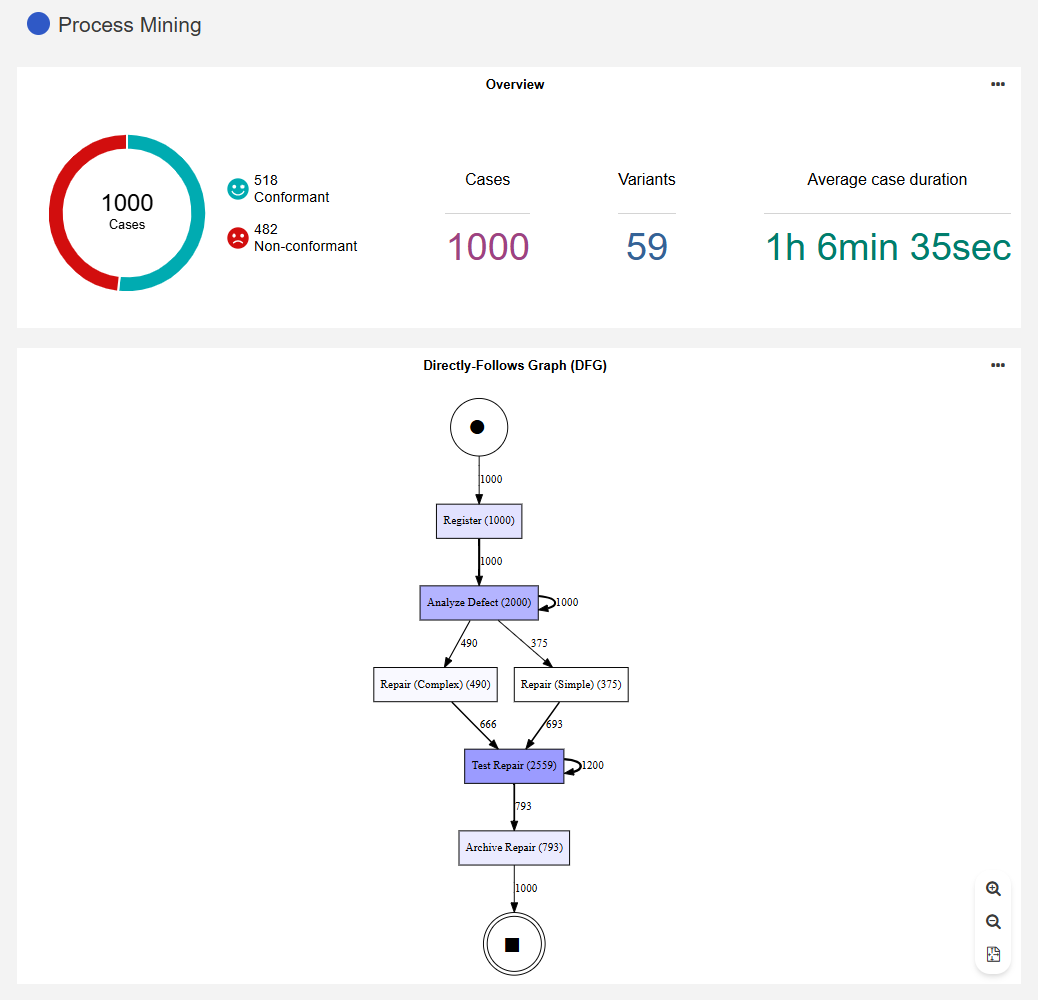
To view the metrics:
Open the Insights dashboard:
Right-click the model, point to Open, and then click
 Insights.
 Alternatively, if you already have the model open in ADONIS, click the Insights button in the menu bar of the model.
Review the following widgets in the Process Mining section:
Overview: Displays key metrics of your process mining project, such as variations (conformant and non-conformant) and cases.
Directly-Follows Graph (DFG): Showcases the DFG, offering a clear visual representation of the immediate transitions between activities within the process.
The following options are available for these widgets:
Open process mining project: To directly jump to the project in PME, click the
More button in the top right corner of the widget, and then select Open details.View info text: To show a tooltip with information about the widget, click the
More button in the top right corner of the widget, and then select Info.
Open in ADONIS
If you are using ADONIS 17.2 or higher, you can directly jump to the linked Business Process Diagram from ADONIS PME:
- From the project dashboard: Click the More button on the project tile, and then select Open in ADONIS.
- From the open process mining project: Click Open in ADONIS in the upper right of the page.
The model opens in the graphical editor.
Disconnect a Business Process Diagram from linked PME project
You can disconnect a Business Process Diagram from its linked process mining project at any time:
In ADONIS, open the properties of the Business Process Diagram that is currently linked to a project.
Choose the appropriate action for your ADONIS version:
ADONIS 17.2 or higher: Switch to the Process automation chapter, and then click the
 Disconnect button above the Process mining project field.
ADONIS 17.0 or 17.1: Switch to the Process automation chapter, and then remove the project ID from the Process mining project field.
Save the model.
When a linked Business Process Diagram is deleted in ADONIS 17.2 or higher without first disconnecting it, the PME project keeps a one-sided link. To remove the leftover connection, go to the project dashboard of the ADONIS PME add-on, click the More button on the project tile, and then select Disconnect from ADONIS.