Get started
This section will guide you through the essential steps to start using ADONIS Process Mining Essentials (PME). Follow these instructions to access PME and create your first process mining project.
Open ADONIS PME
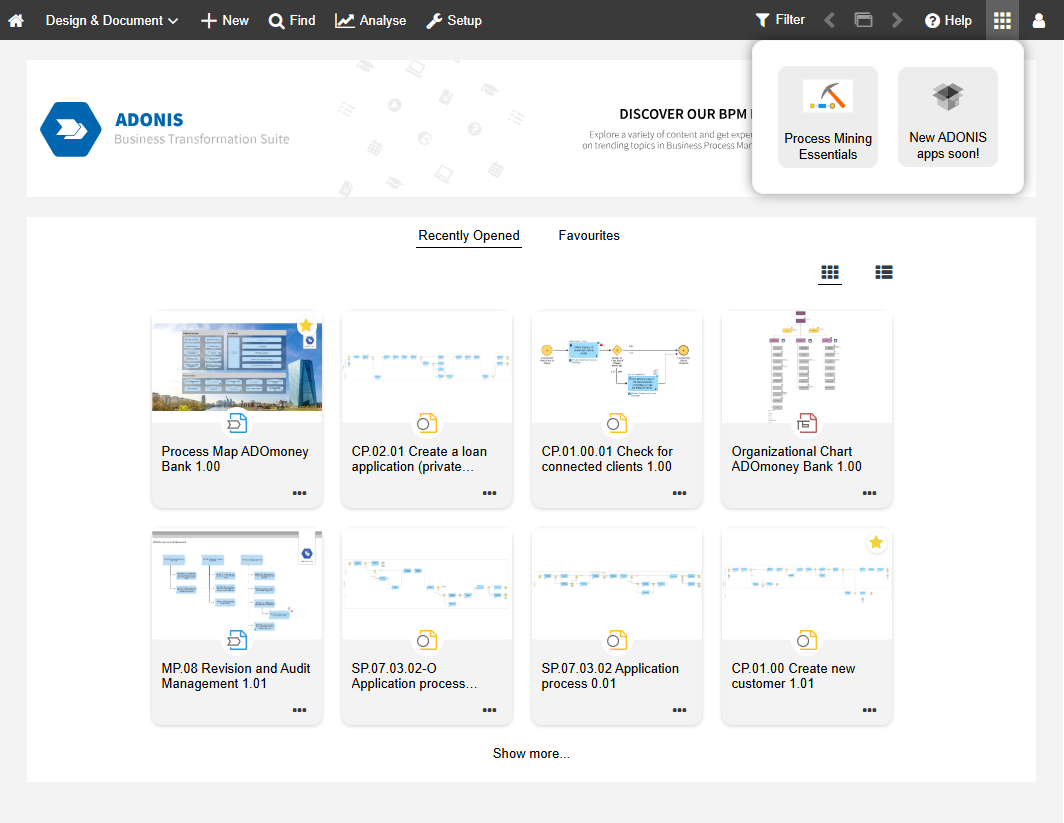
To open the ADONIS PME add-on in the ADONIS BPM Suite:
- At the top right of the screen, click
 ADONIS apps, and then select Process Mining Essentials.
Create project in ADONIS PME
Once you've opened ADONIS PME, you'll land on the project dashboard. From here, you can create and manage your process mining projects. Proceed as follows:
Initiate project creation
To start a new project, click the Create new project button.

Upload file
Next, you will be directed to the Create new project page with the Upload file section already displayed. You have to select and upload the event log file. It can either be browsed in the file explorer by clicking on the  Choose button, or you can simply drag and drop the file.
The requirements of the event log file are:
Supported file formats:
.csvand.xesMaximum file size: 1 GB
After the upload is complete, a confirmation message will appear saying the file is "Ready for mapping".

Map columns
After uploading a .csv file, a preview of your data will be displayed in a tabular format. Before you can import and analyse the event log, you’ll need to map the key parameters to the corresponding columns in your file.
If you're uploading a .xes file, this step is skipped - ADONIS PME automatically maps the data using standard tags for key attributes.
Map the following parameters to the respective columns in your event log:
| Parameter | Description | Required | Example |
|---|---|---|---|
| Case ID | A unique identifier of an instance of a business process in the event log. |  Yes Yes | In a finance process, Case ID may be a combination of letters and numbers uniquely identifying each invoice processing instance. |
| Activity key | An identifier that represents a specific step or task within a business process, usually corresponding to the name of the activity. | Yes | In a customer support process, activities may include 'Ticket Submission', 'Issue Investigation', and 'Resolution'. |
| Primary timestamp | The main date and time of the activity. If your event log data contains only one timestamp per activity, map it here. If both start and end timestamps are provided, the primary timestamp will be treated as the start time. Activities without a primary timestamp will not be visualized in the process flow. Values in the fields of the timestamp column have to follow the ISO8601 standard. | Yes | 2026-10-22T11:20:00 |
| Secondary timestamp | An additional date and time of the activity. If your event log data contains both a start and an end timestamp, map the end timestamp here. This field should only be used together with the primary timestamp, where the primary timestamp represents the start time and the secondary timestamp represents the end time. Values in the fields of the timestamp column have to follow the ISO8601 standard. |  No No | 2026-10-25T13:45:00 |
You can map these parameters easily by selecting the appropriate column titles from the dropdown menus for each parameter. The table below provides a preview of your data, which will help you identify the correct columns for mapping.
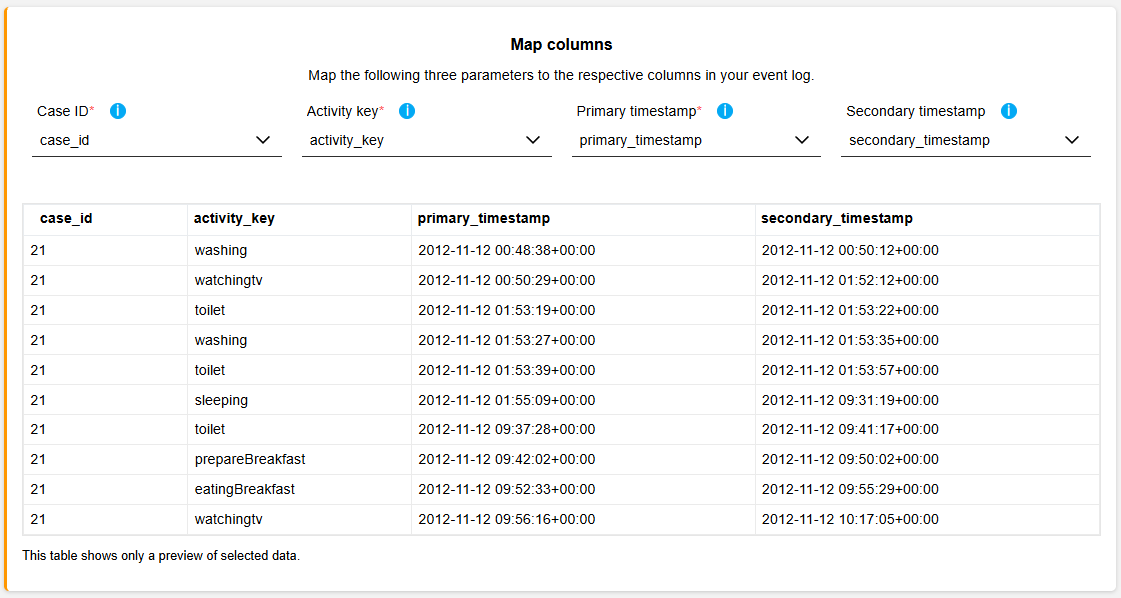
Depending on the structure of your event log, timestamps should be mapped as follows:
Single timestamp per activity: Map the timestamp column to Primary timestamp only.
Start and end timestamps per activity: Map the start timestamp column to Primary timestamp and the end timestamp column to Secondary timestamp.
Complete project creation
Once the columns are correctly mapped, click the Create project button to finalise the process.

In the background, the following actions will occur:
The data is being uploaded.
Visualisations are being created.
The project setup is being finalised.
Once everything is complete, you will be redirected to the newly created project. From here, you can begin analysing the visualised data.