Solution Guide - Application Portfolio Management
Thank you for your interest in our ADOIT solutions! We are excited to help you transform your Enterprise Architecture initiatives into actionable results.
Before You Start
This guide assumes that you’ve already completed the ADOIT Quick Start Guide. If your ADOIT environment is already set up, you can start directly with the Application Portfolio Management Solution Guide.
Bring Clarity to Your Application Landscape
Your organization probably has more applications than it wants and less clarity than it needs.
Some applications clearly support the business. Others slow things down, cost money, or simply stay around because no one touches them. Application Portfolio Management helps you bring order into this landscape and create a clear basis for decisions.
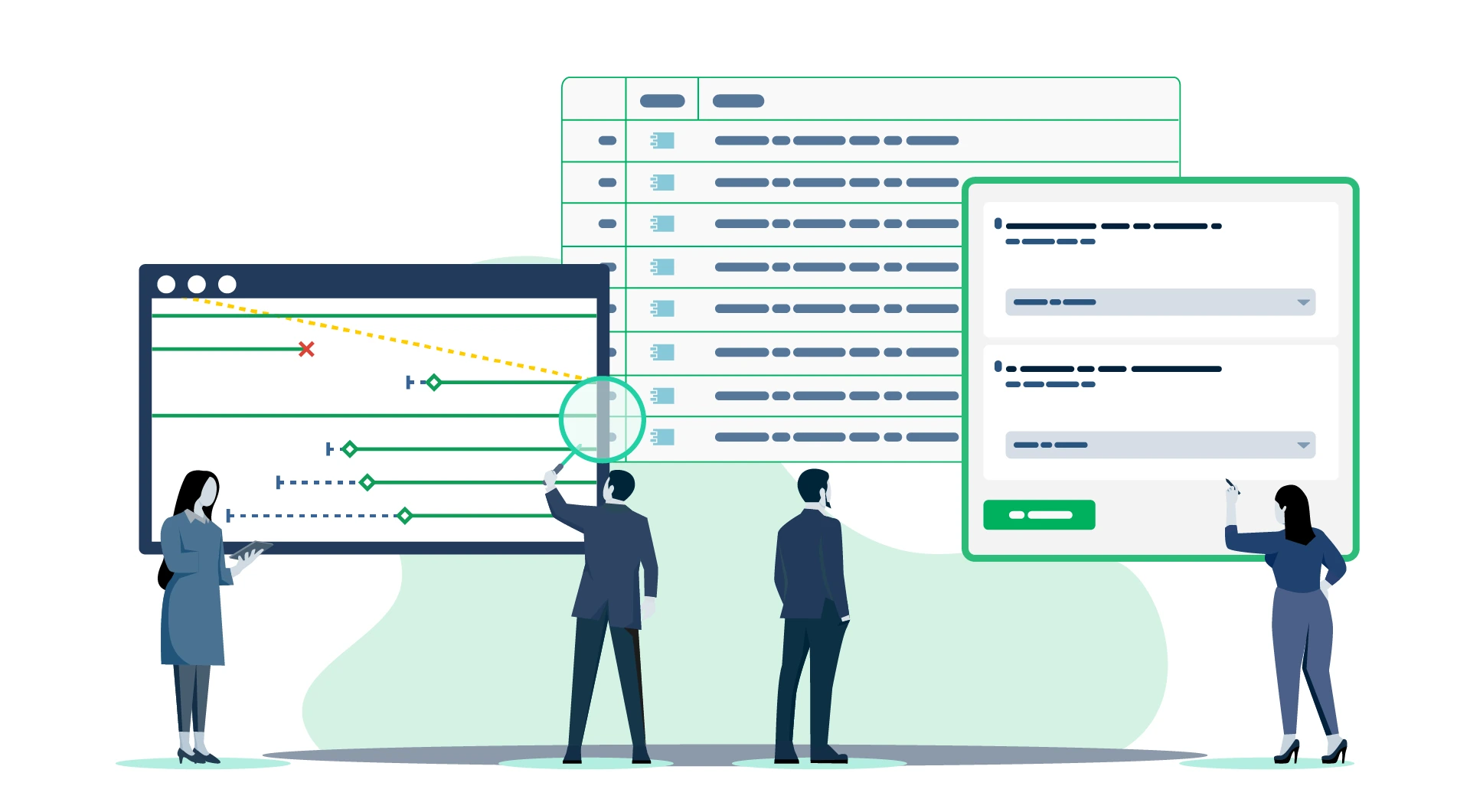
You don’t start by debating individual systems. You look at applications in context: business value, technical health, and strategic relevance. This makes it easier to agree on where to invest, what to modernize, and what to retire.
Application Portfolio Management creates a shared basis for business and IT and helps turn application discussions into aligned decisions.
Why Application Portfolio Management in ADOIT
Effective Application Portfolio Management requires more than lists and slides.
ADOIT combines an ArchiMate-based repository to map applications and their relationships with business processes, technologies, and data, powerful views to explore and understand the application landscape, and guided workspaces to assess investment strategies and define roadmaps together with business peers.
This gives you a shared and consistent foundation for portfolio decisions and helps you move from transparency to action.
How it Works in ADOIT
Important: Start with a flat list of a few representative Application Components and work in a small setup team. The initial goal is not to capture the full application landscape, but to build a working prototype together.
Use this prototype to walk through the entire APM process end to end. Focus on the results you want to achieve, especially reports, visualizations, and decision support.
Along the way, you will see which information is actually needed to support these outcomes. Only then refine your setup and structure accordingly before onboarding your colleagues. This keeps the approach lightweight, outcome-driven, and easy to adapt over time.
Choose the lean metamodel profile as a starting point
As already recommended in the Quick Start Guide choose the 'ADOIT for lean Architecture Fans' metamodel profile. It is a proven and pragmatic starting point that keeps things simple while still allowing meaningful analysis.
It simplifies the complexity of ArchiMate while ensuring you have all the objects and relations needed to fully use our offered solutions and sample models.
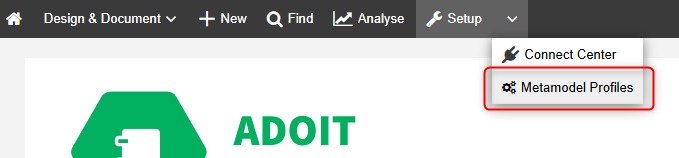
From there you can expand step by step once you know which elements and relationships are actually needed for your Application Portfolio Management practice.
Establish a single source of truth
There is a lot of information you could capture in an application inventory, such as application owners, required system software, business units that use the application, supported business processes, and realized capabilities. We’ll get to that later. For now, focus on the bare minimum.
Steps:
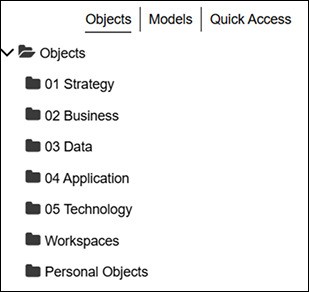
- Select a folder in the Object Explorer where you want to build your application inventory. In larger organizations you may use multiple folders to manage access rights. For now, stick to the structure you already defined in the Quick Start Guide.
- Create a first list of applications. Start with three to five Application Components you know well. These will serve as your prototype and reference for all future applications.
In ADOIT applications are called Application Components following ArchiMate.
- Assign an application owner to each Application Component. To do so, open the notebook of an Application Component, click on edit and fill in the relation attribute ‘Responsible business actors’ in the Chapter ‘Organisation’.
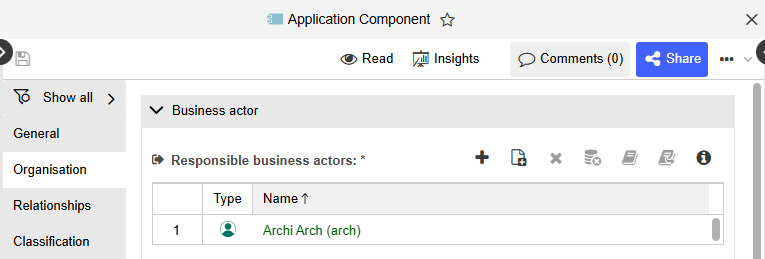
The initial user list was created in the Quick Start Guide. If you need additional users you can create them in the ADOIT Administration.
Set the lifecycle state. Switch to the chapter ‘Lifecycle’ and define the Lifecycle State for each application. Most likely your prototype applications are ‘In production’.
Capture the using Business Units. Document which business units use each application. Create the required business units using the element type ‘Business Actor’. Reuse the folder structure from your Quick-Start-Setup and create only what you need for your prototype applications.
I think you are getting the hang of it now. Let’s focus on the outcomes next especially the reports and visualizations. We will continue shaping the modeling guidelines later.
Visualize your application landscape
So far we have only captured a small amount of data. That is perfectly fine. Starting with visualizations early helps you understand which information you actually need.
Steps:
- Create a simple list of all applications. The most basic report is a list of all Application Components. Create this list and share it with your colleagues. Go to ‘Find’ create the list of Application Components and click ‘Share’. Save it as a saved query with the name ‘Application Portfolio’.
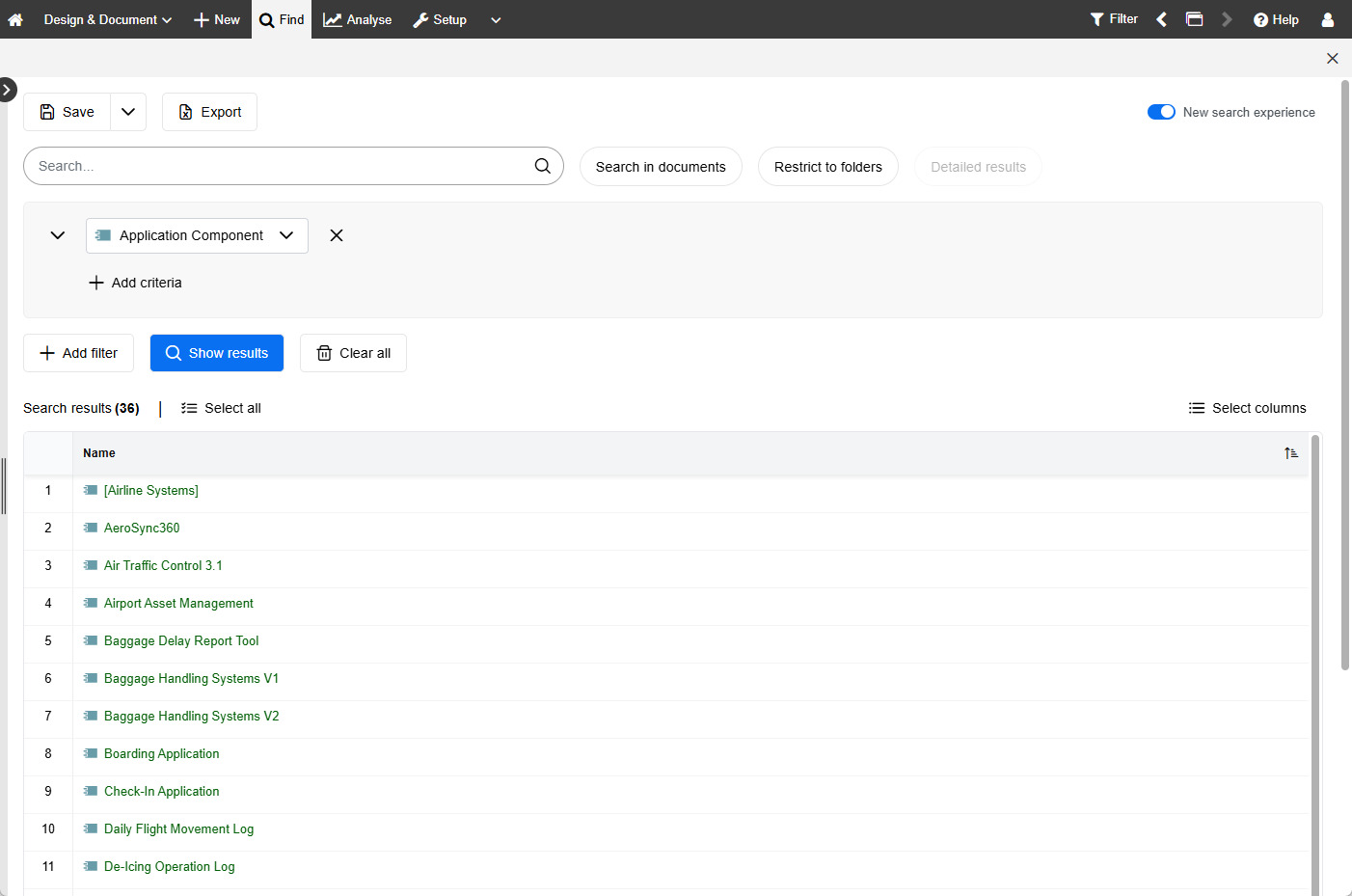
A list is often not the best way to communicate an application landscape. Depending on what you want to show, a visual representation can provide a much better overview.
To create and manage such views, use ADOIT Analyses.
Go to Find -> Explorer -> Model Explorer and review the existing structure. Then create a folder named ‘Application Portfolio’. This is where you store your analysis.
Create your first analysis. Even with limited data you can already build useful visualizations. Create an analysis model, store it in the Application Portfolio folder and select the saved query ‘Application Portfolio’ as your data source.
Add a Box-in-Box visualization. Configure it as Business Actor to Application Component and use Lifecycle State as the color.
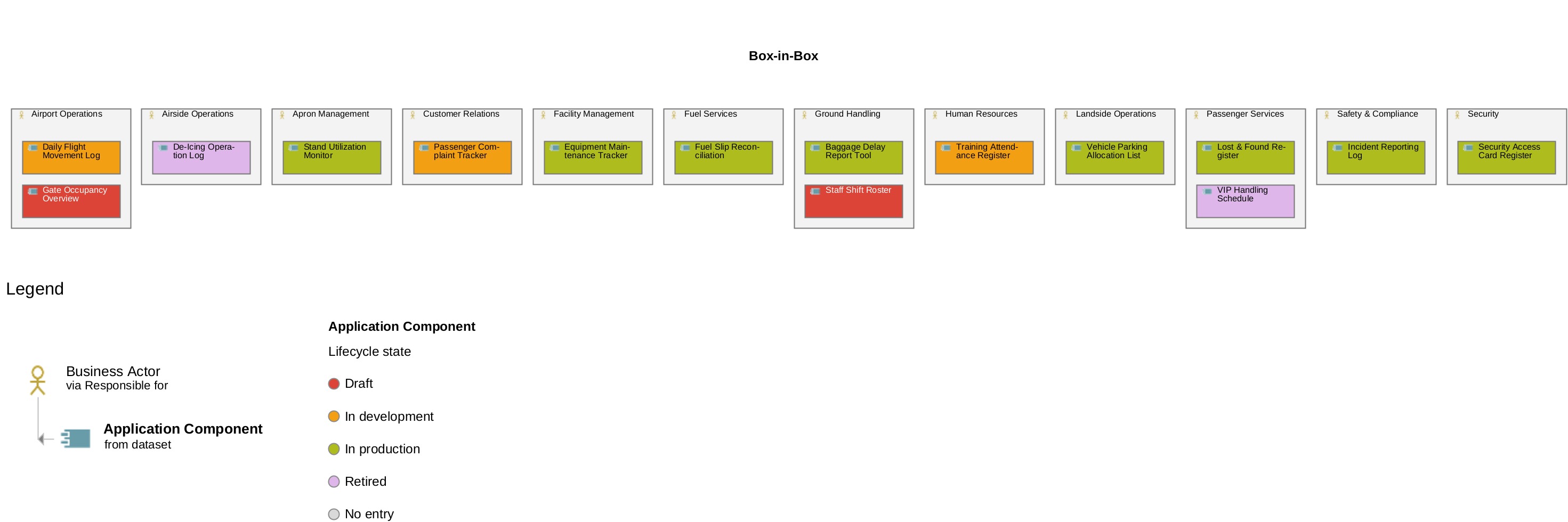
You now have your first visualization. From here you can explore additional visualization types as needed.
Review the Lean Architecture Profile and add more visualizations
Now take a closer look at the Lean Architecture Profile and extend it just enough to support additional visualizations.
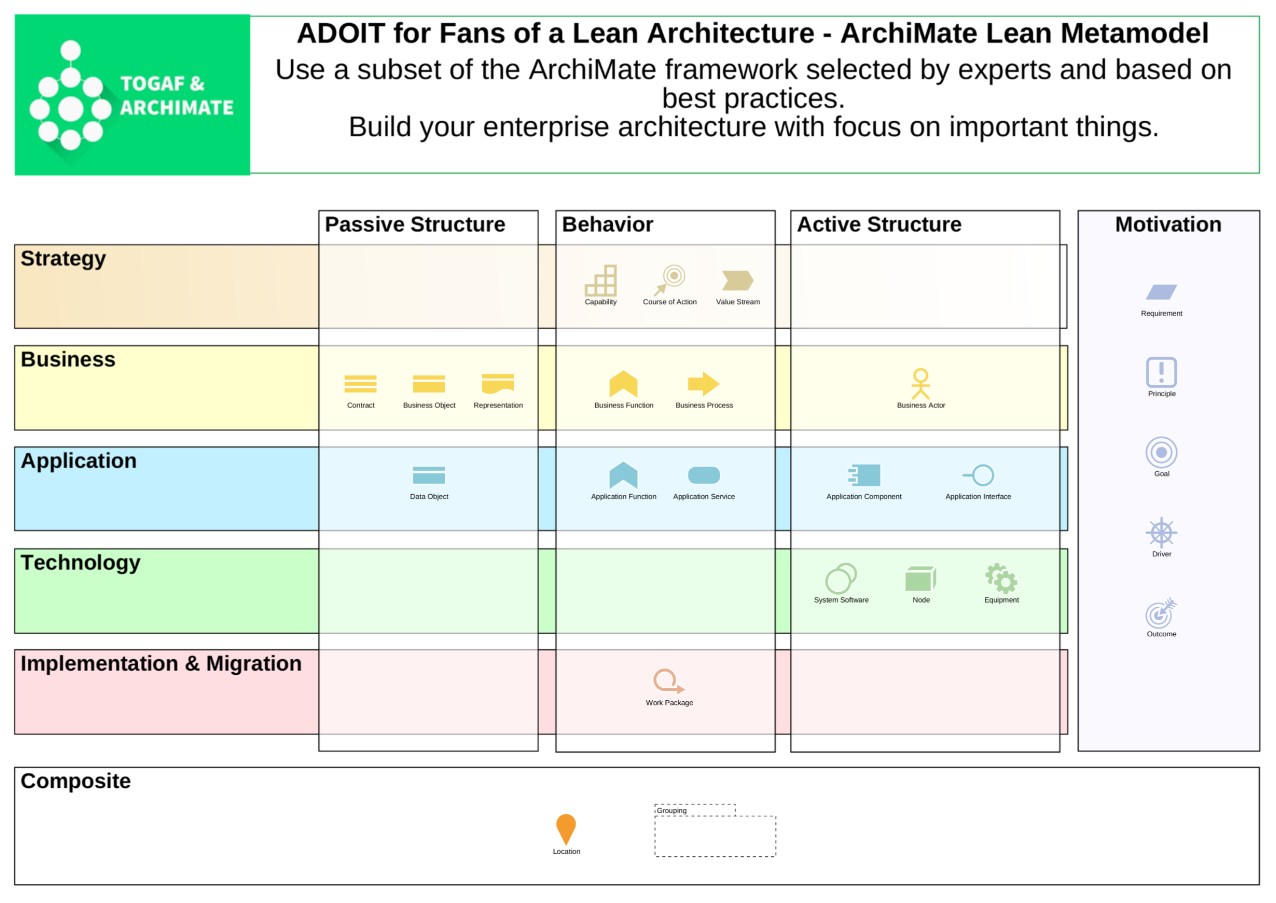
With a small number of additional elements and relationships you can already create most common views such as Matrices, Gantt style timelines and further portfolio views.
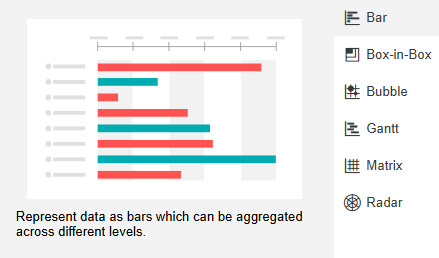
Stay pragmatic. Add visualizations only where you are confident you can collect the required data. Follow a minimum viable architecture approach. You can always expand later.
If something important is missing, you can add additional concepts. This can be done using the ADOIT Administration. There you find all ArchiMate elements that can be added.
Furthermore, you can add additional fields – so called Attributes – using the Property Management Component.
A lightweight way to add structure without changing the metamodel is to use Groupings. In ArchiMate, Groupings work like a simple tagging mechanism.
Create elements of type Grouping, give them meaningful names, for example to classify applications according to Gartner’s PACE-Layered Application Strategy such as System of Record, System of Differentiation, or System of Innovation, and assign them to your elements using the Aggregation relationship.
Keep Portfolio Data Current with Forms
At this point you might be wondering how to keep all this information up to date. ADOIT Forms is designed exactly for this purpose.
ADOIT Forms allows you to collect and maintain information through simple surveys. Your colleagues can contribute without needing to understand your detailed setup or ArchiMate.
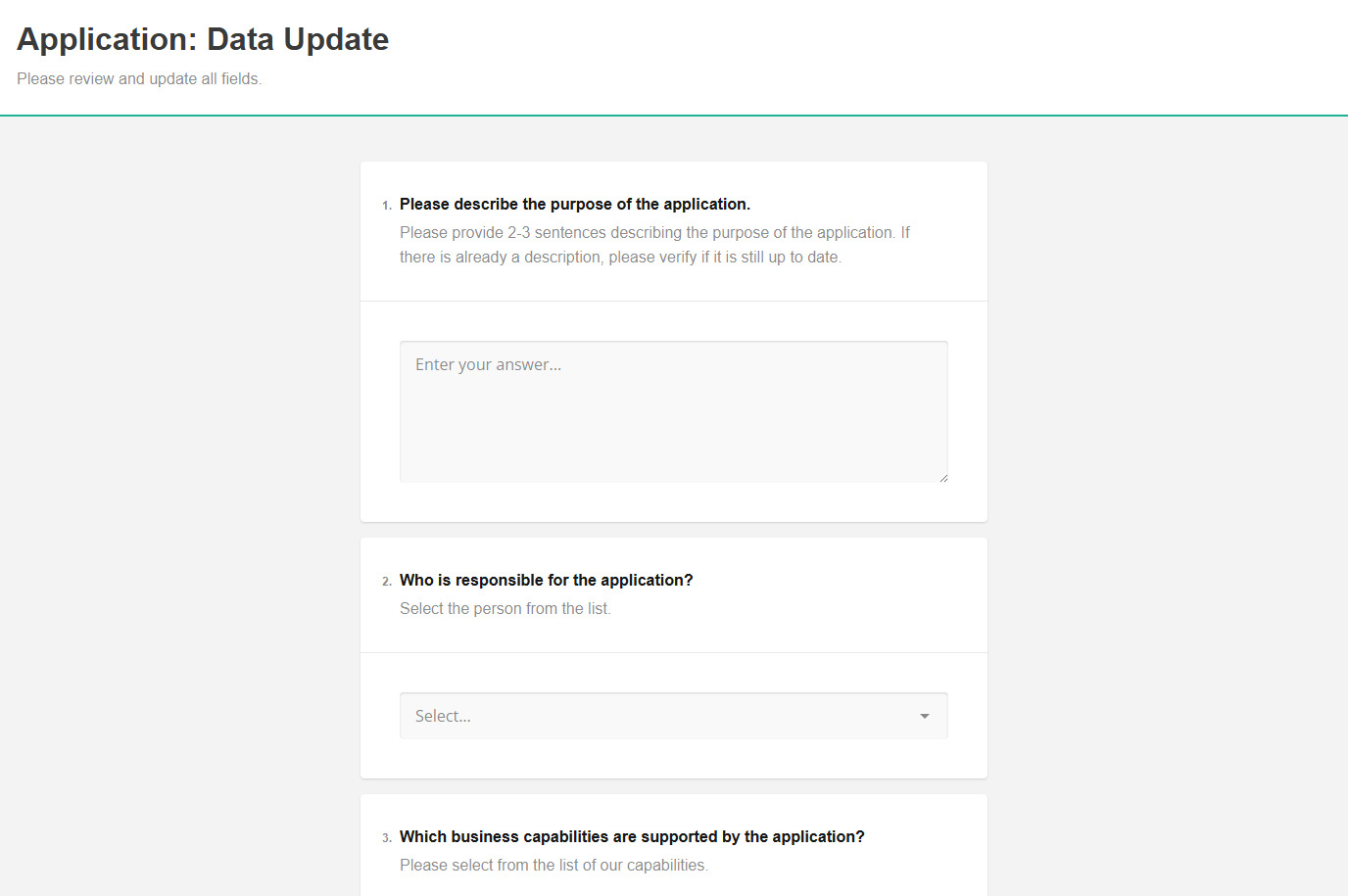
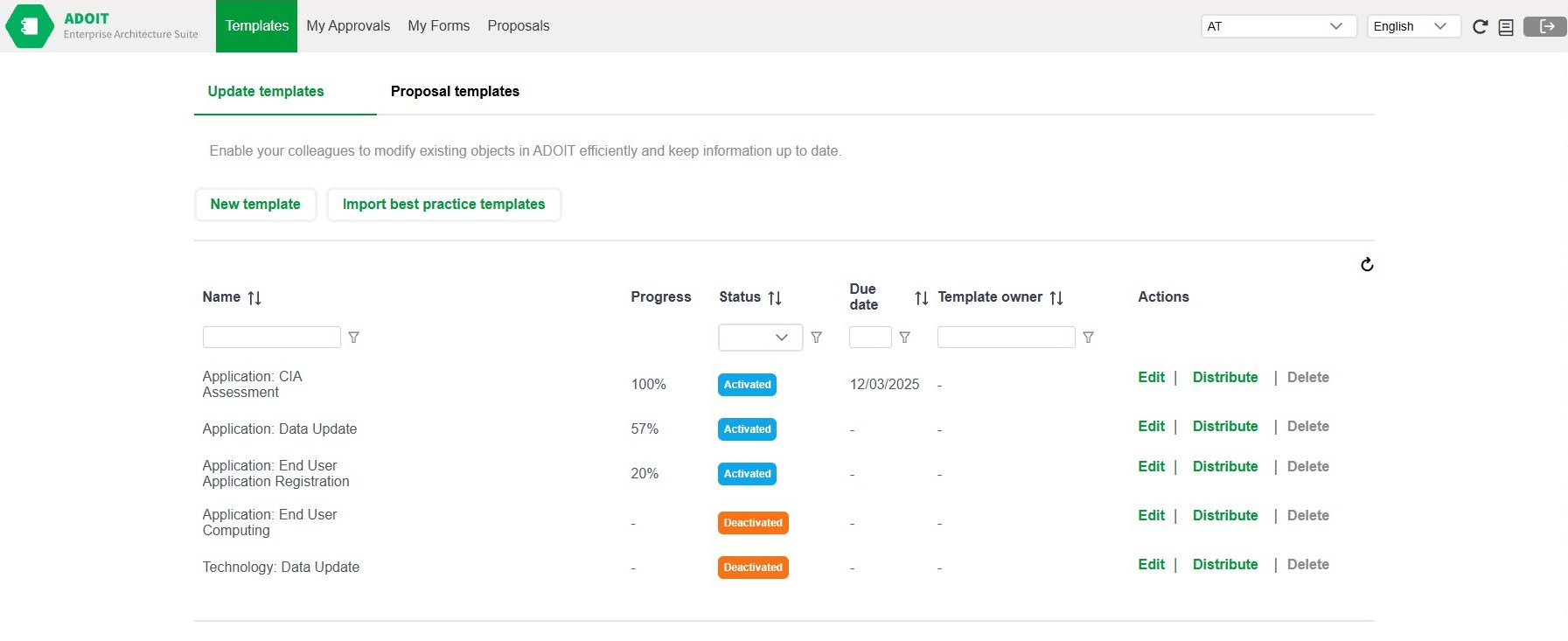
In the Quick Start Guide, you already activated ADOIT Forms, including the predefined template ‘Application Update’. Review the template and check whether it covers all the information you want to keep up to date. Add questions if something is missing and remove questions if it feels too detailed.
Activate the template and distribute it. For the applications you already captured the assigned ‘Responsible Business Actors’ will receive an email request. In ADOIT Forms you can track the status and manage the templates.
You are ready to launch
The structure is in place. Before rolling this out broadly, run a final dry run with your core setup team. Capture a few additional applications, assign application owners, and validate that the structure, forms, and visualizations work as expected.
Once you are confident, bring your application portfolio to life. Capture all remaining applications and assign the Responsible Business Actors or application owners. If you already have an application list in Excel, use the Excel import to save time. Then distribute the Application Update form to collect the data needed for your minimum viable architecture and keep the portfolio up to date.
Additional tips
➢ To define investment strategies for your applications, use the workspace Application Investment Planning.
➢ Based on those strategies, use the workspace Application-based Roadmap to further evolve and steer your portfolio.
➢ If too many teams or users have write-access to applications, take a look at the rights management documentation next. Don’t let this slow you down though. In many cases, getting first results matters more than perfect permissions.
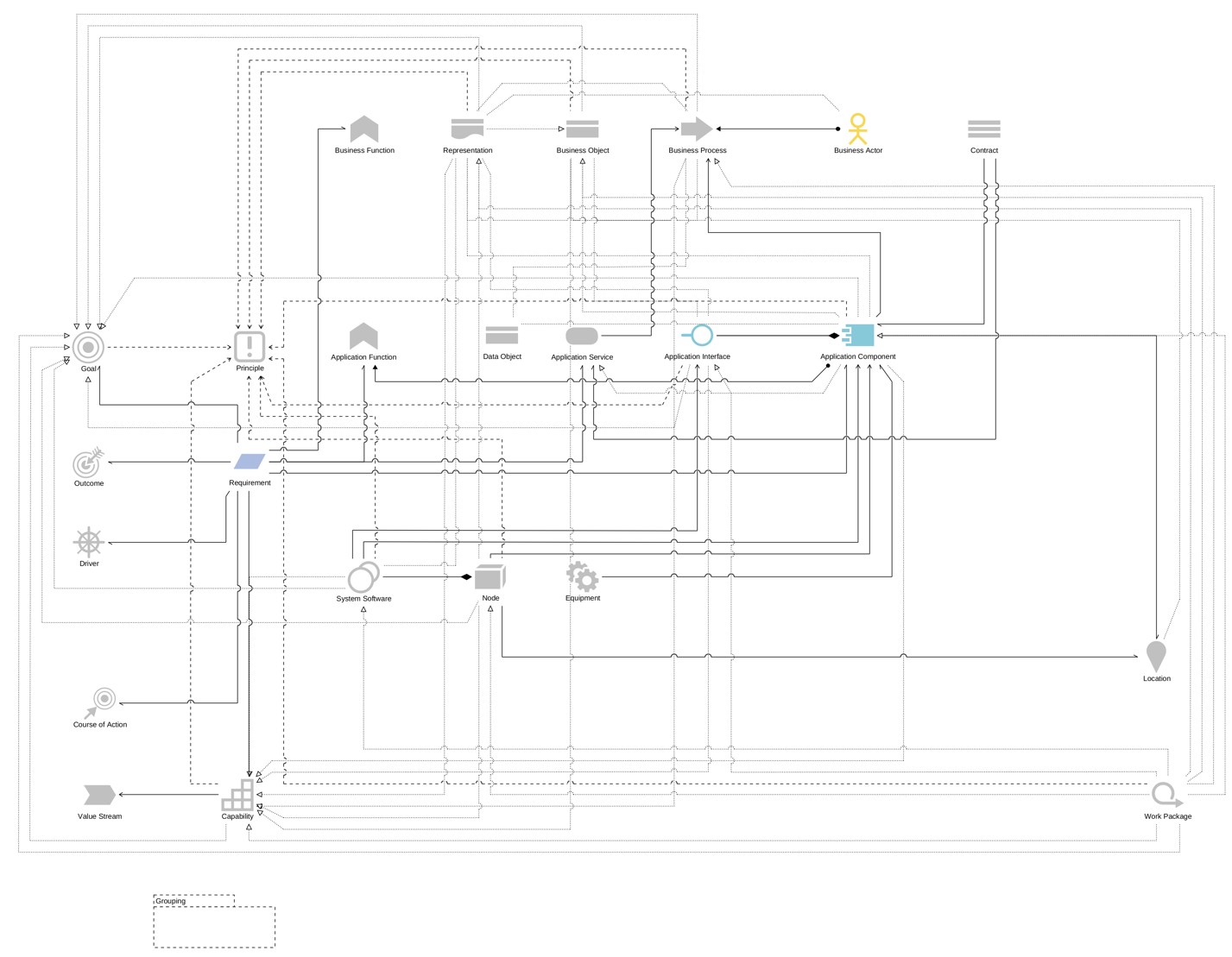
ArchiMate Elements and Relations for this Solution
If you use the ‘ADOIT for Lean Architecture Fans’ metamodel profile as recommended earlier in this guide, the following elements and relationships will be used for this solution: