Solution Guide – Scenario Planning
Thank you for your interest in our ADOIT solutions! We are excited to help you transform your Enterprise Architecture initiatives into actionable results.
Before You Start
This guide assumes that you’ve already completed the ADOIT Quick Start Guide. If your ADOIT environment is already set up, you can start directly with the Scenario Planning Solution Guide.
Design and Compare Future Architectures With Confidence
With Scenario Planning in ADOIT, you can design, compare, and evaluate future architectures without touching your current baseline. Create alternative scenarios, explore their impact, and make informed decisions based on a clear and shared view of the architecture.
Scenario Planning helps you work through complex architecture decisions step by step. Instead of committing too early, you create and compare multiple future options and see how they differ in terms of cost, risk, dependencies, and long-term impact.
In ADOIT, each option is modeled as its own scenario. This gives business and IT a common language to discuss alternatives, understand trade-offs, and agree on the best way forward.
Why Scenario Planning Matters in ADOIT
ADOIT provides a central, trusted view of your architecture. Scenario Planning adds a dedicated space to think ahead without putting that baseline at risk.
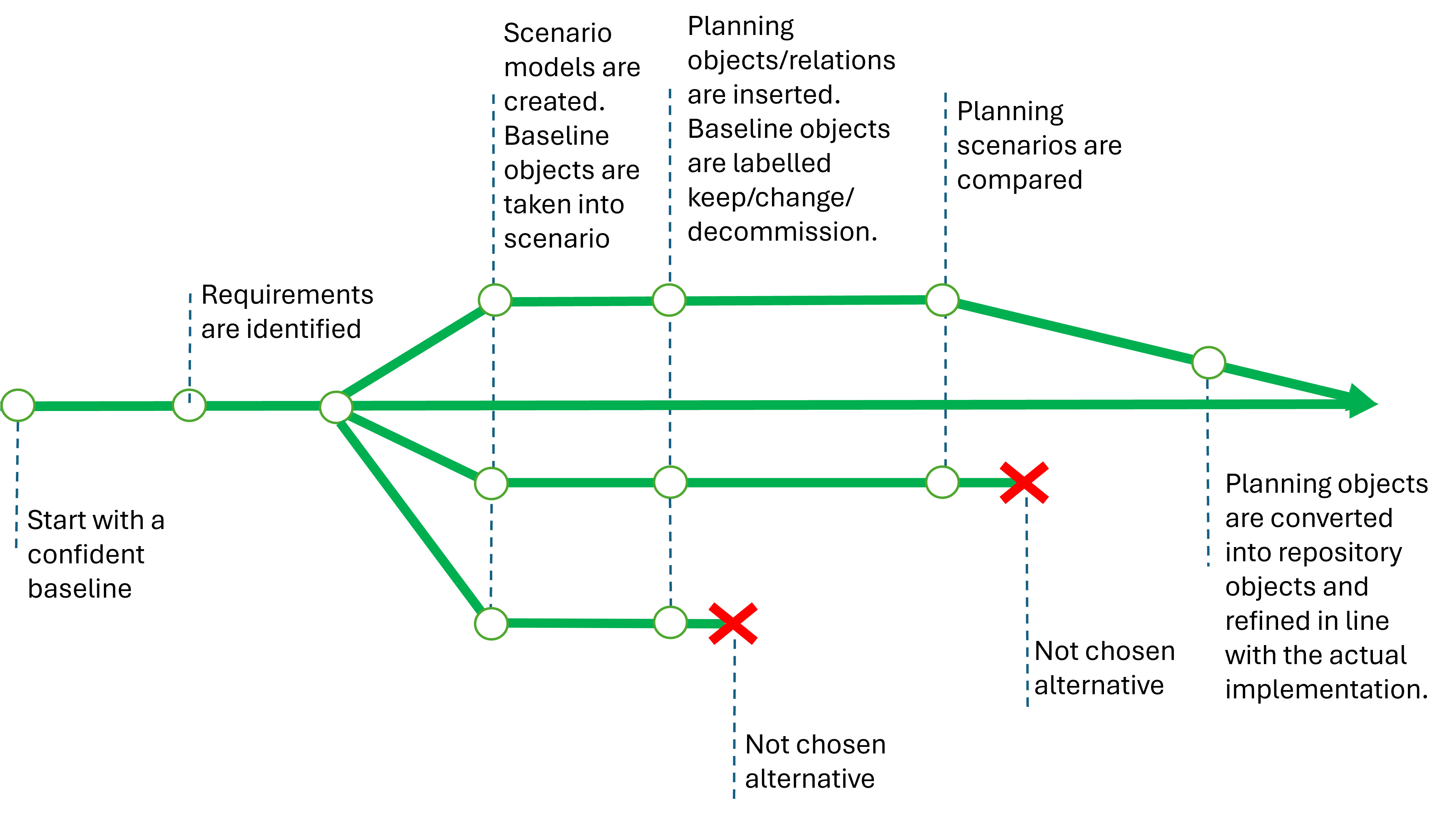
You can reuse existing Elements, add new ones, or plan decommissioning while keeping the agreed architecture unchanged. This makes it easy to compare alternatives, discuss trade-offs, and agree on the best direction before anything is released into the curated repository.
Typical Scenario Planning Use Cases
Build, Buy, or Combine: compare different sourcing options for delivering a new solution.
Modernize or Replace: decide whether existing applications should be improved, replaced, or retired.
Reuse, Consolidate, or Introduce: explore options to reduce redundancy and simplify the application landscape.
On-Premise, Cloud, or Hybrid: evaluate different deployment models and their business impact.
Data Architecture Variants: compare alternative approaches to managing and using data.
Integration and API Strategies: Choose the most suitable way to connect systems and services.
How it Works in ADOIT
Choose the lean metamodel profile as a starting point
As already recommended in the ADOIT Quick Start Guide choose the ‘ADOIT for Lean Architecture Fans’ metamodel profile. It is a proven and pragmatic starting point that keeps things simple while still allowing meaningful analysis.
It simplifies the complexity of ArchiMate while ensuring you have all the objects and relations needed to fully use our offered solutions and sample models.
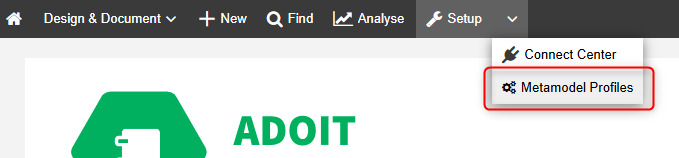
From there you can expand step by step once you know which elements and relationships are actually needed for your scenario planning practice.
Set the Transformation Scope
Identify the part of the architecture you want to change or improve, such as the applications or technologies that support a specific capability or business process.
Steps:
- In the Model Explorer, select or create a folder to store your scenario alternatives.
- Create one folder for your current planning scenario.
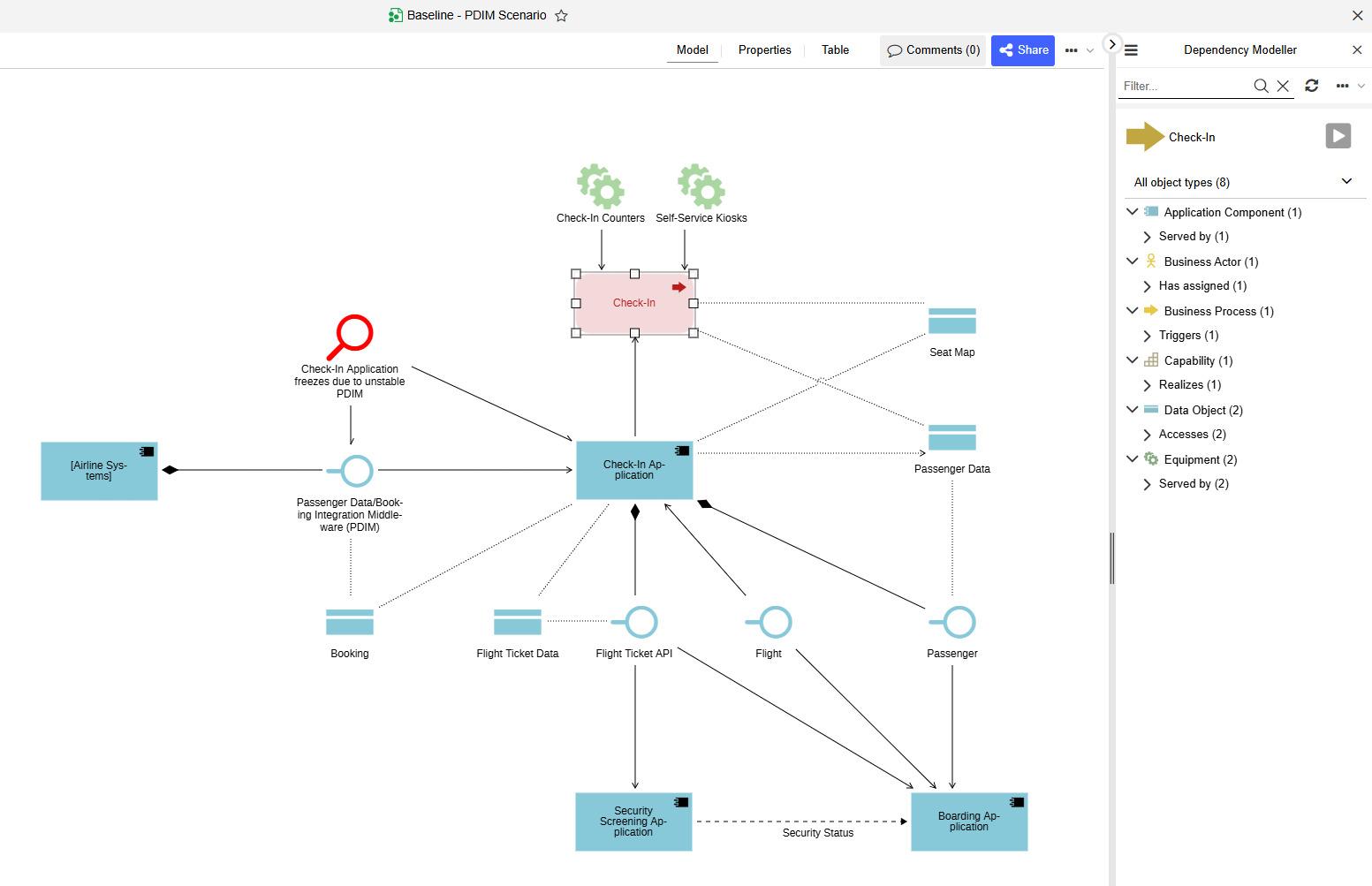
- Each scenario alternative will be contained in one model. Therefore, create an architecture model and name it ‘Baseline - [Scenario Name]’
- Add the relevant architecture elements that define the scope of your Scenario:
- Use drag and drop from the Object Explorer and/or
- Leverage the Architecture Dependency Modeler.
This guide assumes that the relevant Elements of the baseline architecture already exist in the repository and can be reused via drag and drop. If no baseline is available yet, document it first before continuing with Scenario Planning.
Create Alternative Solutions
Define multiple scenarios that represent different ways of addressing the business need. Each scenario captures a distinct solution option that can be evaluated and discussed. We use the ArchiMate plateaus to evaluate the scenarios.
Steps:
- Start brainstorming different scenario options.
Insert an Element of type Note and document all your options. Try to consolidate them into a small set of relevant options that you want to explore in more detail.
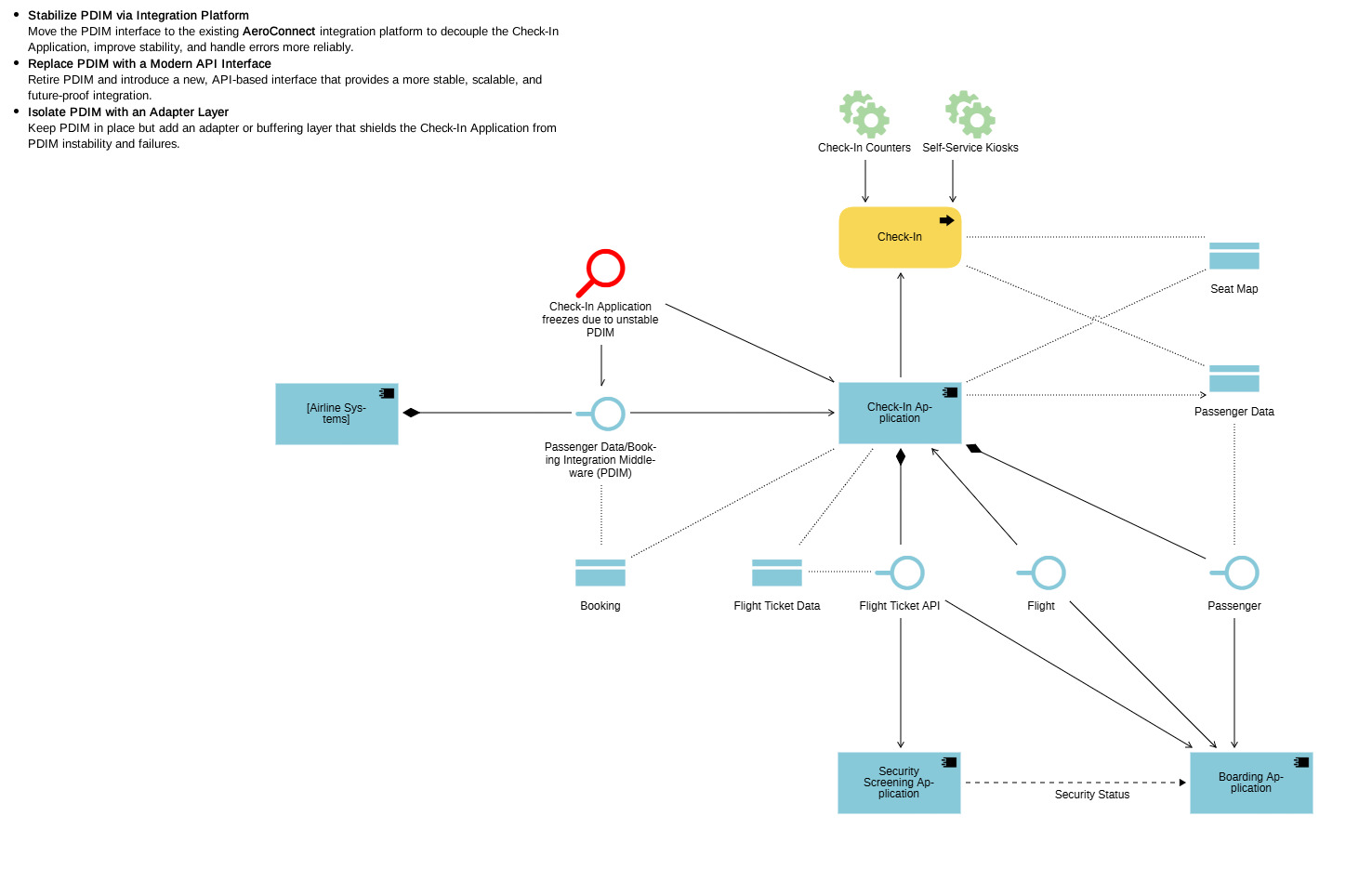
- Copy/paste the diagram ‘Baseline - [Scenario Name]’ and name it ‘Scenario Option 1: [Scenario Name]’. Add a Plateau with the corresponding name ‘Scenario Option 1: [Scenario Name]’.
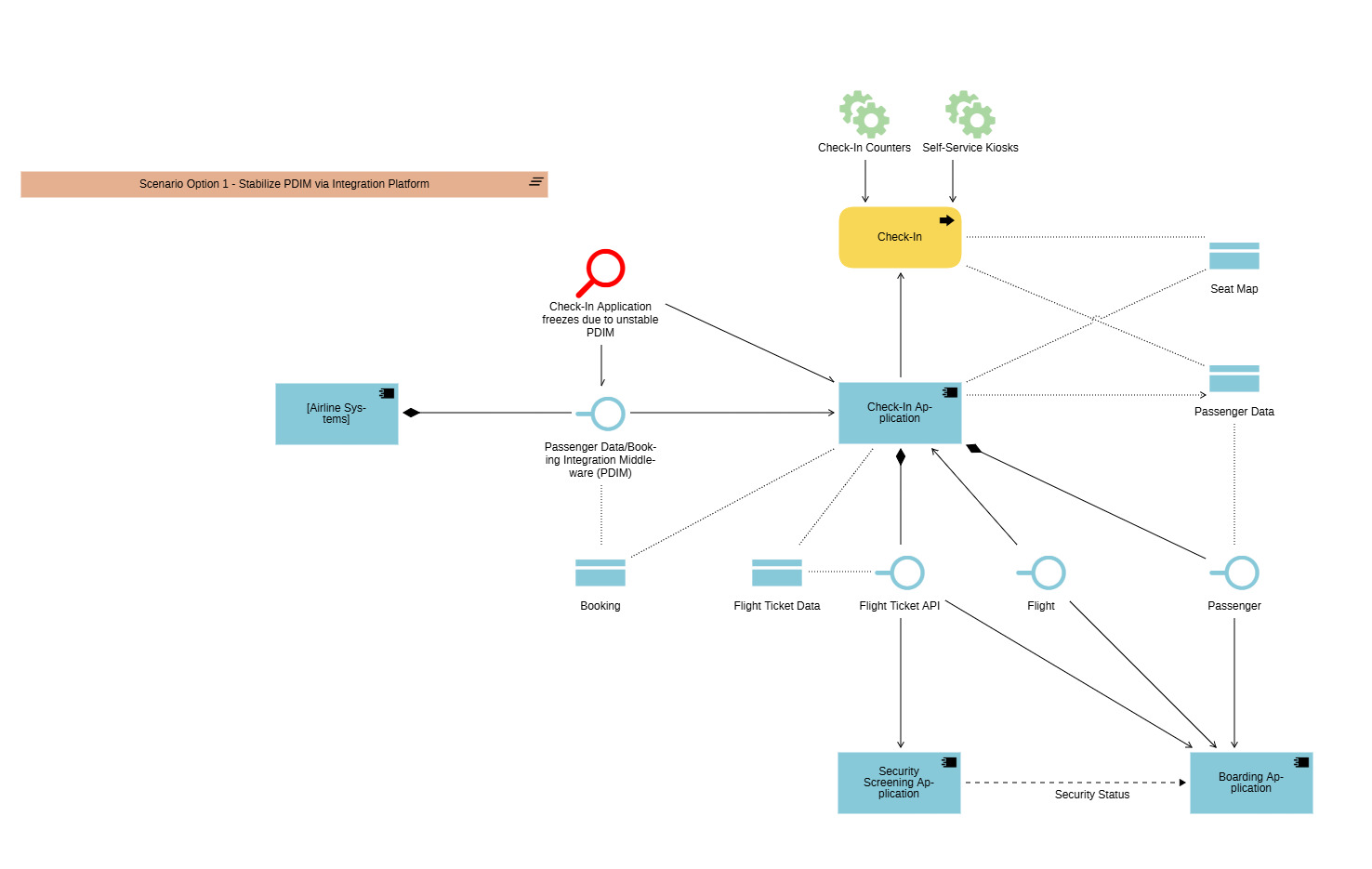
You will create diagrams for all remaining Plateaus later in this guide.
Shape the Target Architecture
Design the Scenario by labeling baseline Elements that will be changed or decommissioned, and by creating and linking new Elements where needed.
All of this happens while the baseline architecture remains untouched for now.
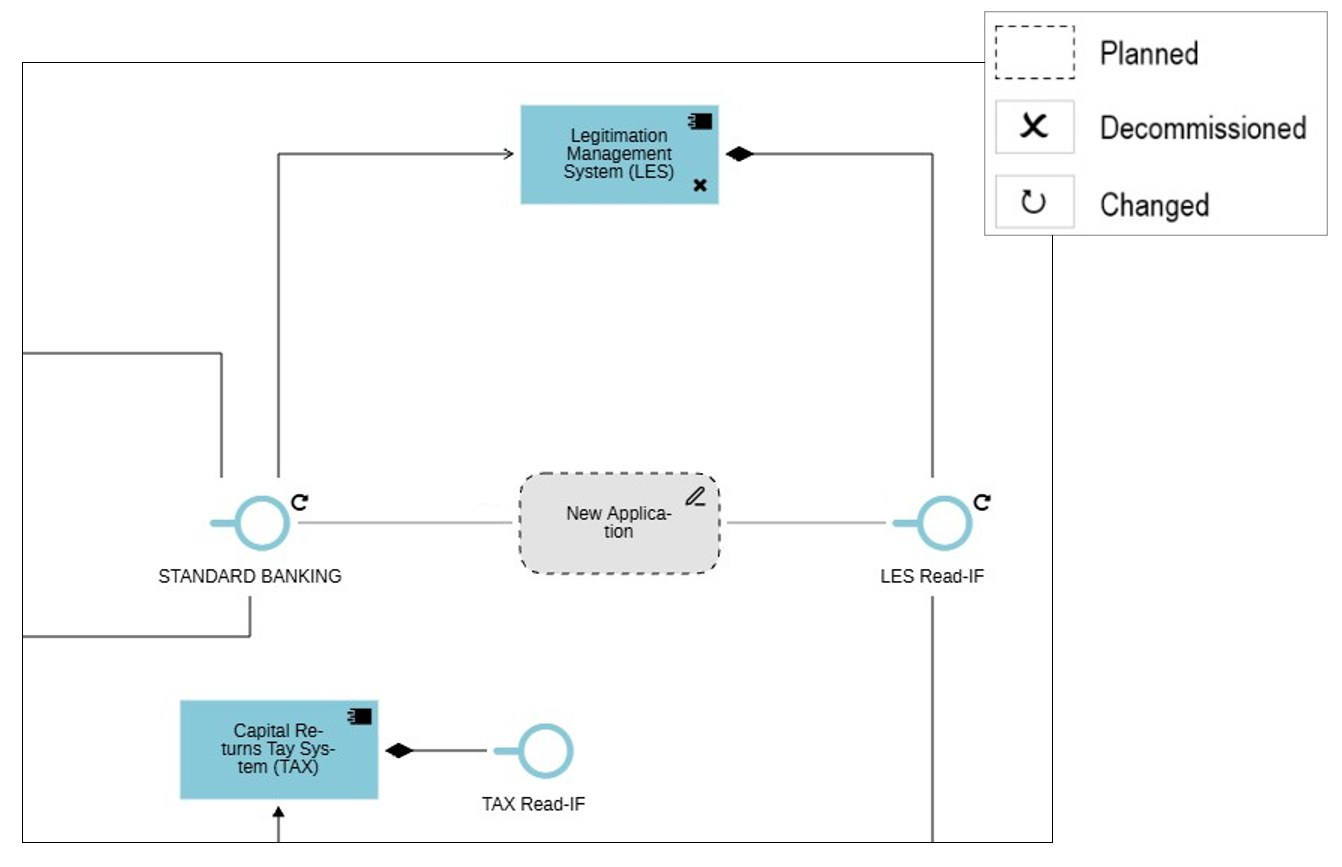
Steps:
- Starting from the baseline architecture, identify elements that need to be changed or are no longer needed. To this end find the objects in the object explorer and drag&drop them into the diagram. Note, relationships between the objects will be added automatically to the diagram. Label them via the context menu using xxx | changed or xxx | decommissioned.
Tips and Tricks for graphical modelling:
- Objects created directly in diagrams are automatically stored in the Object Explorer under personal > [your name]. Make sure to move them to the appropriate folder in your structure. Avoid leaving objects in the personal folder.
- Objects can be reused across multiple diagrams. Deleting an object from a diagram only removes it from that diagram. The object itself remains in the Object Explorer.
- Use SHIFT + DELETE if you want to remove an object completely from the repository, not just from a diagram.
- Before creating a new object, check whether it already exists. If duplicates occur, you can use Merge objects. Be aware that outgoing relationships are merged, while incoming relationships are kept only for the remaining object.
- Identify elements that are not yet part of the baseline architecture.
- Create them using the modeling class Planning Object and assign the appropriate element type in the context menu, for example Application Component, Application Interface, or Data Object.
- Create new relationships using Planning Relations. Select the correct relationship type via the context menu.
- Mark relationships from the baseline architecture that are no longer needed as to be decommissioned.
Use color coding to visually highlight changed, new, or decommissioned elements and relations.
- Repeat 1-5 for all remaining Plateaus.
Compare Scenarios and Decide
Compare scenarios side by side to understand their impact on business value, costs, risks, and dependencies, and decide on the preferred option. Capture the resulting architecture decisions, including context, alternatives, and rationale.
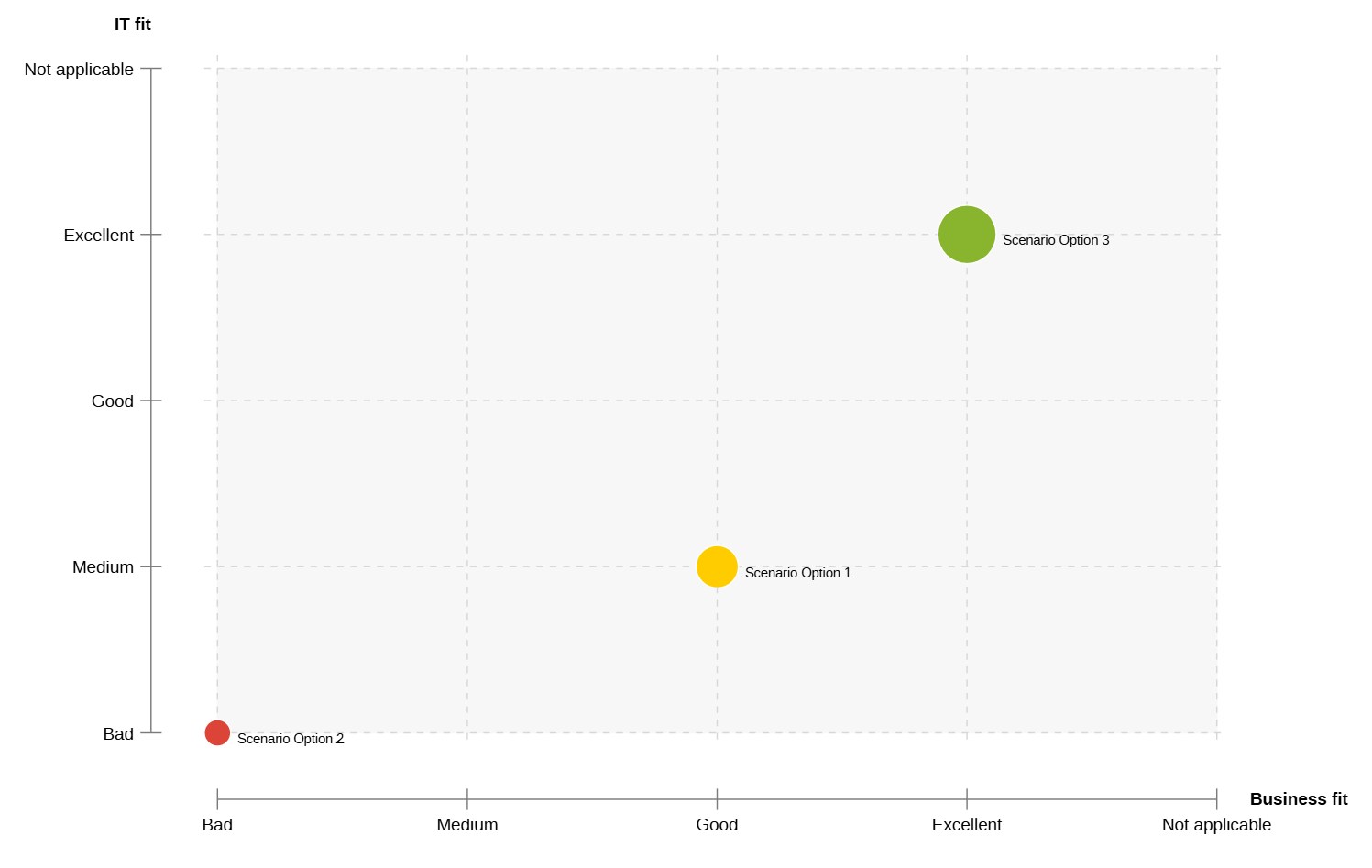
Steps:
Analyze each documented Scenario option.
Into each scenario diagram, add an object of type Plateau, briefly summarize the option, and assess it using the following criteria:
- Cost
- Time to value
- Architecture fit
- Risk To do this, open the notebook of the Plateau element and enter your assessment data in the chapter ‘classification’.
Create an Analysis and store it in your scenario folder in the Explorer.
Add all your Plateaus and use charts to analyze the options and identify the best choice.
Open the notebooks of the Plateaus and set their ‘Scenario Status’ to Proposed, Selected, or Rejected.
Release the Chosen Scenario
Validate the selected scenario, check it against your ArchiMate modeling guidelines, and then release it into the agreed baseline architecture to make it the new baseline.
Steps:
- Open the chosen scenario diagram and perform model validation. Correct all findings.
- After the final decision, start creating new objects and relationships, and delete existing elements that are no longer relevant, as the implementation progresses.
This step is intentionally done manually. It gives you the flexibility to enrich the architecture with the right level of detail and to take action on required deviations during implementation, without overloading the Scenario with unnecessary information.