Welcome to ADONIS!
Thank you for your interest in ADONIS! This Quick Start Guide helps you explore the key features in a Standard Test Account. It walks you through the first steps so you can test ADONIS effectively and unlock the full potential of our software.
This Quick Start gets you productive in Design & Document while keeping explanations brief. For each topic, read the short intro, and if you want to learn more we inivite you to jump to the matching ADONIS Fundamentals e-learning chapter to learn by doing. Skim once, then follow the parts you need most. ADOmoney Bank is available as a quality example.
You don’t need to follow the steps in the exact order. Skim once, then focus on the parts you need most.
Before You Start
- You have a User/Modeller login prepared by your Master User.
- The ADOmoney Bank sample content is available as a quality reference.
- Scenarios and basic rights are preconfigured by the Master User.
Login
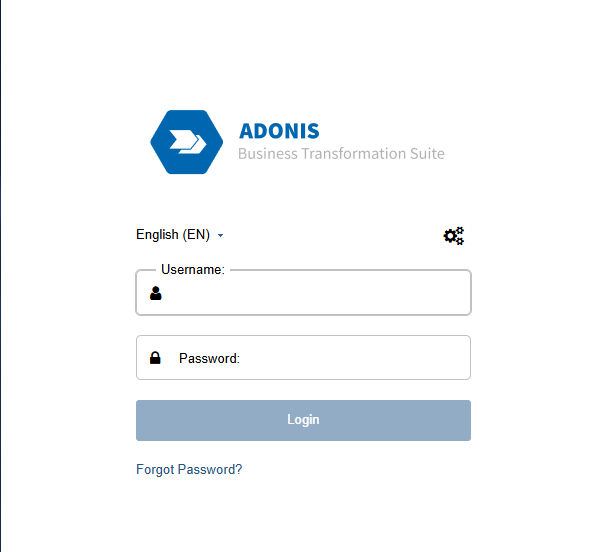
Please contact your Master User since he or she has received the credentials sheet and knows your login details. In case you want to reset your password and did not receive an email, please contact your Master User and check if your email address has been correctly entered in your user account.
You're all set now! You can start exploring ADONIS!
Orientation: Explore the UI and Create Your First BPD
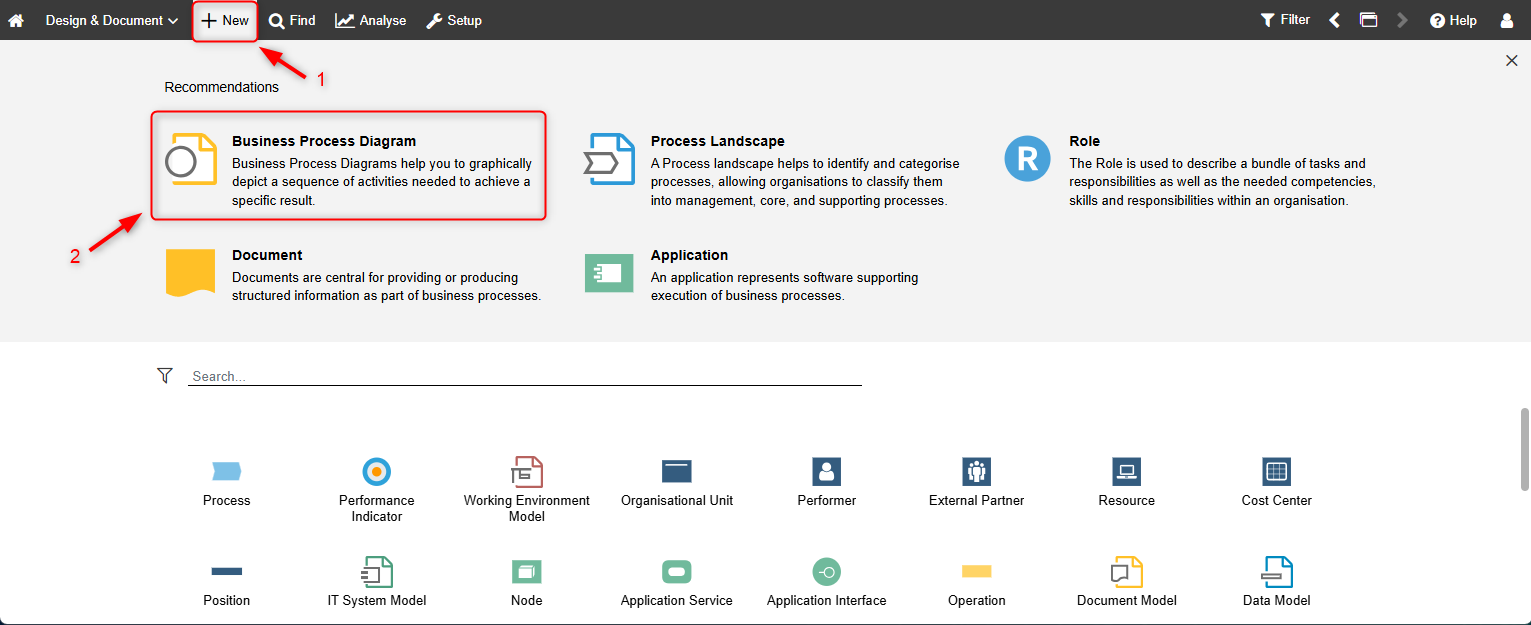
This is your modelling cockpit. Get familiar with the Explorer (left), Canvas (center), and Properties (right). Create a Business Process Diagram (BPD) in just a few clicks.
Do it in the Course:
For your User Interface oriention, please sign up for the ADONIS Fundamentals 1: Business Process Diagrams e-Learning. The chapter "ADONIS User Interface" will guide you through your first impression with the UI.
Populate Your First BPMN Process
Option A “Old-school”
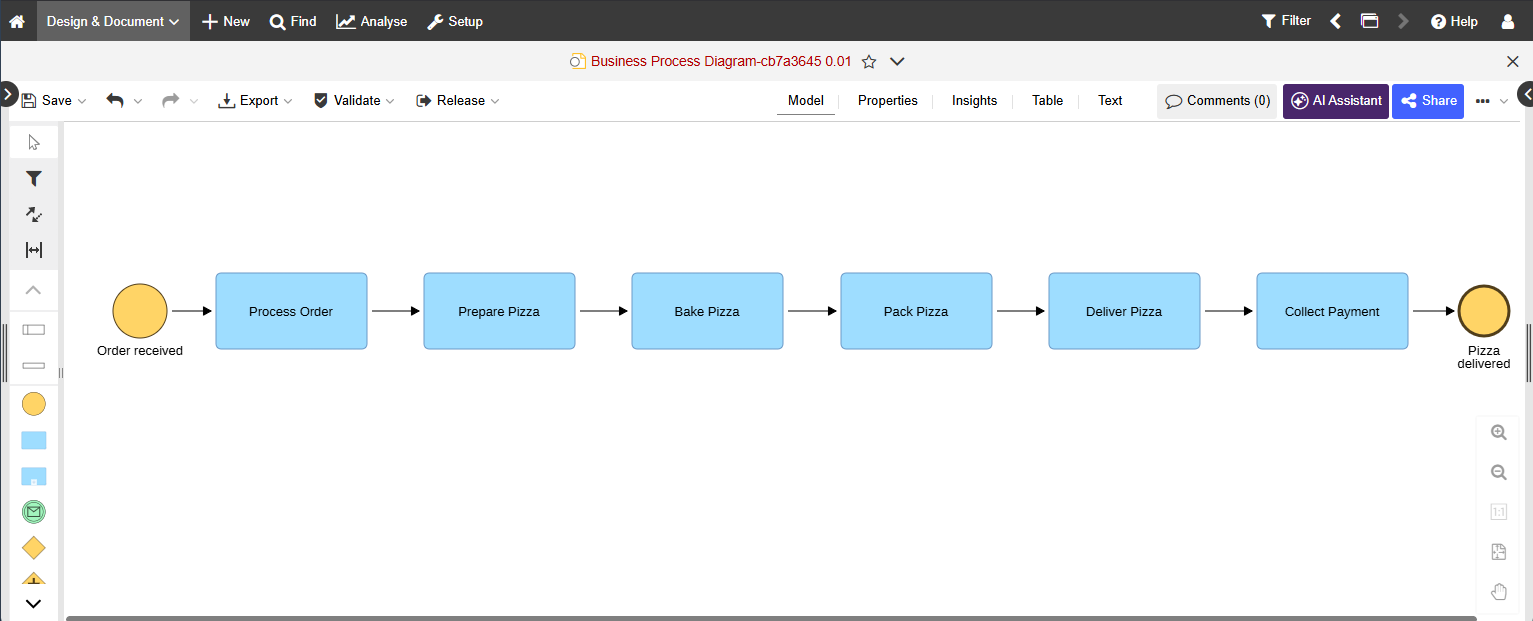
Model the happy path with a clear start and end and 3–7 concise tasks. Keep labels clean (Verb + Object), minimize gateways, and focus on readability. The people who will review your created process later will thank you.
Do it in the Course:
For guidance on your first modelling experience, continue with the ADONIS Fundamentals 1: Business Process Diagrams e-Learning. The chapters "How to create a Business Process Diagram" and "How to add responsibilities and alternative paths" will teach you the basics.
Option B "AI-assisted"
With the Create Mode of our AI Assistant, you will be able to create BPMN Models by just entering a simple prompt in natural language - the AI Assistant will take care of the rest.
Turn Properties into an Operational Playbook
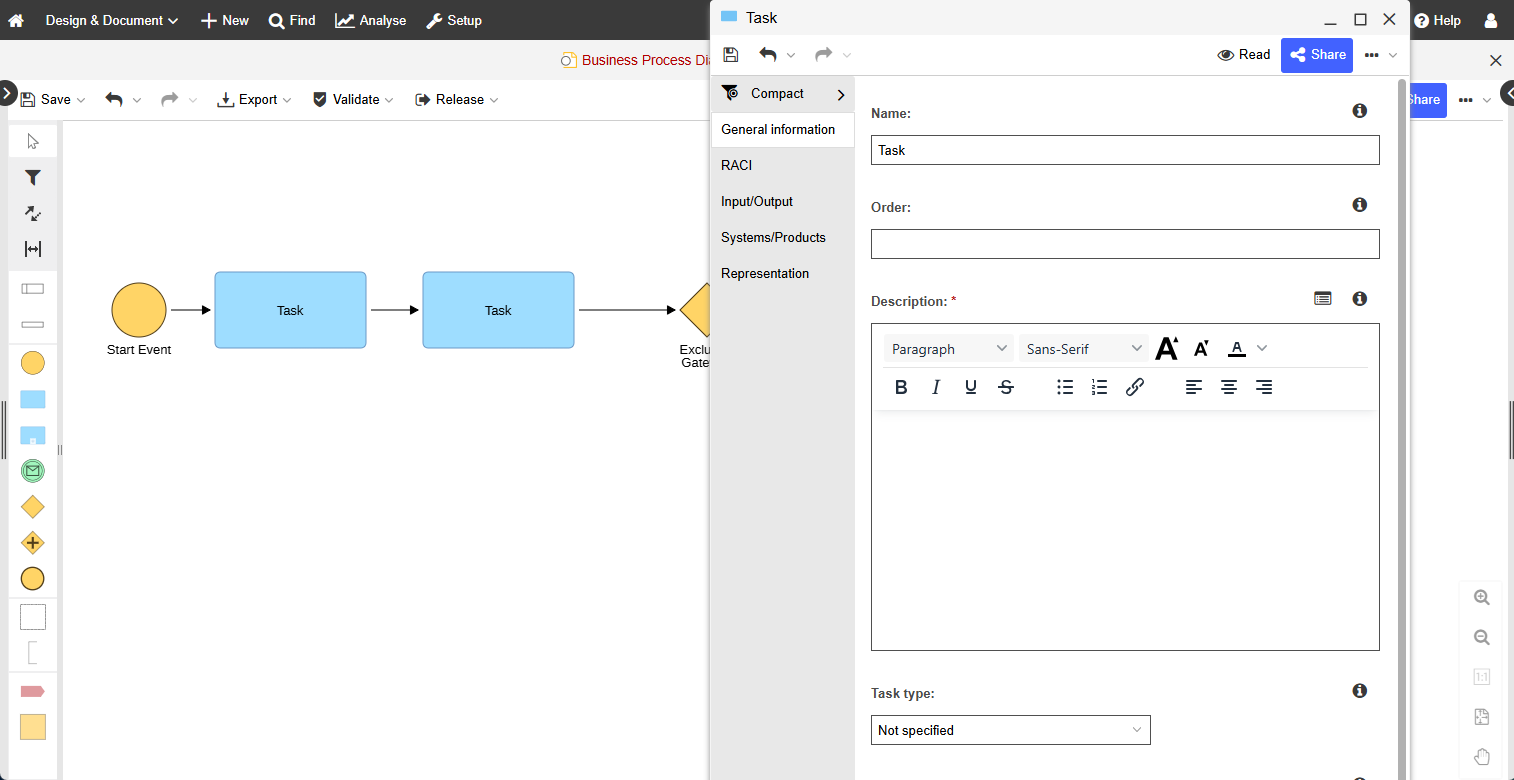
The properties of the diagram and each task turn your process diagram into an operational playbook. Define the process owner, assign who does what (RACI), capture inputs/outputs, and link the documents and applications people actually use, so your process is ready to be shared with colleagues, can get published and serve as basis for automation and further analysis.
Do it in the Course:
For guidance on your first Notebook/Properties experience, continue with the ADONIS Fundamentals 1: Business Process Diagrams e-Learning. The chapter "How to enrich your Business Process Diagram" will teach you the basics of adding information to your Notebooks/Properties.
Create a Process Landscape and Link Your BPDs
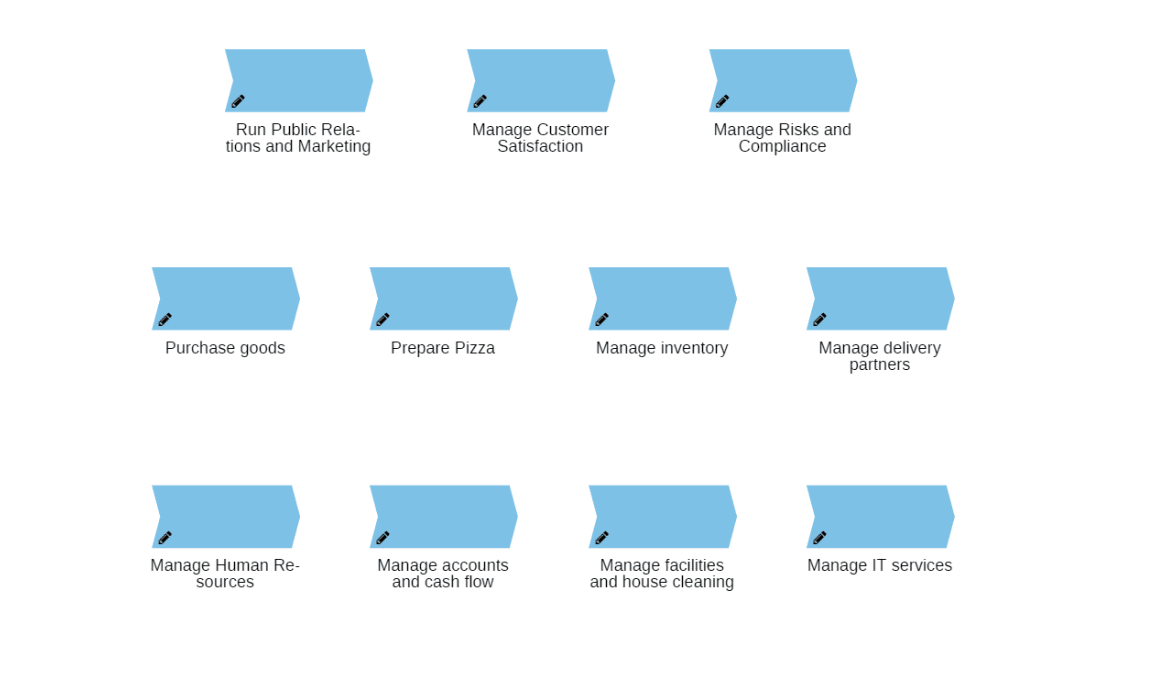
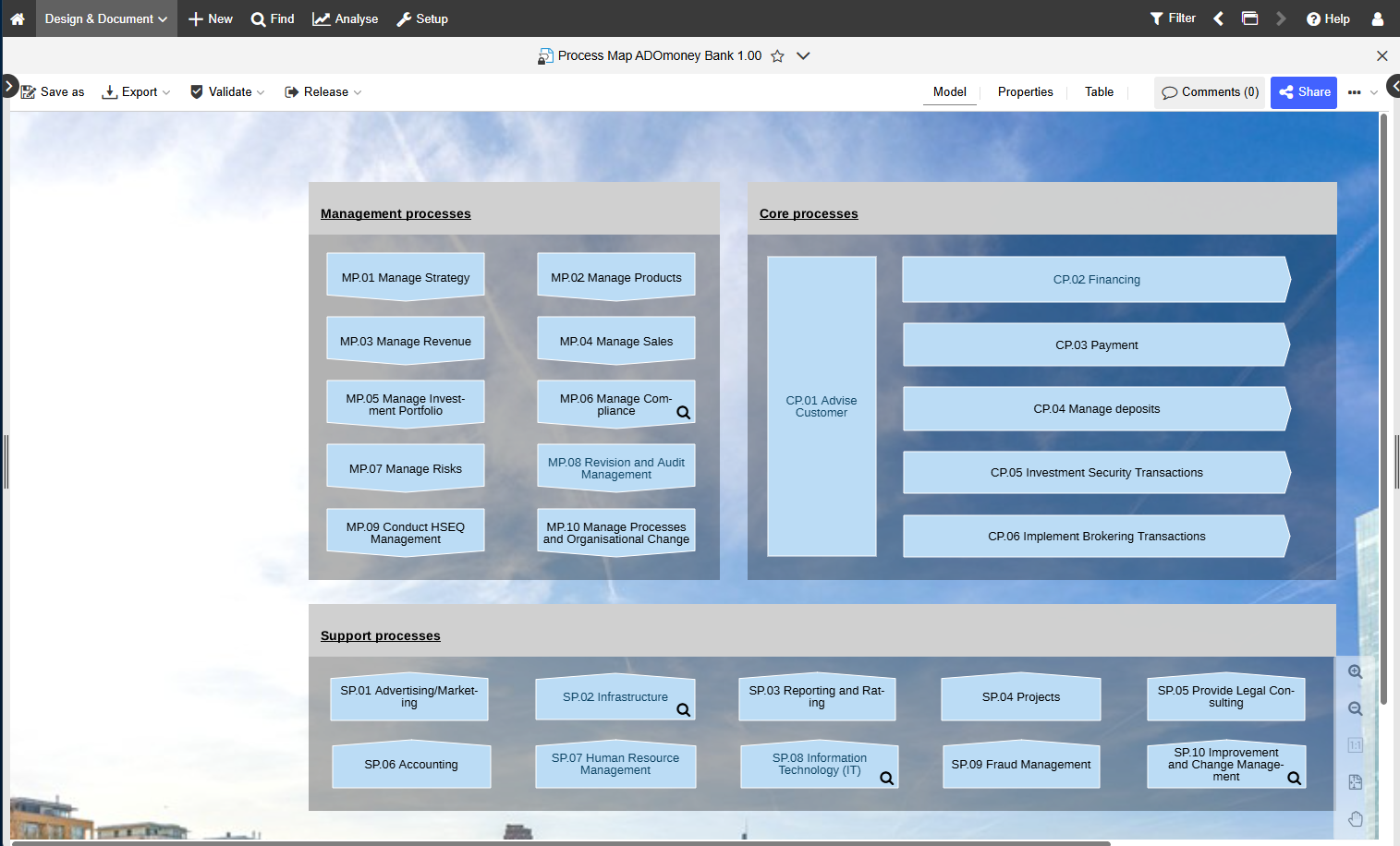
Process Landscapes are the map of your BPM world. Link your process into the landscape so readers can find it in seconds, understand the context and where it fits in the overall company's picture, and navigate the surrounding context with confidence.
Do it in the Course
For your Process Landscape oriention, please sign up for the ADONIS Fundamentals 2: Process Landscapes e-Learning. Here you will learn why you need Process Landscapes, how to create them, how to link your Process Diagrams to them and also how to add key information to enrich your Process Landscapes.
Essentials Accomplished! Follow the Next Steps to Become Fully Productive in the ADONIS Design & Document Scenario
Well done! You already know how to navigate the User Interface and you are able to create simple Process Diagrams and even link them to a Process Landscape. Your next step? Valuable Tips & Tricks to make your first steps in ADONIS even smoother!

Do it in the Course
For your valuable modelling tips & tricks, please sign up for the ADONIS Fundamentals 3: Modelling Tips & Tricks e-Learning. Here you will learn how to conveniently edit Process Flowcharts, align objects for improved readability and many more useful quality of life improving tool features!
From Models to Dashboards & KPIs - Insights
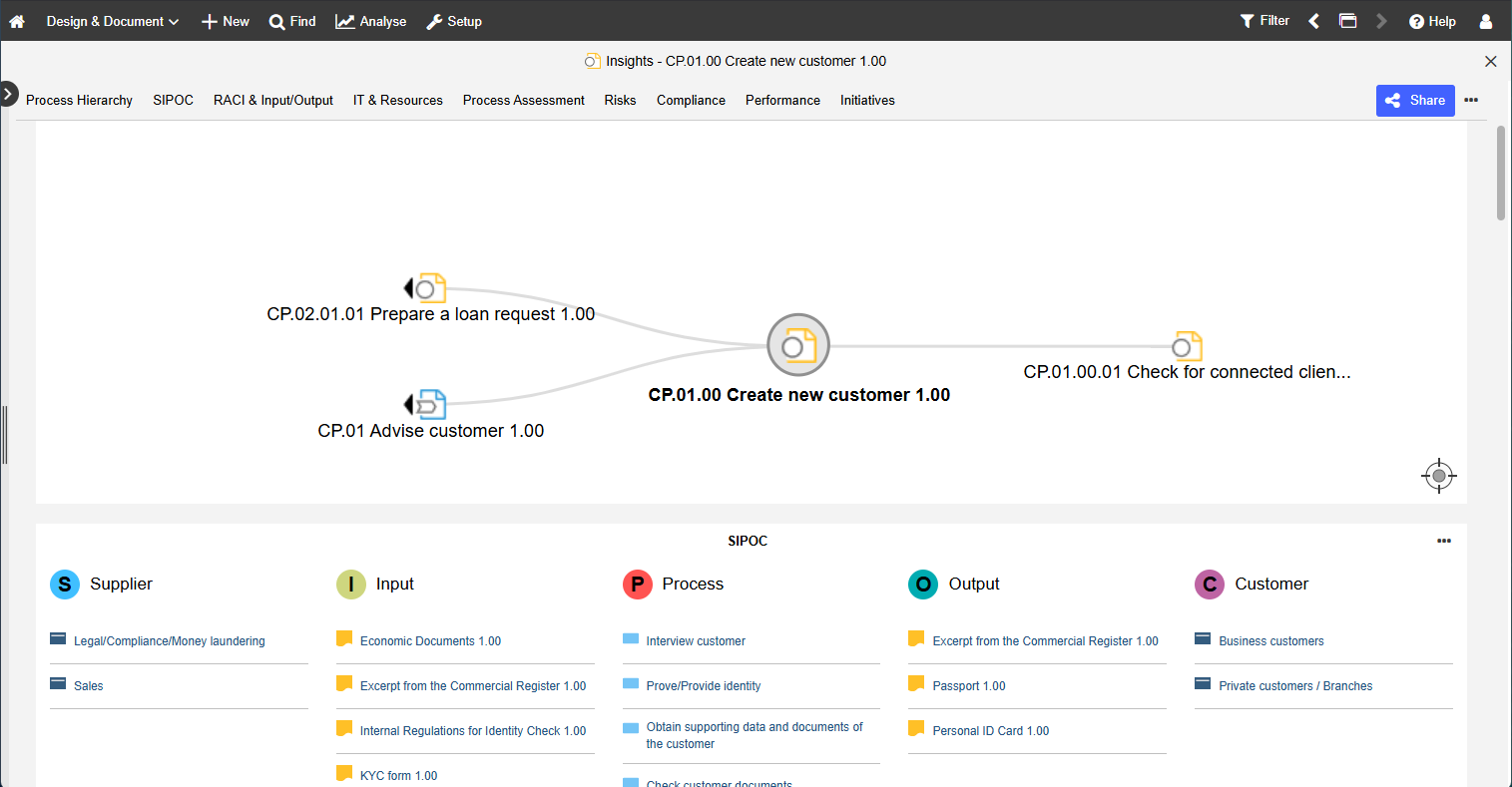
To make the most of the nice diagrams you just created, stakeholders also need real insights into processes. Use our ADONIS Insights to turn models into decisions; surface KPIs, trends, and Risks so discussions jump from what’s happening to what do we change next.
Do it in the Course:
For your ADONIS Insights orientation, please sign up for the ADONIS Fundamentals 4: Understanding data in ADONIS e-Learning. Here you will learn the purpose of ADONIS Insights, where to find them and what is possible with interactive analysis.
Leverage Our AI Assistant for Even More Insights!
Use the Analysis Mode for intelligent, AI-powered analysis to detect inefficiencies across workflows. The AI Assistant scans models, tracks performance metrics, and highlights improvement opportunities – delivering instant, data-driven insights. Want to learn more? Click here!
ADOmoney as a Quality Baseline
We have mentioned the ADOmoney Bank sample content before but since it is such a nice opportunity to see and learn about the ADONIS capabillities AND get inspired for your own BPM initiatives - here is another reminder and advise to really make use of this sample content.
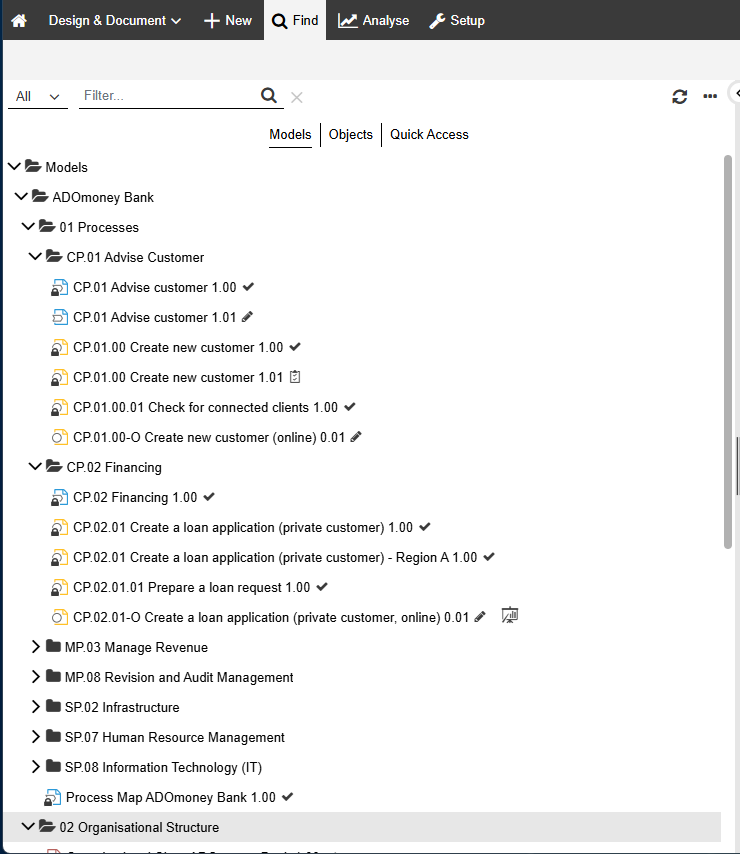
To access the sample content, simply open ADOmoneyBank in the Explorer. What you can do here? For example, expand "01 Processes" then expand "CP 0.1 Advise Customer" and click on "CP 01.00 Create new customer" to open the Business Process Diagram. Now you can observe naming, lanes, and notebook completeness, then mirror those patterns in your own BPM initiatives!
Validate it
The validation functions in ADONIS allow you to check whether processes comply with BPMN rules and best-practice modelling guidelines.
Release it (Submit, Approve, Release)
Now that your process is modelled and validated, submit it for approval. By default, ADONIS uses a two-step workflow in Control & Release: first a methodical review (notation, layout, conventions, completeness of the properties), then a business approval by the Process Owner. After both steps are approved, the state switches to Released and your process becomes visible in Read & Explore for everyone.
Tip: Before submitting, double-check the “methodical” essentials (clean start/end, minimal gateways, clear labels, validation passes) and the “business” essentials (Owner set, roles/org units assigned, key inputs/outputs and documents/apps linked).
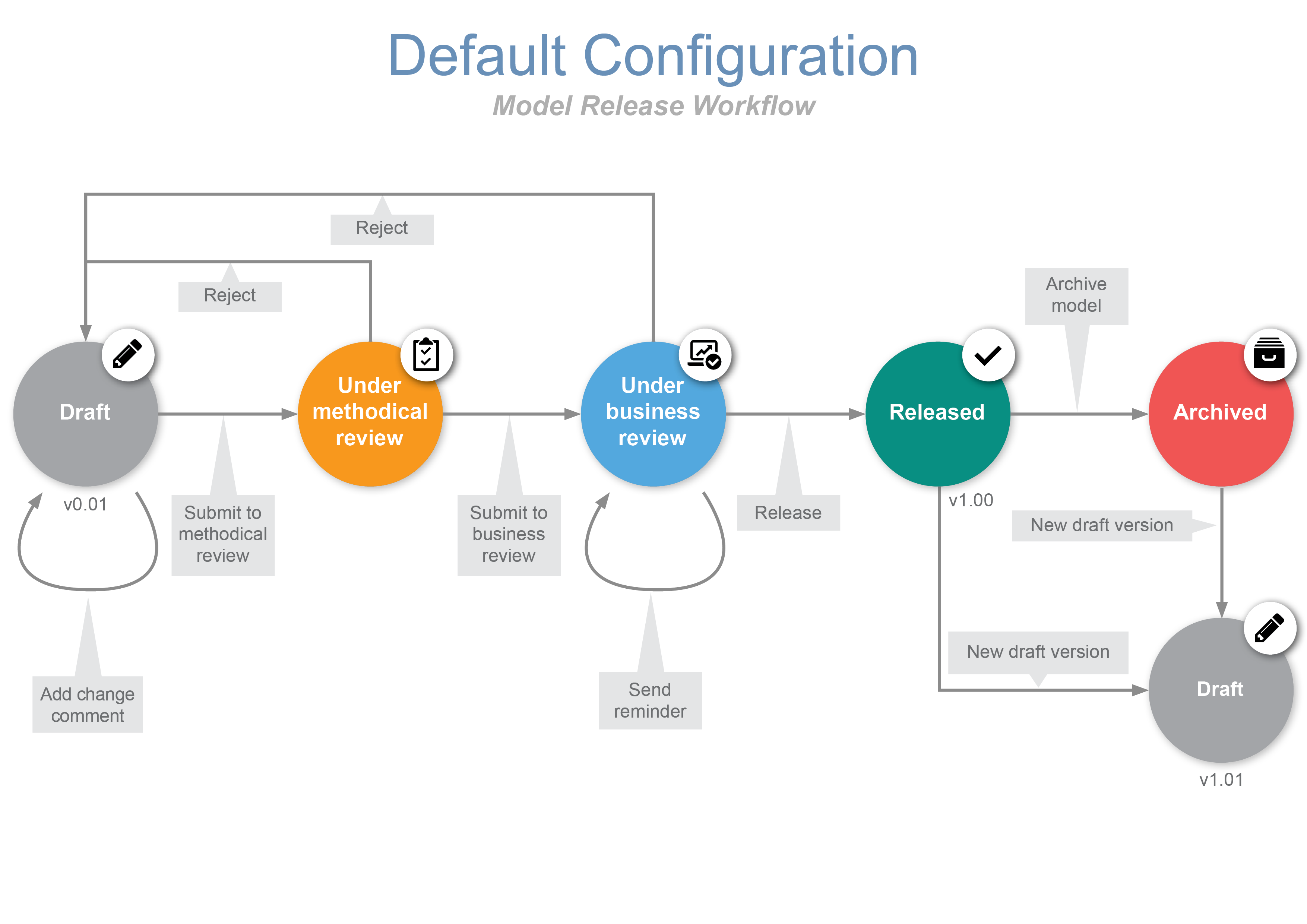
The Release Workflow is highly flexible and configurable. In its standard configuration it foresees a 4 eye approval, including a methodical and business review - Don't worry! Our Documentation explains everything in detail.
Final Checklist
Congratulations, you made it to the end of our ADONIS Quick Start Guide for Users! Here is a final checklist to make sure you are ready:
You can navigate Explorer → Canvas → Notebook.
You built a small BPMN process and completed core properties of the process and its tasks.
You ran validation and fixed issues.
You submitted the model; after methodical and business it appears as Released in Read & Explore.
Great job! You’ve successfully completed the first steps in ADONIS! Now you can continue exploring and testing the software at your own pace. To make the most out of your test account, here are useful features and resources:
Explore all extensions for ADONIS, including Process Simulation, Automation and Mining in our BPM Marketplace:
For more insights, know-how, and useful tips:
Free ADONIS E-Learning for you and your colleagues
Already using ADOIT? Discover the possibilities of integration with ADO Connect:
ADO Connect in our Marketplace
Got more questions? Browse our FAQ section for many interesting topics:
For any further questions or concerns, reach out to your BOC contact person!