Tableaux de bord configurables
Grâce aux tableaux de bord configurables, vous pouvez configurer votre propre espace de travail numérique personnalisé qui rassemble les informations et les indicateurs clés correspondant à votre rôle. Un tableau de bord configurable sert de point d'accès central aux informations, en combinant les données provenant de différents processus métier et systèmes, et en les présentant de manière intuitive pour faciliter leur exploitation.
Vous pouvez consulter les tableaux de bord configurés par vos collègues et les retrouver rapidement grâce à la fonction de recherche intégrée. Ou créez le vôtre vous-même, en choisissant des widgets dans la bibliothèque de widgets et en les organisant librement afin de mettre en avant les informations les plus importantes pour vous. Adaptez ainsi votre espace de travail à vos besoins et priorités spécifiques.
La page des tableaux de bord
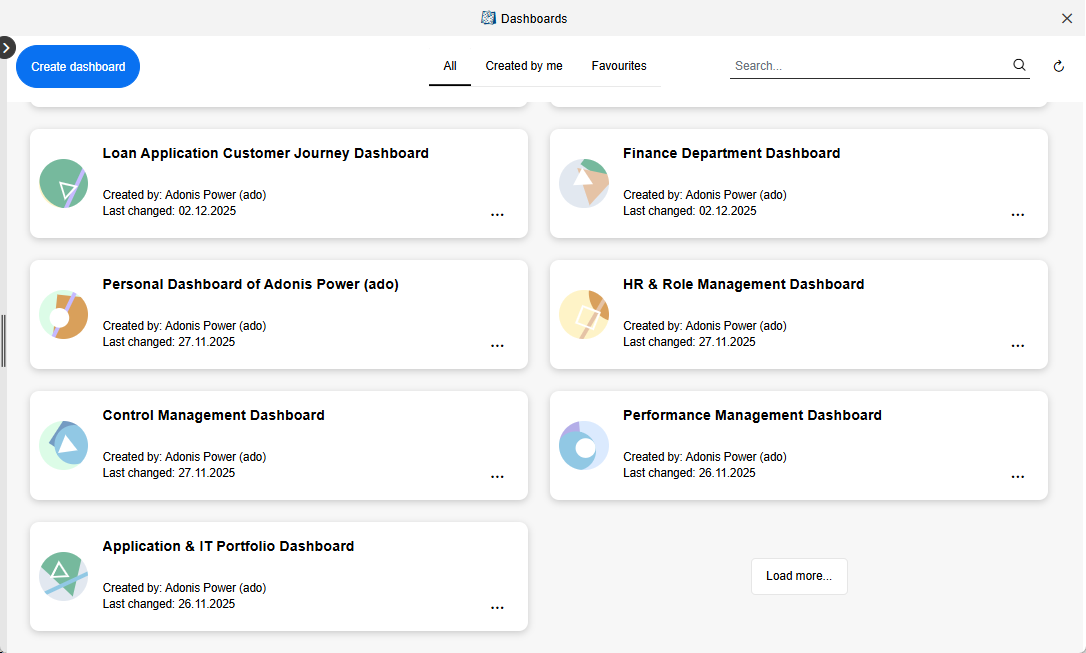
La page Tableaux de bord vous permet d'accéder aux tableaux de bord et de les gérer depuis un emplacement central. Vous y trouverez la liste de tous les tableaux de bord qui ont été créés et pourrez également créer de nouveaux tableaux de bord à partir de zéro.
Ouvrir la page des tableaux de bord
Pour ouvrir la page des Tableaux de bord :
- En haut à gauche de l’écran, sélectionnez
 Tableaux de bord.
Créer un nouveau tableau de bord
Voir Créer et configurer un tableau de bord.
Ouvrir un tableau de bord
Tous les tableaux de bord sont affichés sous forme de tuiles et triés selon la date de leur dernière modification.
- Pour ouvrir un tableau de bord, cliquez dessus.
Créer et configurer un tableau de bord
La création de vos propres tableaux de bord est simple et rapide. Pour ce faire, vous devez faire ce qui suit:
Pour ouvrir la page des Tableaux de bord :
Configurez le nouveau tableau de bord :
- Cliquez sur Créer un tableau de bord, saisissez un nom explicite, puis cliquez sur Créer. Le nouveau tableau de bord s’ouvre.
Ajoutez et configurez des widgets pour afficher les données :
Cliquez + Ajouter un widget pour ouvrir la bibliothèque de widgets située à droite de l'écran. Il contient deux onglets : Standard et Prêt à l'emploi.
Glissez-déposez les widgets vers le tableau de bord et cliquez sur
 Configurer pour modifier
les paramètres :
Configurer pour modifier
les paramètres :Standard
Prêt à l'emploi
Repositionnez et redimensionnez les widgets selon vos besoins :
Faites glisser l'icône de déplacement
 située en haut à gauche du
widget pour le déplacer vers une nouvelle position.
située en haut à gauche du
widget pour le déplacer vers une nouvelle position.Faites glisser le coin de redimensionnement
 situé en bas à droite du
widget pour ajuster sa taille.
situé en bas à droite du
widget pour ajuster sa taille.
Enregistrez votre tableau de bord une fois terminé :
- Cliquez sur Enregistrer.
Pour tous les widgets, les champs de texte tels que Titre ou Description peuvent être traduits
dans toutes les langues disponibles dans ADONIS, si nécessaire. Cliquez sur
 Traduire à côté du champ et
saisissez les traductions.
Traduire à côté du champ et
saisissez les traductions.
Configurer le widget Graphique à barres
Le widget Graphique à barres affiche les données sous forme de barres afin de comparer facilement les valeurs de différentes catégories en un coup d'œil. La longueur de chaque barre est déterminée par le jeu de données utilisé et la méthode d’agrégation sélectionnée.
Après avoir ajouté le widget, configurez-le en utilisant les options suivantes (les champs obligatoires sont indiqués par un *) :
Titre* : Saisissez un titre pour le widget.
Description : Saisissez une courte description des informations affichées dans le graphique.
Requête* : Sélectionnez une requête pour définir le jeu de données du widget. Vous pouvez choisir entre :
Requêtes enregistrées : requêtes créées avec la fonction de recherche dans ADONIS. Cela inclut les requêtes privées que vous avez créées et les requêtes publiques.
Requêtes intégrées : requêtes prédéfinies fournies par ADONIS qui représentent des vues couramment utilisées sur des modèles et des objets.
La requête sélectionnée détermine quels éléments sont inclus dans le jeu de données.
Groupe par* : Sélectionnez la propriété qui définit les barres du graphique. Vous pouvez uniquement choisir des attributs d'énumération ou des relations affichés sous forme de colonnes dans le résultat de recherche.
Taille de la barre : Définit la façon dont la longueur de chaque barre est calculée. Vous avez deux options principales :
Nombre de lignes de la requête (par défaut) : Chaque barre affiche le nombre d’entrées dans ce groupe.
Agrégation : Sélectionnez un attribut numérique parmi les résultats de recherche pour définir la Valeur. Les barres représentent toujours les groupes (par exemple, les personnes responsables), mais leurs longueurs correspondent désormais à la valeur agrégée de l’attribut. Choisissez la méthode d’agrégation Somme, Moyenne, Min ou Max.
Définir les couleurs : Choisissez les couleurs des barres. Vous pouvez les choisir à partir des cercles de couleur ou saisir directement des valeurs hexadécimales (par exemple
#d62fd6).Afficher la légende : Activez ou désactivez l'affichage de la légende du graphique.
Mise en page du graphique : Choisissez l'orientation des barres : verticale ou horizontale.
Position des labels : Lorsqu'une orientation horizontale est sélectionnée, choisissez si les labels apparaissent à l’intérieur ou à l’extérieur des barres.
Trier par : Définissez comment les barres sont triées. Les valeurs possibles sont Par défaut, Nom (ascendant)), Nom (descendant), Valeur (croissante) et Valeur (décroissante.
Exemple : visualiser la répartition des risques
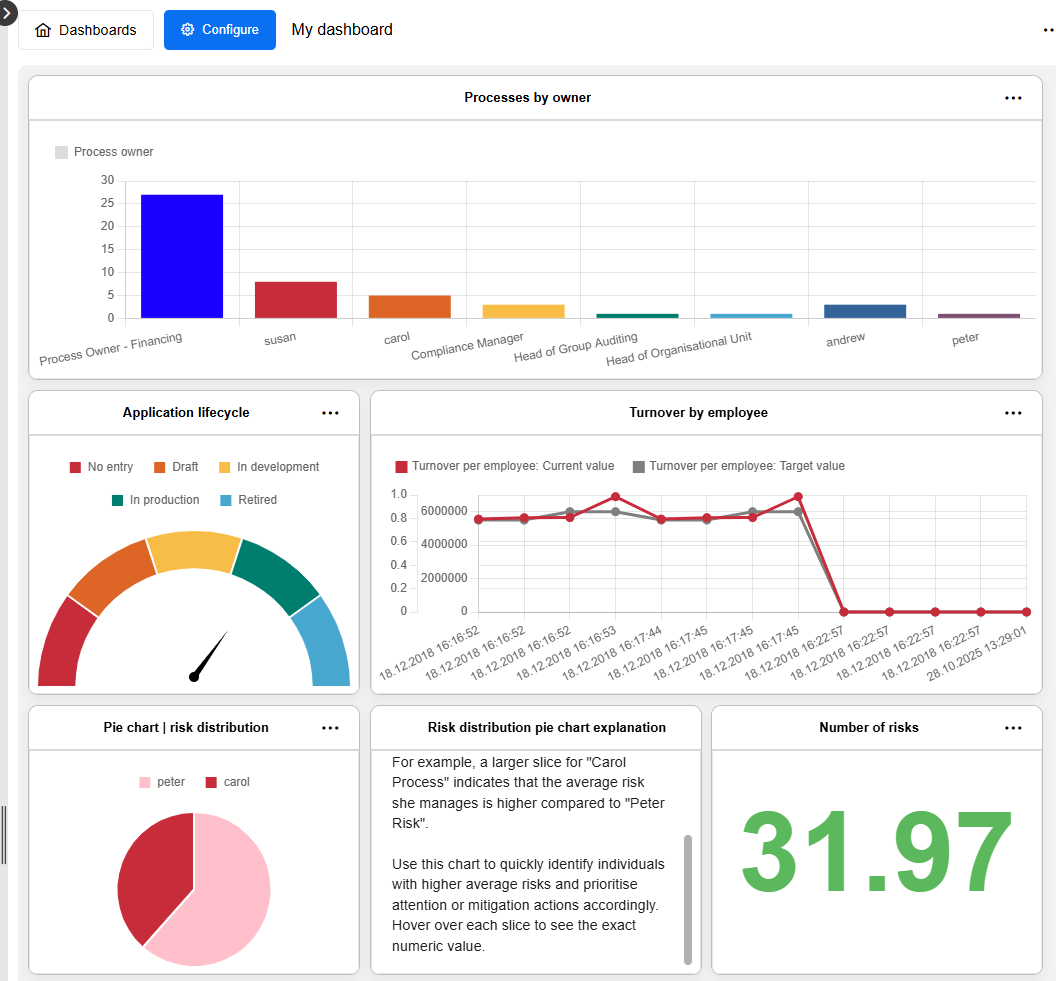
Par exemple, vous pouvez créer un graphique à barres basé sur une requête enregistrée pour les Risques qui inclut la relation Responsable et l’attribut Valeur estimée du risque sous forme de colonnes. Lorsque vous sélectionnez Responsable sous Groupe par et Nombre de lignes de requêtes sous Taille de la barre, les barres représentent chaque responsable, et leurs longueurs indiquent combien de risques chaque personne est responsable (par exemple, « Risque de Peter » 8, « Processus de Carol » 5).

Si vous choisissez plutôt Valeur estimée du risque pour la taille de la barre et que vous définissez la méthode d’agrégation sur Moyenne, les barres représentent toujours les responsables, mais leur longueur correspond désormais à la valeur moyenne du risque par personne (par exemple, « Risque de Peter » 40, « Processus de Carol » 120).

Une fois toutes les options configurées, cliquez sur Enregistrer pour appliquer vos paramètres et ajoutez le graphique à barres au tableau de bord.
Configurer le widget Tableau de jauge
Le widget Tableau de jauge représente les données sous la forme d'une valeur unique affichée sur un cadran, vous permettant d'évaluer rapidement un indicateur clé ou un statut en un coup d'œil. Il peut être utilisé soit pour afficher la valeur d’un seul artefact, soit pour agréger les valeurs de plusieurs artefacts du même type.
Après avoir ajouté le widget, configurez-le en utilisant les options suivantes (les champs obligatoires sont indiqués par un *) :
Titre* : Saisissez un titre pour le widget.
Description : Saisissez une courte description de la valeur affichée par le tableau de jauge.
Sélection de la source de données* : Sélectionnez la manière dont la valeur du tableau de jauge est déterminée. Vous pouvez choisir entre :
Requête (par défaut) : Le tableau de jauge est basé sur une requête enregistrée ou intégrée et agrège les valeurs de tous les artefacts renvoyés par la requête.
Artefact : Le tableau de jauge est basé sur un seul artefact sélectionné manuellement.
Selon la source de données sélectionnée, différentes options de configuration sont disponibles :
Options pour la requête :
Requête* : Sélectionnez une requête sauvegardée ou intégrée.
Valeur* : Sélectionnez l’attribut dont les valeurs sont utilisées pour calculer la valeur de la jauge. Vous pouvez choisir un attribut d’énumération ou un attribut numérique.
Agrégation* : Définissez comment les valeurs des artefacts renvoyés par la requête sont agrégées. Les valeurs possibles sont la moyenne et la médiane.
Définir les couleurs : Définissez la couleur de la jauge, par exemple en entrant une valeur hexadécimale telle que
#109D59.
Options pour l’artefact :
Artefact* : Sélectionnez un seul modèle ou objet. La sélection de plusieurs artefacts n’est pas prise en charge.
Attribut* : Sélectionnez un attribut d’énumération ou un attribut numérique dont la valeur doit être affichée sur le tableau de jauge.
Définir les couleurs : Définissez la couleur de la jauge.
Exemple : Visualiser le type d’application (sélection d’artefacts)
Par exemple, si vous sélectionnez l’application « Accounts and Payments System (GIR) » comme artefact et l’attribut Type d’application, le tableau de jauge affichera la valeur correspondante, telle que Aucune indication, Autre ou Base de données.

Une fois toutes les options configurées, cliquez sur Enregistrer pour appliquer vos paramètres et ajoutez le tableau de jauge au tableau de bord.
Configurer le widget Graphique linéaire
Le widget Graphique linéaire représente les données sous forme de lignes, vous permettant de visualiser les évolutions ou les tendances au fil du temps. Chaque ligne relie des points de données issus d’un attribut d’enregistrement d’un artefact sélectionné.
Après avoir ajouté le widget, configurez-le en utilisant les options suivantes (les champs obligatoires sont indiqués par un *) :
Titre* : Saisissez un titre pour le widget.
Description : Saisissez une courte description des informations affichées dans le graphique.
Artefact* : Cliquez sur + Artefact et sélectionnez un ou plusieurs modèles ou objets dont vous souhaitez afficher les données dans le graphique linéaire.
- Définir les couleurs : Cette option devient disponible une fois qu’une ou plusieurs
colonnes de l’attribut d’enregistrement ont été sélectionnées sous l'axe des ordonnées.
Choisissez les couleurs des lignes. Vous pouvez les choisir à partir des cercles de couleur
ou saisir directement des valeurs hexadécimales (par exemple
#d62fd6).
- Définir les couleurs : Cette option devient disponible une fois qu’une ou plusieurs
colonnes de l’attribut d’enregistrement ont été sélectionnées sous l'axe des ordonnées.
Choisissez les couleurs des lignes. Vous pouvez les choisir à partir des cercles de couleur
ou saisir directement des valeurs hexadécimales (par exemple
Attribut* : Sélectionnez un attribut d’enregistrement de l’artefact choisi. L’attribut doit contenir des enregistrements structurés, tels que des valeurs historiques ou des mesures enregistrées. Chaque entrée d’enregistrement représente un point de données sur le graphique.
Axe des abscisses* : Sélectionnez la colonne de l’attribut d’enregistrement à utiliser pour l’axe des abscisses. Cela représente généralement le temps (par exemple, la date).
Axe des ordonnées* : Sélectionnez une ou plusieurs colonnes de l’attribut d’enregistrement à afficher sous forme de lignes. Chaque colonne sélectionnée crée une ligne dans le graphique (par exemple, Valeur actuelle et Valeur cible).
Exemple : Visualiser les tendances des indicateurs de performance
Par exemple, le type d’objet Indicateur de performance inclut l’attribut de l’enregistrement Historique des valeurs, qui enregistre les modifications apportées aux valeurs de l’indicateur au fil du temps. L’attribut contient les colonnes Valeur actuelle, Valeur cible, Statut et Date. Chaque fois que la valeur actuelle change, une nouvelle entrée est créée avec la valeur cible, le statut et la date associés.
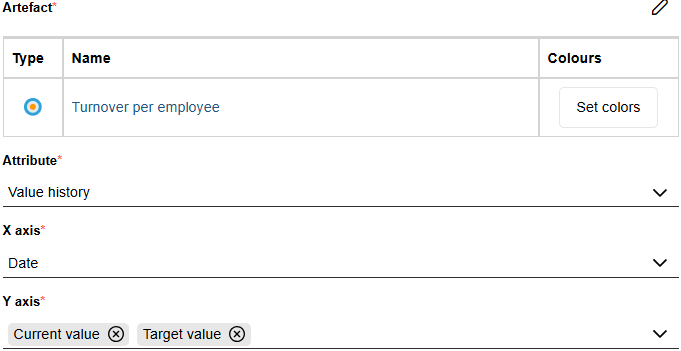
Si vous sélectionnez l’indicateur de performance « Turnover per employee » comme artefact, choisissez Historique des valeurs comme attribut, Date pour l’axe des abscisses, et à la fois Valeur actuelle et Valeur cible pour l’axe des ordonnées. Le graphique linéaire généré affichera deux lignes dans le temps : l’une représentant la valeur actuelle et l’autre la valeur cible de l’indicateur de performance.
Une fois toutes les options configurées, cliquez sur Enregistrer pour appliquer vos paramètres et ajouter le graphique linéaire au tableau de bord.
Configurer le widget Graphique circulaire
Le widget Graphique circulaire représente les données sous forme de secteurs proportionnels d’un cercle, ce qui vous permet de comparer des valeurs en tant que parties d’un ensemble. Chaque tranche correspond à une catégorie ou à un intervalle de valeurs numériques, et sa taille reflète le nombre d’entrées ou une valeur agrégée.
Après avoir ajouté le widget, configurez-le en utilisant les options suivantes (les champs obligatoires sont indiqués par un *) :
Titre* : Saisissez un titre pour le widget.
Description : Saisissez une courte description des informations affichées dans le graphique.
Requête* : Sélectionnez une requête pour définir le jeu de données du widget. Vous pouvez choisir entre :
Requêtes enregistrées : requêtes créées avec la fonction de recherche dans ADONIS. Cela inclut les requêtes privées que vous avez créées et les requêtes publiques.
Requêtes intégrées : requêtes prédéfinies fournies par ADONIS qui représentent des vues couramment utilisées sur des modèles et des objets.
La requête sélectionnée détermine quels éléments sont inclus dans le jeu de données.
*Groupe par** : Sélectionnez la propriété utilisée pour définir les secteurs du graphique circulaire. Vous pouvez choisir entre :
Attributs d'énumération ou des relations affichés comme colonnes dans les résultats de recherche.
Attributs numériques affichés comme colonnes dans les résultats de recherche. Lorsqu’un attribut numérique est sélectionné, le graphique circulaire regroupe les valeurs en intervalles numériques au lieu de les classer par catégories.
Selon la propriété que vous sélectionnez dans Groupe par, différentes options de configuration sont disponibles :
Options pour les attributs d’énumération ou les relations :
Valeur : Définit comment la taille de chaque secteur est calculé. Vous avez deux options principales :
Nombre de lignes de la requête (par défaut) : Chaque secteur représente le nombre d’entrées dans ce groupe.
Agrégation : Sélectionnez un attribut numérique parmi les résultats de recherche pour définir la Valeur. La taille de chaque secteur correspond à la valeur d’attribut agrégée. Choisissez la méthode d’agrégation Somme, Moyenne, Min ou Max.
Définir les couleurs : Choisissez les couleurs pour les secteurs. Vous pouvez les choisir à partir des cercles de couleur ou saisir directement des valeurs hexadécimales (par exemple :
#5cb85c).Trier par : Définissez comment les secteurs sont organisés. Les valeurs possibles sont Par défaut, Nom (ascendant)), Nom (descendant), Valeur (croissante) et Valeur (décroissante.
Options pour les attributs numériques :
Étiqueter les intervalles numériques : Cette section vous permet de définir comment les valeurs numériques sont regroupées en intervalles et affichées sous forme de secteurs du graphique circulaire :
Par défaut, deux intervalles sont définis. Vous pouvez ajouter des intervalles supplémentaires en cliquant sur + Ajouter un intervalle.
Chaque intervalle se compose d’une couleur, d’un label et d’une limite numérique :
Le premier intervalle (supérieur) définit une limite supérieure utilisant Jusqu’à , en définissant le secteur qui contient les éléments dont les valeurs sont inférieures ou égales à la limite spécifiée.
Le dernier intervalle (inférieur) définit une limite inférieure en utilisant À partir de, en définissant le secteur qui contient les éléments dont les valeurs sont supérieures ou égales à la limite spécifiée.
Tout intervalle supplémentaire ajouté entre le premier et le dernier utilise Jusqu’à pour définir leur limite supérieure.
Exemple : Visualiser la répartition des risques (relation)
Par exemple, vous pouvez créer un graphique circulaire basé sur une requête enregistrée pour les Risques, qui inclut la relation Responsable et l’attribut Valeur estimée du risque dans les colonnes. Lorsque vous sélectionnez Responsable sous Groupe par et Nombre de lignes de la requête sous Valeur, chaque secteur du graphique circulaire représente une personne responsable, et sa taille indique combien de risques chaque personne est responsable (par exemple, « Risque de Peter » 80, « Processus de Carol » 5).
Si vous choisissez plutôt la Valeur estimée du risque pour la Valeur et que vous définissez la méthode d’agrégation sur Moyenne, les secteurs représentent toujours les personnes responsables, mais leur taille correspond à la valeur moyenne du risque par personne (par exemple, « Risque de Peter » 40, « Processus de Carol » 120).
Une fois toutes les options configurées, cliquez sur Enregistrer pour appliquer vos paramètres et ajouter le graphique circulaire au tableau de bord.
Configurer le widget Éditeur tabulaire
Le widget Éditeur tabulaire affiche les données dans un format structuré et tabulaire. Chaque ligne représente un modèle ou un objet renvoyé par une requête, et chaque colonne correspond à une propriété incluse dans ce résultat de recherche.
Ce widget est idéal pour afficher en un coup d’œil des informations détaillées, telles que des listes de risques, de processus ou d'applications avec leurs principaux attributs, tels que le responsable, le statut ou la valeur.
Après avoir ajouté le widget, configurez-le en utilisant les options suivantes (les champs obligatoires sont indiqués par un *) :
Titre* : Saisissez un titre pour le widget.
Description : Saisissez une brève description du contenu affiché dans le tableau.
Requête* : Sélectionnez une requête pour définir le jeu de données du widget. Vous pouvez choisir entre :
Requêtes enregistrées : requêtes créées avec la fonction de recherche dans ADONIS. Cela inclut les requêtes privées que vous avez créées et les requêtes publiques.
Requêtes intégrées : requêtes prédéfinies fournies par ADONIS qui représentent des vues couramment utilisées sur des modèles et des objets.
La requête sélectionnée détermine quels éléments sont inclus dans le jeu de données.
Exemple : afficher une liste de documents
Par exemple, vous pouvez créer un widget de tableau basé sur une requête enregistrée pour les Documents qui inclut les propriétés Document référencé, Type de document et Auteur du document (Responsable) sous forme de colonnes. Chaque ligne du tableau représente un seul document, tandis que les colonnes affichent les valeurs correspondantes, ce qui vous permet de comparer et de consulter en un coup d’œil les informations clés relatives aux documents.

Une fois toutes les options configurées, cliquez sur Enregistrer pour appliquer vos paramètres et ajouter l'éditeur tabulaire au tableau de bord.
Configurer le widget Texte
Le widget Texte vous permet d’afficher d’afficher un contenu textuel personnalisé sur votre tableau de bord. Il peut être utilisé pour afficher des notes, des instructions ou des explications supplémentaires liées à d’autres widgets de tableau de bord.
Après avoir ajouté le widget, configurez-le en utilisant les options suivantes (les champs obligatoires sont indiqués par un *) :
Titre* : Saisissez un titre pour le widget.
Description : indiquez brièvement ce que représente le texte ou son objectif.
Texte* : Saisissez le contenu du texte à afficher. Vous pouvez mettre en forme le texte en modifiant la famille et la taille de la police, la couleur du texte, ou en appliquant des styles tels que le gras, l’italique, etc.
Exemple : Expliquez un widget graphique
Vous pouvez utiliser un widget texte pour fournir un contexte ou une explication à un graphique proche. Par exemple, placez un widget texte à côté d’un graphique circulaire affichant la répartition des risques, et ajoutez une courte note expliquant comment interpréter les secteurs de graphique, ce que chaque catégorie représente, ou les principaux éléments à retenir pour les utilisateurs.
Une fois toutes les options configurées, cliquez sur Enregistrer pour appliquer vos paramètres et ajouter le widget texte au tableau de bord.
Configurer le widget Image
Le widget Image vous permet d’afficher une image sur votre tableau de bord. Ce widget est utile pour afficher des logos, des illustrations ou tout autre contenu visuel permettant d’enrichir le contexte des autres widgets du tableau de bord.
Après avoir ajouté le widget, configurez-le en utilisant les options suivantes (les champs obligatoires sont indiqués par un *) :
Titre* : Saisissez un titre pour le widget.
Description : indiquez brièvement l’objectif de l’image ou le contexte dans lequel elle est utilisée.
Image* : Cliquez sur + Choisir, puis sélectionnez l’image que vous souhaitez importer. Vous pouvez également faire glisser un fichier depuis votre ordinateur vers la zone Glissez-déposez les fichiers ici pour les télécharger.
Exemple : afficher un logo
Par exemple, vous pouvez ajouter le logo de votre entreprise sous forme de widget image en haut de votre tableau de bord afin d’y intégrer votre identité visuelle.
Une fois toutes les options configurées, cliquez sur Enregistrer pour appliquer vos paramètres et ajouter l’image au tableau de bord.
Configurer le widget Numéro
Le widget Nombre met en évidence une seule valeur numérique sur votre tableau de bord. Il est idéal pour afficher des chiffres clés tels que le nombre de processus, d’applications ou de risques correspondant à une requête.
Après avoir ajouté le widget, configurez-le en utilisant les options suivantes (les champs obligatoires sont indiqués par un *) :
Titre* : Saisissez un titre pour le widget.
Description : indiquez brièvement ce que le widget affiche.
Requête* : Sélectionnez une requête pour définir le jeu de données du widget. Vous pouvez choisir entre :
Requêtes enregistrées : requêtes créées avec la fonction de recherche dans ADONIS. Cela inclut les requêtes privées que vous avez créées et les requêtes publiques.
Requêtes intégrées : requêtes prédéfinies fournies par ADONIS qui représentent des vues couramment utilisées sur des modèles et des objets.
La requête sélectionnée détermine quels éléments sont inclus dans le jeu de données.
Valeur : Définit ce que le widget affiche. Vous avez deux options principales :
Nombre de lignes de la requête (par défaut) : Le widget affiche le nombre total de résultats de recherche.
Agrégation : Choisissez un attribut numérique dans le résultat de recherche pour afficher une valeur agrégée (par exemple, le coût total ou moyen). Choisissez la méthode d’agrégation Somme, Moy, Min, ou Max.
Définir les couleurs : Définissez la couleur dans laquelle le numéro est affiché. Vous pouvez entrer une valeur hexadécimale (par exemple :
#007bff).
Exemple : Afficher le nombre total de processus en statut brouillon
Par exemple, vous pouvez créer un widget Nombre à partir d’une requête enregistrée sur les
Processus avec la condition de filtrage Statut = Brouillon. Le widget affiche alors le nombre
total de versions brouillons des processus. Pour mieux le faire ressortir visuellement, vous pouvez
afficher la couleur du nombre en vert (#5cb85c).
Une fois toutes les options configurées, cliquez sur Enregistrer pour appliquer vos paramètres et ajouter le widget Nombre au tableau de bord.
Utiliser le widget Nouveautés BOC Group
Le widget Nouveautés BOC Group fournit une vue détaillée des modifications les plus récentes apportées aux modèles et aux objets de la base de données, sous forme de tableau. Il vous permet de rester informé des contenus créés, mis à jour ou publiés.
Après avoir ajouté le widget, configurez-le en utilisant les options suivantes (les champs obligatoires sont indiqués par un *) :
Titre* : Saisissez un titre pour le widget.
Description : Décrivez brièvement le contenu affiché dans ce widget Nouveautés BOC Group.
Afficher uniquement les changements depuis la dernière connexion : Activez cette option afficher uniquement les modifications survenues depuis votre dernière connexion..
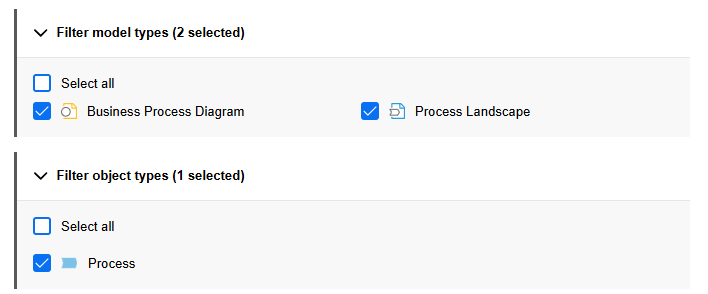
Filtrer les types de modèles : Développez cette section pour restreindre les nouveautés affichées dans des types de modèles spécifiques. Sélectionnez un ou plusieurs types de modèles.
Filtrer les types d’objets : Développez cette section pour restreindre les nouveautés affichées dans des types d’objets spécifiques. Sélectionnez un ou plusieurs types d’objets.
Exemple : Afficher une liste du contenu du circuit de validation des modèles
Par exemple, vous pouvez créer un widget Nouveautés de BOC Group qui affiche des informations sur
les modèles et objets affectés par le circuit de validation des modèles. Sélectionnez le
 Diagramme de collaboration et la
 Carte des processus sous
Filtrer les types de modèles et
Carte des processus sous
Filtrer les types de modèles et  Processus sous Filtrer les types d’objets. Chaque ligne du tableau représente un seul artefact,
tandis que les colonnes indiquent la date de la dernière modification et le type d’action effectuée.
Processus sous Filtrer les types d’objets. Chaque ligne du tableau représente un seul artefact,
tandis que les colonnes indiquent la date de la dernière modification et le type d’action effectuée.
Une fois toutes les options configurées, cliquez sur Enregistrer pour appliquer vos paramètres et ajouter le widget Nouveautés BOC Group au tableau de bord.
Utilisez des widgets de vue d’ensemble personnelle
ADONIS propose plusieurs widgets de vue d’ensemble personnelle, prêts à l'emploi pour fournir des analyses spécifiques à chaque rôle. Ces widgets remplacent les tableaux de bord personnels disponibles dans les versions précédentes de ADONIS et sont entièrement intégrés dans des tableaux de bord configurables.
Les widgets de vue d’ensemble sont basés sur des jeux de données prédéfinis. Bien que leurs options de configuration soient limitées, ils offrent un accès rapide et cohérent à des informations directement pertinentes pour vos rôles et responsabilités.
Mes Processus
Le widget Mes Processus offre un aperçu détaillé des processus qui vous concernent. Il liste les Diagrammes de collaboration, les Cartes des processus et les objets Processus pour lesquels vous êtes assigné en tant que Pilote du processus, Administrateur du processus, Responsable pour la révision formelle ou Expert métier (propriétés dans le chapitre « Responsabilités »).
Le widget vous permet de filtrer les processus listés par responsabilité, vous aidant ainsi à vous concentrer rapidement sur les domaines où vous êtes impliqué.
En termes de configuration, seuls le titre et la description du widget peuvent être adaptés.
Mes indicateurs de performance
Le widget Mes indicateurs de performance offre un aperçu détaillé des indicateurs de performance qui vous concernent.
Il liste les indicateurs clés de performance issus des Diagrammes de collaboration et des Cartes des Processus où vous êtes assigné en tant que Pilote du processus, Administrateur du Processus, Responsable pour la révision formelle ou Expert métier, ainsi que les indicateurs clés de performance pour lesquels vous êtes directement assigné en tant que Responsable (propriétés dans le chapitre « Responsabilités »).
Le widget peut être filtré pour se concentrer sur des domaines de responsabilité spécifiques, vous permettant de surveiller et d’évaluer les indicateurs clés de performance qui comptent le plus pour votre rôle.
En termes de configuration, seuls le titre et la description du widget peuvent être adaptés.
Mes Objets
Le widget Mes objets offre un aperçu ciblé de tous les objets du référentiel pour lesquels vous êtes assigné en tant que Responsable (propriété dans le chapitre « Responsabilités »).
En termes de configuration, vous ne pouvez adapter que le titre et la description du widget et restreindre les types d’objets affichés sous Filtrer les types d’objets (par défaut : tous).
Utiliser les requêtes intégrées
En plus des requêtes enregistrées depuis la fonction de recherche dans ADONIS, des widgets basés sur une requête de recherche (par exemple, Graphique à barres, Graphique circulaire, Tableau ou Nombre) peuvent également être configurés à l’aide de requêtes intégrées.
Les requêtes intégrées sont des ensembles de données prédéfinis qui fournissent des vues couramment utilisées sur des modèles et des objets. Elles sont disponibles dans le sélecteur de Requête lors de la configuration d’un widget.
Lorsque vous sélectionnez une requête intégrée, certaines options de configuration de widgets sont prédéfinies et ne peuvent donc pas être modifiées. Selon le type de widget, des options telles que Groupe par, Valeur ou Agrégation peuvent être désactivées.
Cela garantit que le widget présente les données de manière cohérente et pertinente, en fonction de la requête intégrée sélectionnée.
Les requêtes intégrées suivantes sont disponibles pour des tableaux de bord configurables :
Mes Objets
Cette requête intégrée offre un aperçu rapide de vos objets. Elle répertorie tous les objets du référentiel pour lesquels vous êtes assigné en tant que Responsable (propriété dans le chapitre « Responsabilités »).
Cette requête est uniquement disponible pour les widgets Tableau et Nombre.
Mes Contrôles
Cette requête intégrée offre un aperçu rapide de vos Contrôles. Elle répertorie tous les Contrôles pour lesquels vous êtes assigné en tant que Responsable (propriété dans le chapitre « Responsabilités »).
Les widgets Graphique à barres regroupent les Contrôles selon la Fréquence d’exécution du contrôle, tandis que les widgets Graphique circulaire les regroupent selon la Méthode de contrôle (propriétés dans le chapitre « Informations générales »).
Mes Initiatives
Cette requête intégrée offre un aperçu rapide de vos Initiatives. Elle répertorie toutes les Initiatives pour lesquelles vous êtes assigné en tant que Responsable (propriété dans le chapitre « Responsabilités »).
Les widgets Graphique à barres regroupent les Initiatives selon leur Statut, tandis que les widgets Graphique circulaire les regroupent selon leur Progrès (automatique) (propriétés dans le chapitre « Contrôles »).
Mes indicateurs de performance
Cette requête intégrée offre un aperçu rapide de vos Indicateurs de performance. Les filtres suivants sont disponibles:
Mes répertorie tous les Indicateurs de performance pour lesquels vous êtes assigné comme Responsable (propriété dans le chapitre « Responsabilités »).
Le widget Dans mes processus répertorie tous les Indicateurs de performance dans les Diagrammes de collaboration et les Cartes des processus :
- Pour lesquels vous êtes assigné en tant que Pilote du processus, Administrateur du processus, Responsable pour la révision formelle ou Expert métier (propriétés dans le chapitre « Responsabilités »).
Mes & Dans mes processus combine les deux options.
Les widgets Graphique à barres et Graphique circulaire regroupent les Indicateurs de performance selon leur Statut (propriété dans le chapitre « Détails »).
Mes Processus
Cette requête intégrée offre un aperçu rapide de vos processus. Elle répertorie tous les modèles Diagrammes de collaboration, Cartes de processus et tous les objets de Processus dont vous êtes responsable, en fonction des rôles qui vous sont assignés. Les filtres suivants sont disponibles:
Tous est le filtre par défaut. Il répertorie tous les Diagrammes de collaboration, Cartes des processus et les objets Processus :
- Pour lesquels vous êtes assigné en tant que Pilote du processus, Administrateur du processus, Responsable pour la révision formelle ou Expert métier (propriétés dans le chapitre « Responsabilités »).
Vous pouvez vous concentrer sur l’une de ces propriétés en utilisant les filtres Pilote du processus, Administrateur de processus, Responsable pour la révision formelle et Expert métier.
Les widgets Graphique à barres et Graphique circulaire regroupent les processus selon leur Statut (propriété dans le chapitre « Cycle de vie »).
Mes Risques
Cette requête intégrée offre un aperçu rapide de vos Risques. Elle répertorie tous les Risques pour lesquels vous êtes assigné en tant que Responsable (propriété dans le chapitre « Responsabilités »).
Les widgets Graphique à barres et Graphique circulaire regroupent les Risques selon leur Probabilité, chaque groupe affichant la Valeur estimée du risque pour tous les Risques qu’il contient (propriétés du chapitre « Évaluation des risques »).
Les widgets Nombre affichent la Valeur estimée du risque pour tous les Risques.
Gérer les tableaux de bord
Les tableaux de bord configurables peuvent être modifiés, supprimés, partagés, et plus encore.
Actualiser le tableau de bord
Pour mettre à jour un tableau de bord afin que tous les widgets affichent les dernières données :
- Cliquez sur
 Plus en haut à
droite du tableau de bord, puis sélectionnez Actualiser.
Plus en haut à
droite du tableau de bord, puis sélectionnez Actualiser.
Éditer le tableau de bord
Pour éditer un tableau de bord existant :
La page des tableaux de bord: Cliquez sur
Plus sur la
vignette du tableau de bord, puis sélectionnez Configurer. Cela ouvre le tableau de bord en
mode édition.Au sein d’un tableau de bord ouvert: Cliquez sur Configurer en haut à gauche du tableau de bord pour activer le mode édition.
Une fois en mode édition, les options suivantes sont disponibles :
Renommer le tableau de bord : Cliquez sur l’icône au crayon à côté du nom du tableau de bord pour l’éditer.
Configurer les widgets :
Ajouter, repositionner et redimensionner des widgets : Faites glisser les widgets depuis la bibliothèque de widgets vers le tableau de bord, déplacez-les à l’aide de la poignée de déplacement
située en haut
à gauche, puis redimensionnez-les à l’aide de la poignée
située en bas à droite.Éditer le widget : En haut à droite du widget, cliquez sur
Plus, puis sélectionnez
Configurer pour modifier
la configuration du widget.
RemarqueConsultez la section Créer et configurer un tableau de bord pour plus d’informations sur la configuration des widgets.
Supprimer le widget : En haut à droite du widget, cliquez sur
Plus, puis sélectionnez
Supprimer pour le supprimer du tableau de bord.
Après avoir effectué vos modifications, cliquez sur Enregistrer pour mettre à jour le tableau de bord.
Cloner le tableau de bord
Vous pouvez créer une copie d’un tableau de bord existant et l’utiliser comme point de départ pour en créer un nouveau :
- La page des tableaux de bord: Cliquez sur Plus sur la
vignette du tableau de bord, puis sélectionnez Cloner.
Un nouveau tableau de bord nommé Copie de < Nom du tableau de bord> est créé.
Supprimer le tableau de bord
Pour supprimer un tableau de bord qui n’est plus nécessaire :
La page des tableaux de bord: Cliquez sur
Plus sur la
vignette du tableau de bord, puis sélectionnez Supprimer.Au sein d’un tableau de bord ouvert: Cliquez sur
Plus en haut à
droite du tableau de bord, puis sélectionnez Supprimer.
Gérer les favoris pour les tableaux de bord
Pour ajouter des tableaux de bord aux favoris ou les supprimer :
La page des tableaux de bord: Cliquez sur
Plus sur la
vignette du tableau de bord, puis sélectionnez Ajouter aux favoris ou Supprimer des favoris.Au sein d’un tableau de bord ouvert: Cliquez sur Ajouter aux favoris
 ou Supprimer des favoris
 à côté du nom du tableau de
bord.
à côté du nom du tableau de
bord.
Partager le tableau de bord
Vous pouvez générer une URL pour un tableau de bord. De cette façon, vous pouvez par exemple la partager facilement avec vos collègues par e-mail.
Pour générer une URL:
La page des tableaux de bord: Cliquez sur
Plus sur la
vignette du tableau de bord, puis sélectionnez Partager.Au sein d’un tableau de bord ouvert: Cliquez sur
Plus en haut à
droite du tableau de bord, puis sélectionnez Partager.
Maintenant, procédez comme suit :
Partagez l’URL par e-mail. Dans le champ Ajouter des personnes, commencez à taper le nom d'un utilisateur ou l’adresse e-mail d’un utilisateur, puis sélectionnez celui que vous voulez lorsque vous le voyez. Si le destinataire n’est pas un utilisateur ou n’a pas d’adresse e-mail associée, vous devez saisir l’adresse e-mail complète. Ajoutez des destinataires supplémentaires si nécessaire. Dans le champ Inclure un message, vous pouvez ajouter un message personnel si vous le souhaitez. Lorsque vous avez terminé, cliquez sur Partager et le message sera envoyé.
Collez l’URL là où vous en avez besoin. Cliquez sur Copier pour copier directement l’URL dans le Presse-papiers ou copiez l’URL manuellement depuis le champ Copier le lien.
Filtrer les tableaux de bord
Vous pouvez filtrer les tableaux de bord affichés sur la page Tableaux de bord en sélectionnant une option en haut de la page :
Tous (par défaut) : Affiche tous les tableaux de bord.
Créé par moi-même : Affiche uniquement les tableaux de bord que vous avez créés.
Favoris : Affiche uniquement vos tableaux de bord préférés.
Rechercher des tableaux de bord
Pour rechercher un tableau de bord sur la page Tableaux de bord :
- Dans le champ Rechercher, saisissez le texte souhaité.
Tous les tableaux de bord dont le nom contient le terme recherché sont affichés.
Gérer l’emplacement d’enregistrement et les autorisations
Les tableaux de bord sont des objets du référentiel et peuvent être gérés comme d’autres objets dans ADONIS :
Les nouveaux tableaux de bord sont enregistrés dans votre dossier d’objets personnels (
Objets Personnels\<nom d’utilisateur>\Tableaux de bord).Les tableaux de bord peuvent être déplacés vers un autre groupe d’objets afin de modifier leur emplacement d’enregistrement.
Les administrateurs ADONIS peuvent attribuer des autorisations au niveau du groupe d’objets ou de chaque tableau de bord afin de contrôler qui peut consulter ou modifier les tableaux de bord.
Afficher les données du widget
Vous pouvez explorer et exploiter les données affichées dans les widgets. Les actions disponibles dépendent du type de widget.
Ouvrir la requête enregistrée
Pour les widgets basés sur une requête enregistrée (par exemple, Graphique à barres, Graphique circulaire, Éditeur tabulaire ou Nombre), vous pouvez ouvrir la requête sous-jacente pour visualiser ou affiner le jeu de données :
- En haut à droite du widget, cliquez sur
Plus, puis sélectionnez
Ouvrir la requête enregistrée.
La requête enregistrée correspondante s’ouvre dans une nouvelle fenêtre, vous permettant de la consulter et, si vous en êtes le créateur, de la modifier.
Ouvrir les propriétés
Pour les widgets basés sur des données d’un modèle ou d’un objet (par exemple, un Graphique linéaire ou un Tableau de jauge), vous pouvez ouvrir les propriétés de l’artefact associé.
- En haut à droite du widget, cliquez sur
Plus, puis sélectionnez
Ouvrir.
Les propriétés de l’artefact s’ouvrent dans une nouvelle fenêtre.
Interagir avec les graphiques
Les graphiques sont interactifs, vous permettant d’explorer directement les données sous-jacentes depuis le tableau de bord.
Graphiques à barres : Cliquez sur une barre pour ouvrir une vue tabulaire affichant tous les éléments de cette catégorie.
Graphiques circulaires : Cliquez sur une portion pour ouvrir une vue tabulaire affichant tous les éléments de cette catégorie. Vous pouvez également cliquer sur un nom dans la légende pour activer ou désactiver une portion, en la supprimant ou en la réaffichant dans le graphique.
Graphiques linéaires : Cliquez sur un point de données sur une ligne pour ouvrir une vue tabulaire affichant l'artefact dont les données sont représentées par la ligne.
Rechercher, filtrer et configurer les colonnes dans l'éditeur tabulaire
Les widgets qui affichent les données sous forme de tableau, comme les widgets Éditeur tabulaire et Nouveautés BOC Group, proposent plusieurs outils vous permettant de rechercher, filtrer et organiser les données plus efficacement.
Utiliser les filtres de l'éditeur tabulaire
Vous pouvez réduire les lignes affichées dans les widgets qui présentent leurs données sous forme de tableau en utilisant les filtres sur les colonnes.
Cliquez sur l’icône du filtre
 dans l'en-tête d'une colonne pour commencer à créer votre filtre.
Selon le type de données dans la colonne, sélectionnez les options de filtre disponibles (par exemple, si toutes les règles ou au moins une des règles doivent être respectées).
Pour créer une règle, choisissez un opérateur tel que Commence par, Contient ou Égal. Ensuite, saisissez ou sélectionnez la valeur à filtrer.
En option, cliquez sur Ajouter une règle pour inclure des conditions de filtrage supplémentaires.
Cliquez sur Appliquer pour confirmer vos paramètres de filtrage.
Les options de filtrage disponibles dépendent du type de données affichées dans une colonne, par exemple le texte, les valeurs sélectionnables ou les dates. La boîte de dialogue du filtre s'adapte en conséquence.
Rechercher
Pour rechercher un tableau :
- Dans le champ Rechercher, saisissez le texte souhaité.
Au fur et à mesure que vous écrivez, le tableau est filtré pour n’afficher que les lignes où apparaît le terme recherché.
Afficher ou masquer les colonnes
Pour changer quelles colonnes sont affichées dans un tableau :
- En haut à droite du widget, cliquez sur
Plus, sélectionnez
Sélectionner des colonnes..., puis choisissez les colonnes que vous souhaitez.
Regrouper les entrées du tableau par type
Pour regrouper les éléments listés dans un tableau par modèle ou type d’objet :
- En haut à droite du widget, cliquez sur
Plus, puis sélectionnez
Grouper par type.